
Blog
The QuickBooks Enterprise Diamond is a version of the QuickBooks Enterprise desktop, a multi-user financing, and accounting software that offers maximum features and functions, allowing you to manage your business books efficiently. Here is what you should know about QuickBooks Enterprise Diamond:
What’s New in QuickBooks Enterprise Diamond
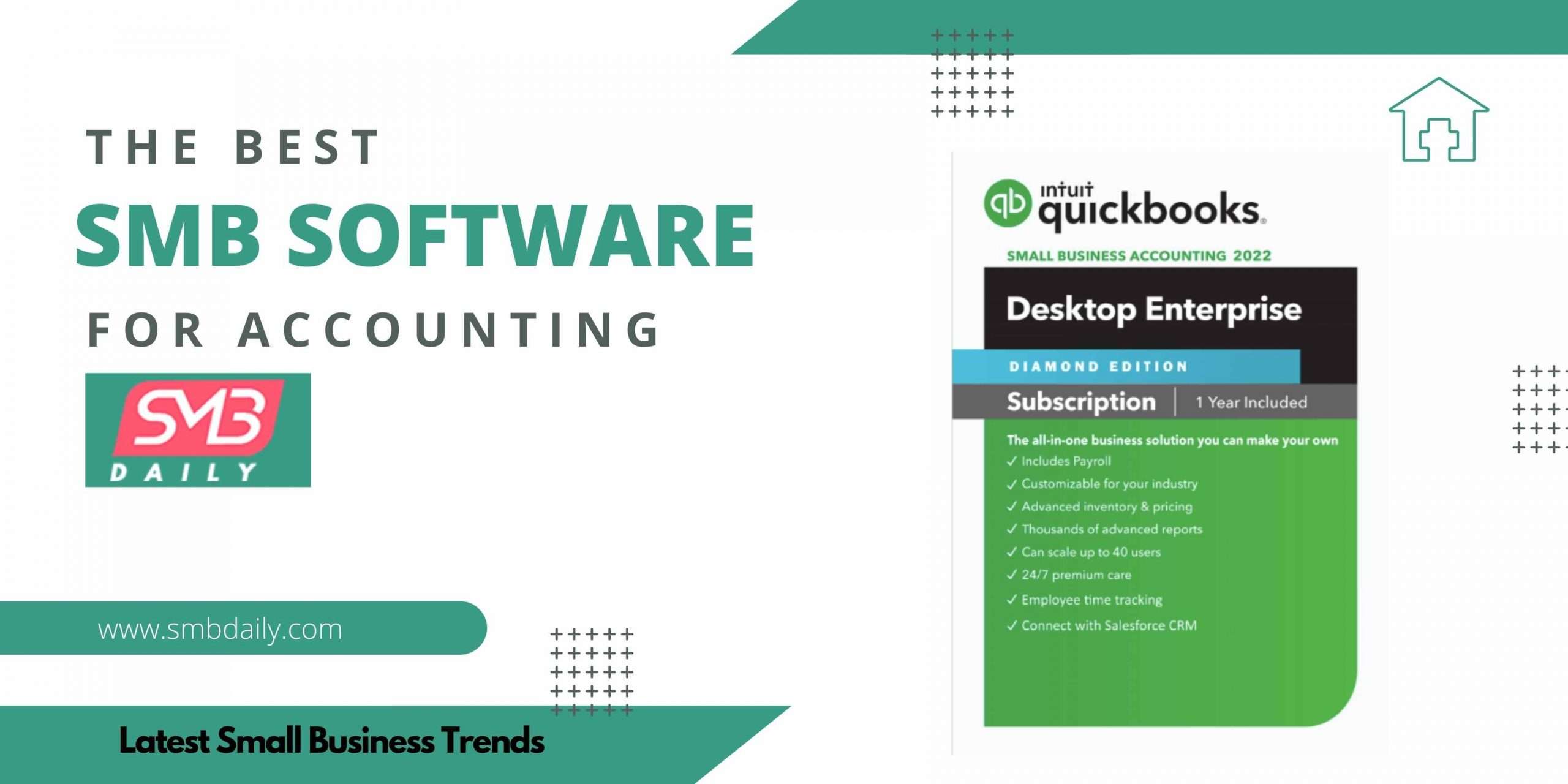
There are three special features that have been added to the list of QuickBooks Enterprise Diamond that are:
Cloud Access
Cloud Hosting allows users to work from remote locations, thereby boosting productivity. Your data will now be stored safely with a backup while giving you access through any safe device from anywhere, anytime.
Bill and PO Workflow Approvals
A single dashboard allows the users to oversee, maintain and track bills that require approvals. The cash flow of your business will now be transparent and easily manageable. It offers customizable bill and PO workflow approvals.
E-Commerce Integration
Another new feature streamlines e-commerce management. QuickBooks can now be integrated with marketplaces and online stores, allowing you to have an updated inventory as the system auto-updates itself with every sale made. Users can also add products across several channels.
Subscription Plans & Number of Users
Intuit offers the QuickBooks Enterprise Diamond for $4200/year. However, this amount varies depending on the number of users. Along with this plan offers its users to opt for QuickBooks Cloud Hosting Plans that begin at $404/month, assisted payroll @ $2 per employee, and QuickBooks Time Elite for $10 per employee. Intuit often has interesting discounts on their plans allowing you to save up to 40%.
Why QuickBooks Enterprise Diamond for Business?
QuickBooks Enterprise Diamond has been enhanced with additional customizable features that give you access to tools that allow easy management of finance and accounts of your business. From inventory to customer information and from vendors to pricing, this software facilitates quicker workflow allowing you to make intelligent business decisions that lead to the growth and development of your business.
Some More Features
Assisted Payroll
Assisted Payroll feature in this software package gives the employer the option to their employees with next-day direct deposit, printed checks, or both. It also takes into consideration of tax filings and year-end reporting. QuickBooks takes responsibility for any late filings.
Advanced Pricing
This feature allows you to tailor the prices for a specific customer by adding pricing rules depending on items, quantity, customer, date, and sales representative. Manufacturer markdowns, quantity discounts, and promotions can also be set up quickly. The software automatically tracks sales taxes on taxable goods you sell.
Industry-Specific
Professional Services, Construction & Contractors, Retail & Commerce, Manufacturing & Wholesale, and Non-Profit are the five standard business editions available in this software; you can simply select your industry when installing to use the industry-specific features.
QuickBooks Time Elite
This software includes the QuickBooks Time Elite software, which allows your employees to enter their working hours with the help of the QuickBooks mobile app remotely.
QuickBooks Priority Circle
The QuickBooks Enterprise Diamond users automatically become VIP customers who are allotted a dedicated customer support team to guide them and answer any questions about the software. Users can also avail the QuickBooks Enterprise support services and help from any source.
System and Software Requirements
System Requirement
- Windows 8.1 or Windows 10 update/version with Microsoft support
- Windows Server 2012 (or R2), 2016, or 2019
- 8 GB of RAM for 64-bit applications and a 2.4 GHz processor
- Recommended 2.5 GB disk space plus extra space for data files
- 4x DVD-ROM drive – not required if the user is downloading from Intuit server
- Stable internet connection
- To use the QuickBooks Desktop Application, you should have an active Enterprise subscription, which should be installed on a device having a camera that is iOS 12 or Android 5.0 and above.
Integration with other software
- Microsoft Word and Excel integration needs Office 2013-2019, or Microsoft 365 (32 and 64-bit)
- Microsoft Outlook with Office 365; Invoices, e-mail Estimates, and other forms with Microsoft Outlook 2013-2019; Gmail and Outlook.com along with other SMTP-supporting e-mail clients. Integration with QuickBooks POS 19.0.
- QuickBooks Mac/Plus 2016-2023, Microsoft 365 (32 or 64-bit), transfer data from Quicken 2016-2021, and Microsoft Excel 2013-2019.
FAQ
What is the Salesforce CRM Connector?
The Salesforce CRM Connector can be integrated with QuickBooks to get a detailed view of how your business performance. It allows you to share data between your accounting and sales teams – like invoices, expenses, sales orders, etc. This helps in generating a better insight into your business. It is not included in the QuickBooks Enterprise Diamond package but can be added at the cost of $150/month.
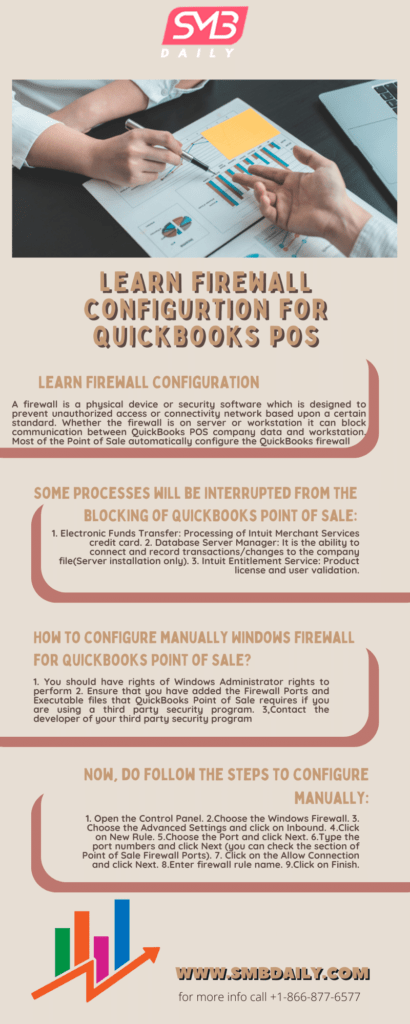
In this infographic article, we will talk about firewall configuration for QuickBooks Point of Sale desktop users. If you are attempting to configure the firewall for your POS use the steps in the infographic or in this article below.
A firewall is a security device on the network that manages incoming and outgoing traffic according to the rules set by the user or at default it controls the connection security between private and public web.
Types of Firewall Security Methods
There are three types of firewall security methods used in 2023
- Hardware Firewalls
- Software Firewalls
- Cloud Firewalls
Usually, hardware-based firewall security is used by users of QuickBooks Point of Sale. It monitors and controls the connection between QuickBooks POS Company File & QuickBooks Desktop Company File data.
In some scenarios, users are required to manually configure the firewall settings according to their requirements. The steps to configure firewall settings in QuickBooks Point of Sale are mentioned in the infographic as well as detailed instructions in the article.
Download & Install QuickBooks Tool Hub
Download & Install QuickBooks Tool Hub to automatically resolve firewall problems on QuickBooks desktop by using the QuickBooks file doctor feature.
- Download, Install the Tool Hub from the website
- Click on the tool hub icon
- Select company file issues
- Choose to run QuickBooks File Doctor utility
- Browse and search the company file in the drop-down menu of the file doctor tool
- Ensure to check the option check your file and network
- Click on continue, you will be asked to enter the admin login details for QuickBooks
- Click on next and let the tool scan your file and remove any firewall problems
Configure Firewall for QuickBooks POS Manually
If you are using any software-based firewall or cloud-based firewall contact your software provider or the cloud hosting provider. For Windows Firewall configuration here are the steps to do it manually.
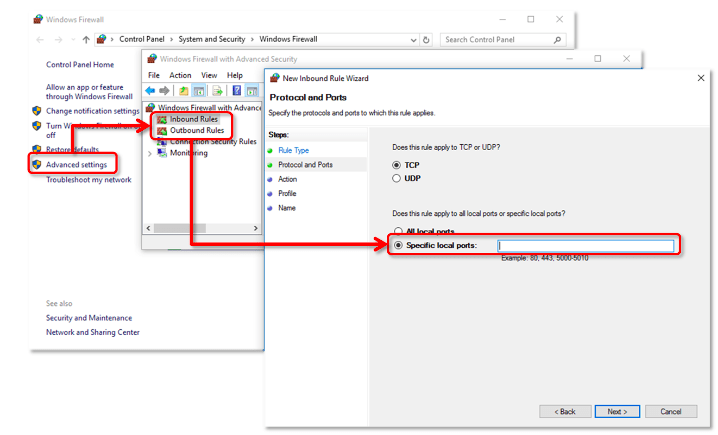
- Go to the start menu on your Windows or Windows+R key to run commands in older versions of Windows
- Type Windows Firewall Setting on the search bar
- Open the Windows Firewall Settings utility
- You can also navigate to the firewall settings option from the control panel
- Choose the advanced settings tab in the firewall settings
- Right-click on the option that says the inbound rule
- Then Click on New Rule
- Click on Program and then choose the next option to choose the program path and then browse to find and select the executable file of the program you want to configure the firewall
- Click on Allow the connection and then choose the next option
- Check all the options if prompted and then choose the next option to save the name for the rule, then choose the finish option to complete the process
- Repeat the same steps for the outbound rule option that you saw after clicking on the advanced settings tab
Add QuickBooks Port Exceptions
If you are still unable to communicate or resolve the error on the network. Add port exceptions for the executable files. The default port number for the QuickBooks desktop versions above 2020 is 8019.
Ensure the TCP option is checked and enabled when entering the port number.
Note:- You can also use QuickBooks POS Connectivity Tool to resolve the connection issues in Point of Sale Desktop.
Restart the System After the Configuration
Restart and close all the windows running in the background to apply the firewall configuration changes to your system.
Contact Us
Contact our certified QuickBooks POS Support technicians to help you configure your firewall for QuickBooks Point of Sale and Desktop Pro, Premier & Enterprise.
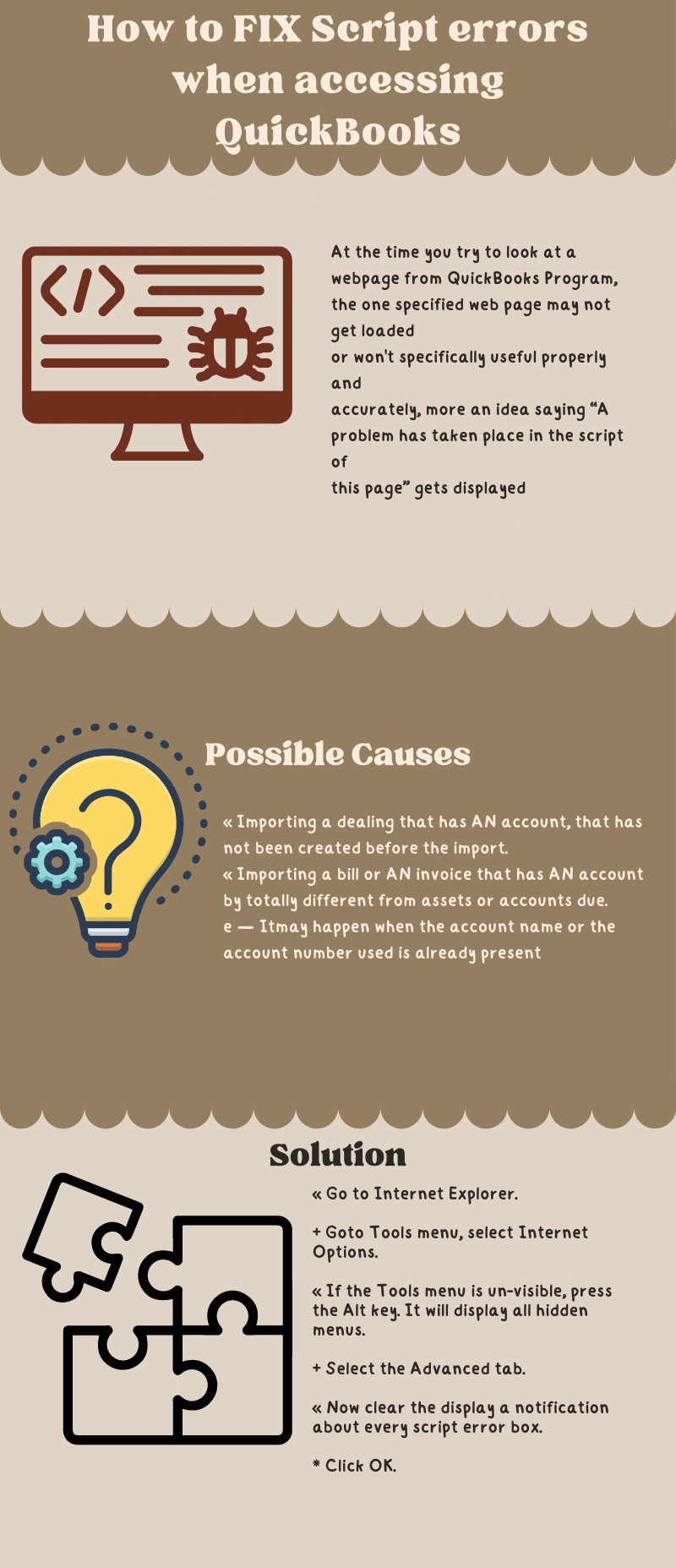
Causes of Script Error
Here are various reasons that cause QuickBooks Script Error
- Script processing functions are disabled/blocked
- Malware/Spyware or infection in your system
- Any changes made to the system prior to the occurrence of the script error
- Getting intermittent script errors with one website
- Script plugin or software is damaged i.e. JAVA, ADOBE FLASH, etc
- The download data from the web source is incompatible with the script software format
- Default browser’s cache folder is full or corrupted
- Active X components damaged or missing
- Script debugging feature is enabled
- A firewall or third-party application is blocking the script function
- QuickBooks data file is damaged
- Windows user is corrupted or damaged
QuickBooks Conversion tool converts data into an upgraded version or a different version of QuickBooks. Here is the Standard Working of QuickBooks conversion tool for desktop versions.
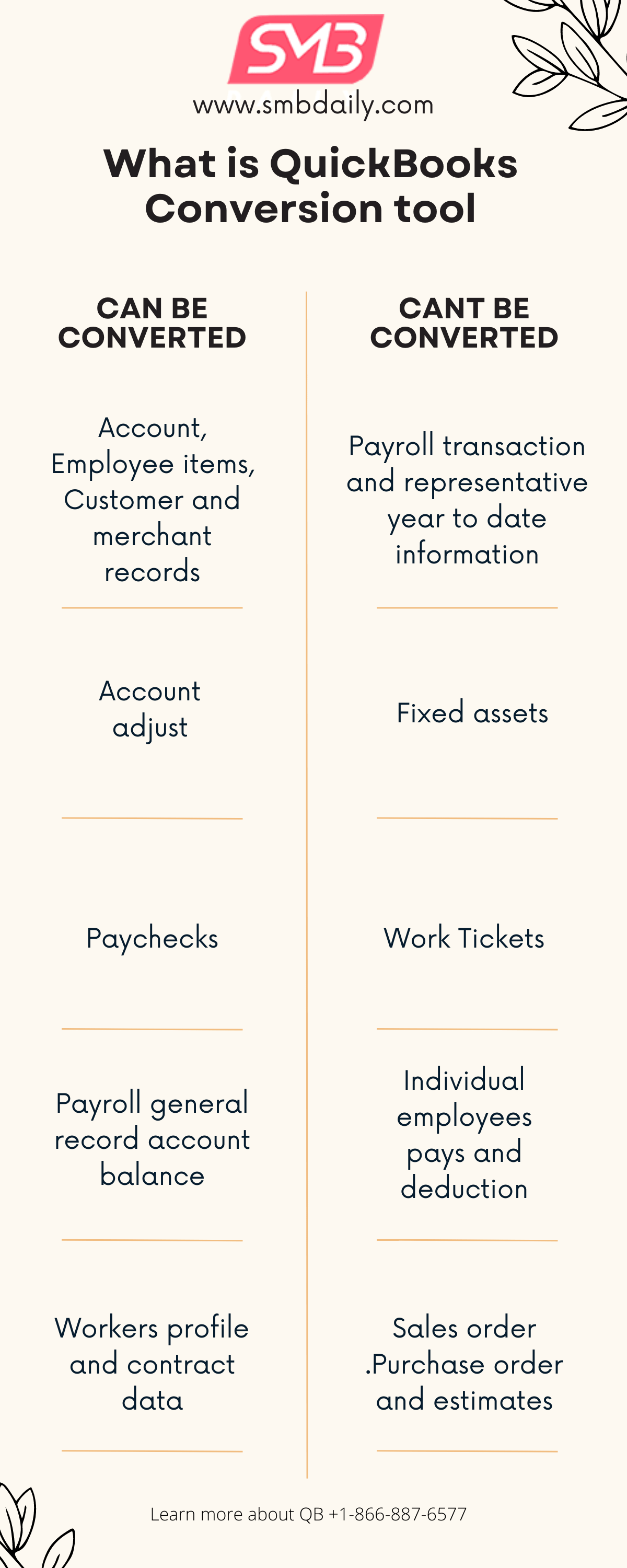
- This Conversion tool will import your data from the old QuickBooks company file to the new company file
- Your data will be completely secured when the conversion process will undergo
- It will show the current status of your business
- It will help you to arrange the conversations of converting the QuickBooks file.
- While you will undergo the conversion process, it will create a log file to keep the record.
- It will allow you to list apart from balance and authentic exchange.
- It will not make any changes to the data of your current company file.
- It will give you the choice of import list and you can list plus/minus balances as well as historical transactions at once.
QuickBooks Error H202, H101, H303 or H505
The most popular series of QuickBooks errors if you are a QuickBooks multi-user customer. QuickBooks Error h202 is one of the most encountered ones. QuickBooks is showing an error H101, H202, H303, or H505: when Users are trying to open a company file in the Multi-users file. 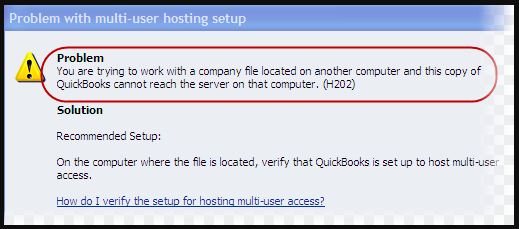
Why QuickBooks Error H202 occurs:
There are various issues that can cause this error.
- When the settings of the hosting configuration are incorrect.
- When QuickBooks Firewall is blocking the communication to the company file.
- When.ND file is incorrect or damaged.
- When the QuickBooks Database server manager is using a different IP address.
- When the settings of DNS are incorrect.
- When QuickBooks services are not running.
How to Fix QuickBooks Error H202:
Solution 1 – Download & Use QuickBooks File Doctor
To fix QuickBooks Error H202 download the QuickBooks File Doctor and run it. QuickBooks file doctor will automatically remove the H-series and Multi-users errors. Solution 2 –
- Open QuickBooks and Select Files Utilities.
- If you find Host Multi-users Access, this means the computer is not hosting the company file, and users can go to the next computer.
- Note: DO NOT CHANGE ANYTHING IN HOST MULTI-USER ACCESS.
- Select the Stop Hosting Multi-User Access.
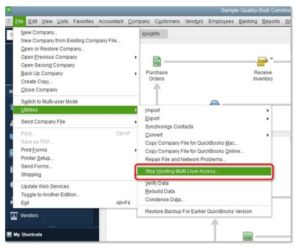
- Confirm it with Yes.
- In the window of the Company, the file must be closed, select yes.
- Repeat the last three options on each computer.
Verify QuickBooks Services:
- Confirm that QuickBooks DBXX (XX represents the year of QuickBooks) and the services of QuickBooks Monitor Services have started.
- Press Window Button
- Open run by clicking Win + R key.
- Write MSC and enter.
- Find QuickBooksDBXX services.
- Double press on QuickBooksDBXX and confirm that startup is on Automatic and it has started.
- Select the Stop Hosting Multi-User Access.
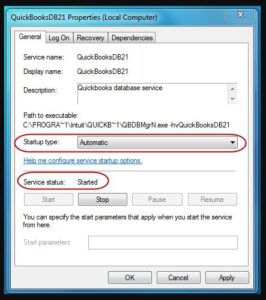
- Go to the Recovery Tab.
- Click on the Dropdown of First Failure and choose to Restart the Service option. It will automatically restart the service of QuickBooksDB.
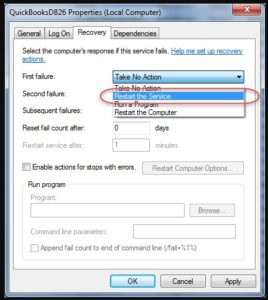
- Click on Apply and select Ok.
- Repeat the above 1 to 6 steps for QuickBooks Monitor Services also.
- Open each affected workstation of QuickBooks Multi-user mode. If the issue occurs, make sure the service of QuickBooks DBXX is a member of the Administrator Group and has Appropriate Permissions.
Contact QuickBooks Experts to Repair QuickBooks Error h202, h505
If any of the above steps do not resolve QuickBooks Error H202, then contact QuickBooks support. QuickBooks Error Support will solve your Queries instantly, and it provides 24/7 services. Get the best solution for your queries and dial QuickBooks Error Support Number +1800-994-0980.
QuickBooks error 1925 appears when you install QuickBooks desktop or other software on your Windows computer. According to the message, you don’t have enough rights to finish the installation. On a Windows computer, you must log in as an administrator to finish the software installation.
If you’re having trouble resolving the QuickBooks error 1925, you’ve come to the right place. Here, we will discuss some troubleshooting techniques that will assist you in resolving the issue. So, keep reading.
Causes Of QuickBooks Error Code 1925
QuickBooks error 1925 is most commonly encountered during the installation of software on a Windows computer. As previously stated, there are numerous causes for this error code. Some of them are listed below:
- Your Windows computer may have blocked the .exe file you downloaded to install QuickBooks. It usually occurs when a file is transferred from another PC and your system blocks it in order to maintain security.
- Since UAC is enabled on your Windows PC, installation is limited. As a result, you must run the installer as an administrator.
- Insufficient Windows admin rights are another cause of this error code.
How to Fix QuickBooks Error 1925?
Solution 1: Unblock the .Exe File
As previously stated, UAC prevents malicious programs from causing damage to your Windows system by preventing the installation of unauthorized software. In this case, make sure QuickBooks installation isn’t obstructed. If that’s the case, try the steps below to unblock it:
- Go to the installation file in the Downloads folder.
- Then, right-click on it and choose Properties.
- After that, right-click on the context menu.
- Switch to the General tab and select Unblock.
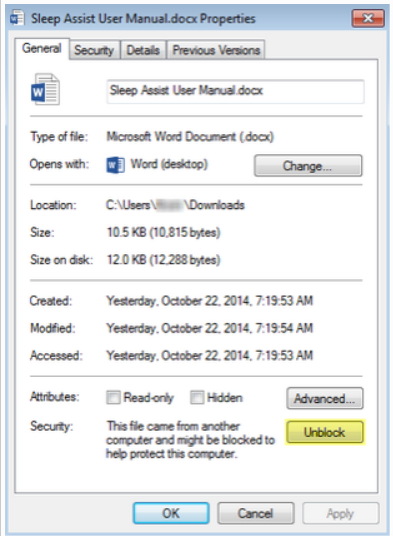
You can now try to install the QuickBooks application after unblocking the installation file. If you still encounter error 1925 while doing so, try the other solutions listed below.
Also Check how to fix QuickBooks Error 1904
Solution 2: Disable User Account Control (UAC)
Adjusting the User Account Control settings is one of the most common ways to resolve QuickBooks error 1925. If your Windows computer’s UAC is enabled, you might have trouble installing QuickBooks desktop. As a result, it is recommended to turn off UAC and set it to Never Notify. To change your Windows UAC settings, follow the steps below, which are specific to the Windows version you are using.
[Note: There are two types of UAC settings in Windows Vista, whereas there are more options in Windows 7 and 8.]
Adjust UAC Settings on Windows 7
- Search for User Account Control Settings in the Windows icon.
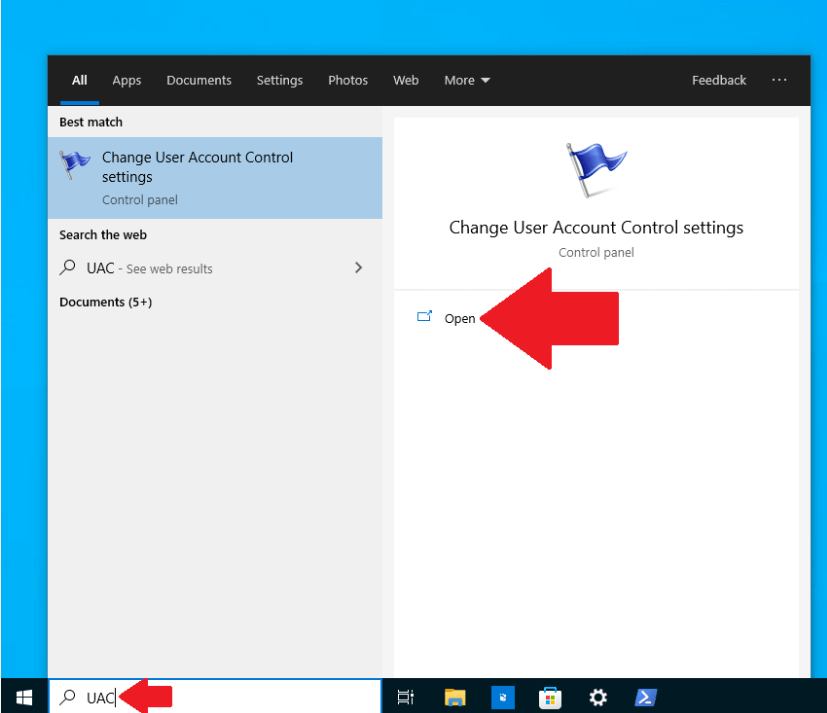
- Then choose Change User Account Control Settings from the drop-down menu.
- Now, change the settings to Never Notify.
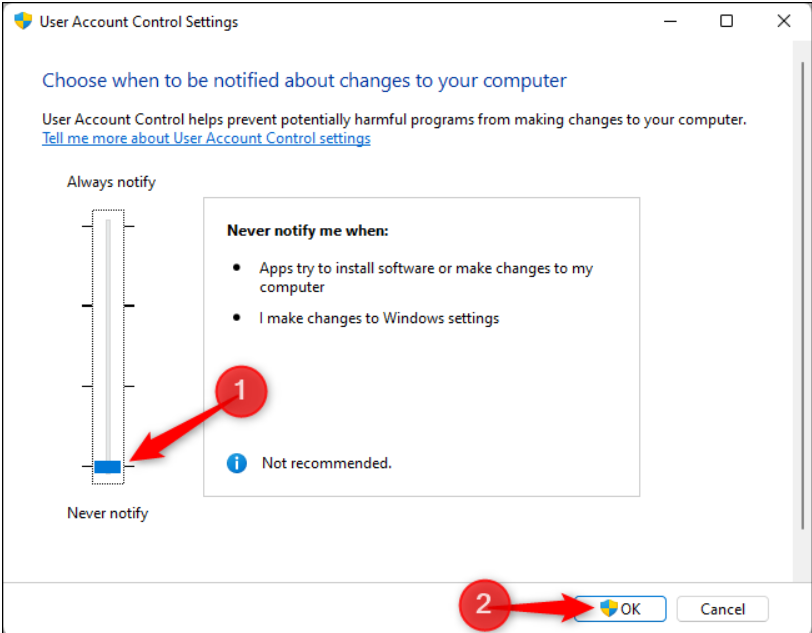
Adjust UAC Settings on Windows 8 & 10
- Search for User Account Control in the Windows icon.
- Go to settings and then select Change User Account Control Settings from the.
- After that, set the slider to Always notify.
- When you are finished, click OK.
Also, Check how to fix QuickBooks Error 1935
Solution 3: Run Exe File as Administrator
Windows requires specific permissions to install any software. To fix error 1925, you should run the downloaded .exe file with administrative privileges. To do so, follow the below-mentioned steps:
- Right-click the installation .exe file in the Downloads folder and select Run As Administrator from the context menu.
- Ensure you run it as an administrator after you have downloaded it.
- You won’t be restricted from continuing with the installation if you run the .exe file as an administrator. It means you can install QuickBooks without encountering any conflicts, such as QuickBooks error code 1925.
Solutions 4: Run Windows with Admin Rights
If you haven’t logged in as an administrator on your Windows computer, problems like QuickBooks error 1925 can arise. To avoid this, log in to Windows as an administrator. You must have a user account with the Administrator account type to log into a Windows computer as an administrator.
Windows Vista
- Click on the Windows icon and search for User Accounts.
- Then, click on the User Accounts.
- Now, you will be able to change the account type to admin.
Windows XP
- Go to the Control Panel by clicking on the Windows icon.
- Then go to User Accounts.
- You can change the type of user account when you see it.
QuickBooks error 1925 is an install error. Because of insufficient privileges on the Windows computer, QuickBooks installation fails. User Account Control settings can also be the source of such problems. You can fix the error on a Windows computer by disabling UAC settings and setting other preferences.
Contact QuickBooks Error Support Experts
Hope you were able to resolve the issue after following the troubleshooting methods without difficulty. However, if you cannot fix this error, contact our QuickBooks error support team.
What Are The Probable Reasons For “QuickBooks Is Unable To Send Emails Due To Network Connection Failure”?
This is a common issue of QuickBooks and there can be several reasons behind this issue. Some of the most probable reasons for this QuickBooks Error are mentioned below
- Your QuickBooks is reflecting the server connection error that indicates that your server connection is not configured.
- QuickBooks had any issues while installing on your system, or the software is not properly installed on your computer.
- You can face this issue if the software has no Windows user admin rights.
- You can encounter this network issue if the QuickBooks is running on more than one Windows.
- Check your internet connection as sometimes the problem can occur because of a poor internet connection.
- The MAPI32.dll file has anyhow got corrupted or destroyed.
- You’ve mistakenly set the wrong email preferences.
- You’ve mistakenly entered the wrong username or password while opening and logging in to your email ID.
- Outlook is already running in the background and it is trying to send emails from QuickBooks.
- Your Internet explorer settings are inappropriate.
- You have not upgraded the QuickBooks to its latest version.
Troubleshooting Methods
Let’s discuss the troubleshooting methods according to the error message.
Error Message- “Could not connect to the Email Server.”
Solution 1: Update QuickBooks to the Latest Version
- To update the QuickBooks desktop, first, you have two close the QuickBooks software and all other programs on your system.
- Go to the QuickBooks icon and right-click on it to select the option run as administrator.
- Now navigate to the help menu and open it.
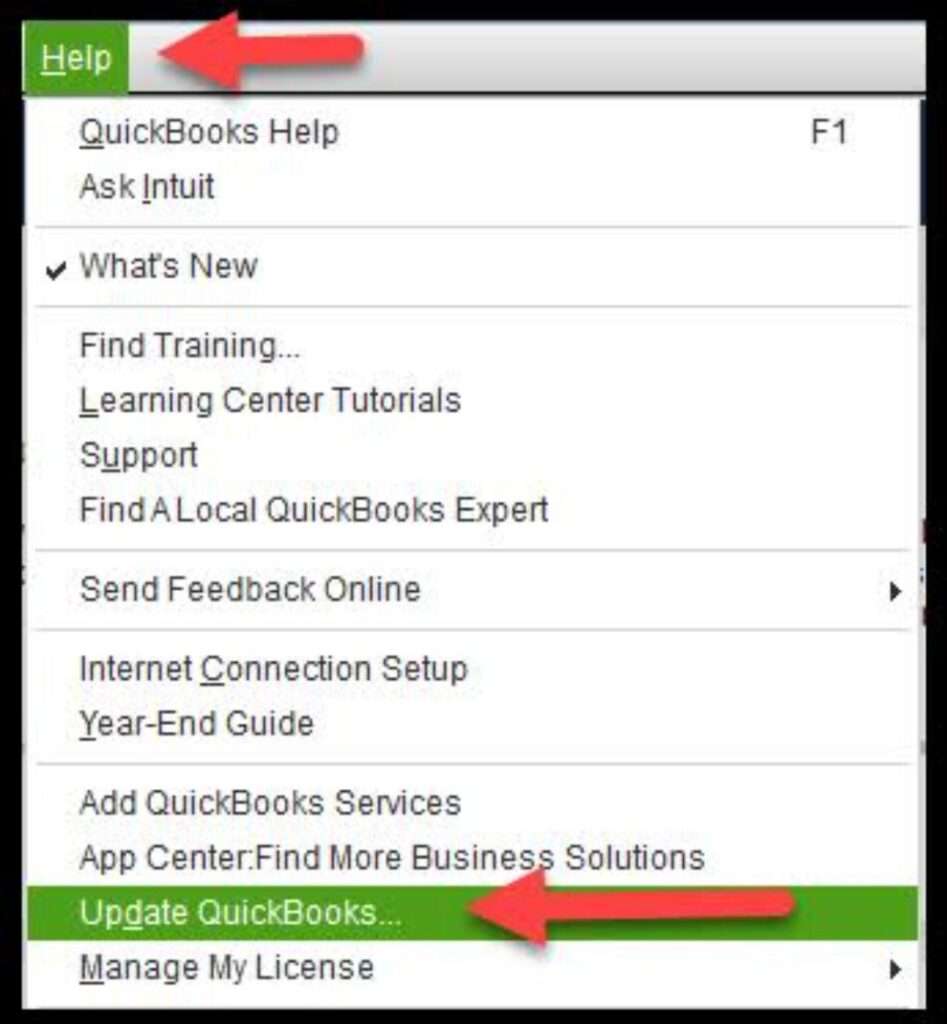
- Select the update QuickBooks desktop option from the options and navigate to the tab named options in the update window.
- Checkmark all the options and hit the save option to save the changes.
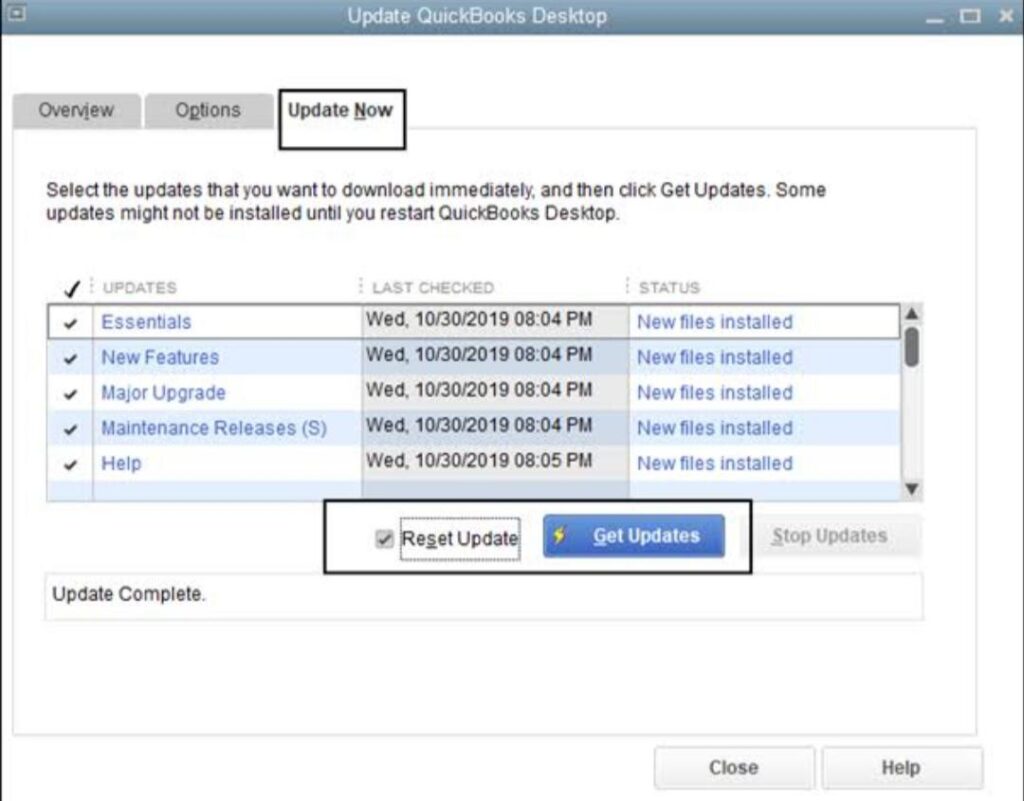
- Go to the updates now tab and hit the reset update checkbox.
- Click on the get updates option and wait for a few moments.
Solution 2: Configure the webmail preferences
- Open QuickBooks and go to the edit menu.
- Hit on the preferences options from there
- Go to the left side pane
- Click on send forms option there
- Go back to the preference and select the email account which you are using on your QuickBooks
- Go to the edit option to open the edit email information window.
- In this window, you will be able to see a section of SMTP Server Detail. Go there.
- Here you have to set the port and server name in the settings option of the email provider.
Next, we will discuss the troubleshooting methods if you see the error message ” QuickBooks is unable to send email to Outlook.”
Solution 1: Edit the admin advantages
- If you already have admin access to your QuickBooks software, you have to close the software and hit on the Windows start menu option.
- Search for QuickBooks there
- Go to the QuickBooks option and right-click on that to select open the file location alternatives option.
- When the folder opens up, click on Quickbooks.exe files.
- Choose the properties option and under that, go to the compatibility tab.
- Remove the tick mark from the run as administrator.
(Note– If you are not able to edit that option, click on the show settings for all users option.
After that, the option will be available and you have to remove the tick mark.
- Once it is done, you have to hit on the apply option to save all the changes.
- Click on the OK button and close the software.
- Open again and try to send emails.
Solution 2: In QuickBooks, Edit the Email Preferences
- Go to the edit menu option of QuickBooks and select preferences.
- Post the Microsoft Outlook with the Microsoft Exchange Server option.
- In the menu option, go to the Send forms.
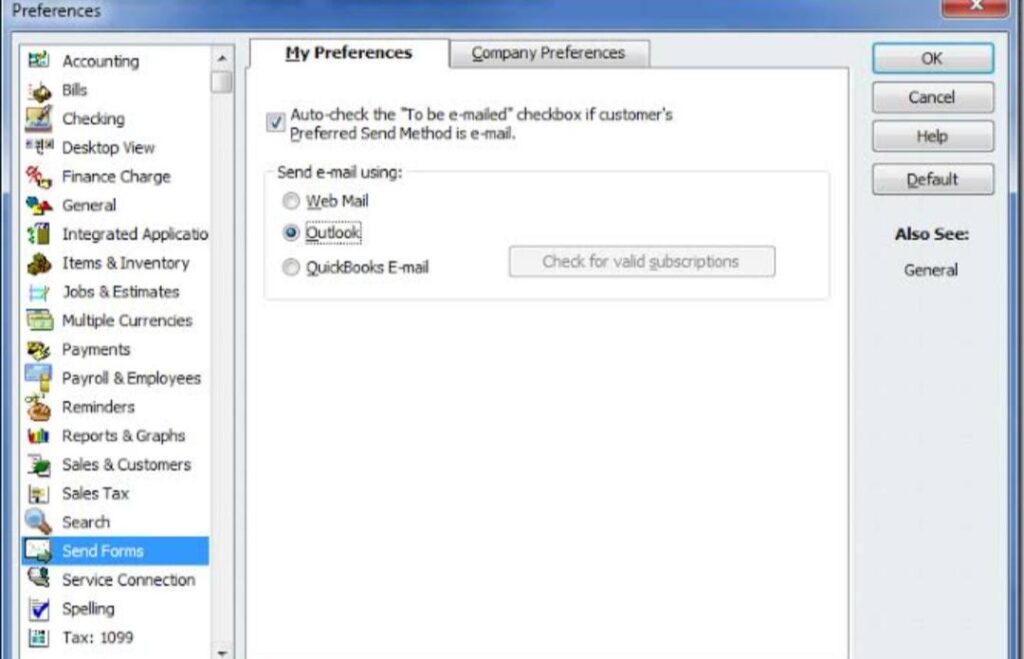
- Go to my preferences and click on the outlook option as the email option and choose Ok.
- If you are still not able to send the mail, you have to go to the preferred option and, from there, go to the menu option and hit send forms.
- Hit on the preferences tab and choose email. Hit on Ok and toggle off preferences.
- Now, repeat all the steps and go back to preferences. Hit on the ok button and restart your computer.
For more Detailed Troubleshooting Steps:- https://smbdaily.com/quickbooks-desktop-is-unable-to-send-your-emails-to-outlook/
Contact QuickBooks Professionals
If you are unable to fix this error using the troubleshooting methods. Get in touch with our certified QuickBooks professionals on QuickBooks Helpline at +1-888-727-4587.
Frequently asked questions
What is the initial troubleshooting method to solve this issue?
First, check your internet connection before trying any complex troubleshooting method to solve this issue.
What is the full form of an SMTP server?
Simple Mail Transfer Protocol Server.
What is the best method to solve this issue?
You can use the QuickBooks file doctor tool to solve this issue from the QuickBooks tool hub.
QuickBooks updates are performed to ensure that the software is free of errors and bugs that may occur during various operations. However, like any other Windows application, QuickBooks is reliant on the proper operation of Windows components and resources. There may be QuickBooks errors if there are issues with Windows or QuickBooks settings. QuickBooks Error 6131, 0 is a single error that occurs when opening a company file and prevents a user from accessing it. If proper troubleshooting is not performed, there is a risk of losing your vital QuickBooks Company file data.
Here, we will discuss the causes and troubleshooting methods for QuickBooks Error 6131 0. So, keep reading.
What Is QuickBooks Error 6131, 0?
QuickBooks can be used in QuickBooks Multi-User mode, allowing you to store the company file on a server and share it with multiple users on the network. When a workstation tries to access the company file over the network while the file is clearly unavailable or corrupt on the server, QuickBooks Error 6131, 0 is triggered.
QuickBooks displays the error message “QuickBooks is attempting to locate yourself in the business enterprise file but is unable to contact the database server.”
There are a few more reasons for Error Code -6131, 0 to appear in QuickBooks, and we have listed them all in this article.
Ensure to back up your QuickBooks data before performing the troubleshooting steps provided in this article.
Causes Of QuickBooks Error 6131, 0
QuickBooks Error 6131, 0 typically appears when a user attempts to upgrade or open a company file. You may need to troubleshoot network settings or QuickBooks data to resolve the error. Here are some other possible causes:
- While immediately restoring a backup from a removable drive or any other storage device.
- If the title workstation hosting the file was changed while it was still being hosted
- Network linkage with the host workstation is broken or damaged.
- QB Desktop data files and program files are corrupted or damaged.
- If the company file is damaged or corrupted
- QuickBooks encountered a network problem
- In the workstation, there are numerous QuickBooks Database Services open.
- Some firewall configurations prevent QB Desktop files from accessing the required ports.
- A problem exists with the Windows user.
Fix QuickBooks Error -6131, 0
Step 1: Update QuickBooks Desktop
- Open QuickBooks Desktop, then go to Help
- Select, Update QuickBooks Desktop.
- In the top right corner, click Update Now.
- Check Reset Updates and then click Get Updates
- Close QuickBooks once the update is finished.
Step 2: Download and Run QuickBooks File Doctor
- Press CTRL+J to go to your downloads after downloading QuickBooks Tool Hub.
- Click QuickBooksToolsHub.exe from your downloads list.
- Select Yes to give this app permission to make changes.
- Now click Next to install it, and then Yes to accept the license agreement.
- After that, click Next and then Install
- When the installation is finished, click Finish
- Open QuickBooks Tool Hub
- Then, run QuickBooks File Doctor from the Company File Issues tab.
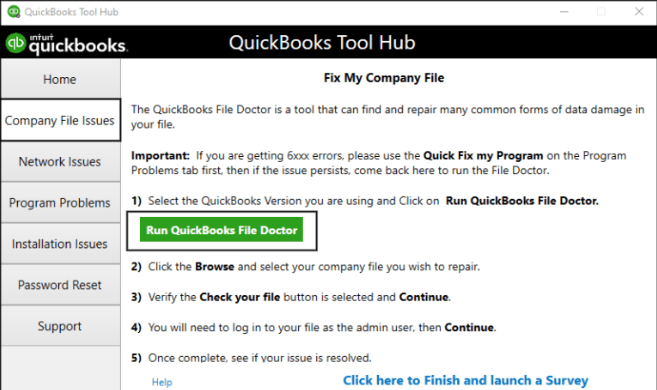
If the above steps did not help, continue with the steps below.
Step 3: Rename the .ND and .TLG Files
The .ND and .TLG files are used to run QuickBooks company files on a network and in multi-user mode. Renaming these files can help you resolve this error if they are damaged or corrupted.
- Locate your QuickBooks company file – C:\Users\Public\Documents\Intuit\QuickBooks\Company File
- Now look for .ND and .TLG files.
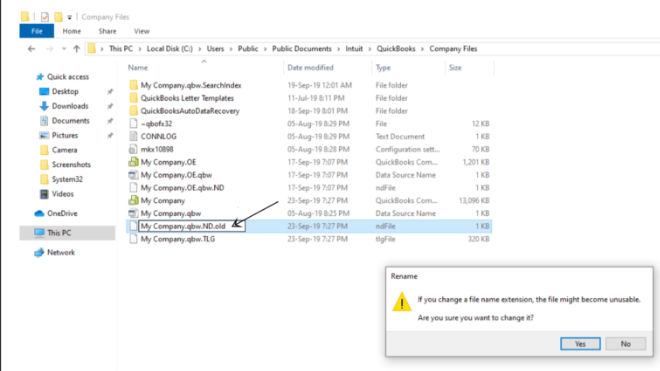
- Right-click on them and choose Rename
- Then add .OLD to the end of the file [For Example, CompanyName.qbw.ND is now CompanyName.qbw.ND.OLD. and CompanyName.qbw.TLG is now CompanyName.qbw.TLG.OLD]
- To confirm, select Yes.
Step 4: Copy Your Company Files To Desktop
- Right-click on the desktop, select New, and then go to Folder
- Now go to the current location of your company file.
- Then, right-click on the company file and select Copy
- Next, right-click on your New Folder and select Paste
- Now press and hold the Ctrl key, making sure you don’t let go until No Company Window appears on the screen
- Select Open or Restore an Existing Business
- Select Open a company file
- Click Next
- Search for the desktop file that you copied into a new folder
- Then click Open
Contact QuickBooks Professionals
If you are familiar with Windows troubleshooting, you can quickly resolve QuickBooks Error 6131, 0 by following the above-mentioned troubleshooting instructions. However, if you are unable to apply the solution and require assistance from a professional, you can contact our QuickBooks Enterprise Support Helpline Number for immediate assistance.
FAQ
What Is Company File?
In QuickBooks, a company file is where you store your company’s financial records, so it’s the first thing you should work on. You can start from scratch or import data from another small-business accounting program, such as Quicken or QuickBooks for Mac.
What Is QuickBooks File Doctor?
QuickBooks File Doctor can help you recover damaged company files and fix network problems. Examine the File Doctor’s results to see what you can do to fix the problem.
Though QuickBooks is one of the best accounting software you can use to manage your business and accounts, no one can deny that this software comes with different errors. QuickBooks Error 6012, 1061 is a common error of QuickBooks that users encounter while trying to open the company file. This error usually occurs because of an incorrect network setup or QuickBooks desktop installation is corrupt.
Causes for QuickBooks Error Code 6012, -1061
This error could be caused by a number of reasons, including –
- You can encounter QuickBooks Error 6012, 1061 if, anyhow, the folder where you have saved your company file has got damaged or corrupted.
- Your company file name is too big and exceeds the limit.
- A firewall is blocking the connection between two computers.
- If .ND and .TLG files have got damaged or corrupted; you can have this QuickBooks error.
- You can face this issue if you are still using an outdated version of QuickBooks desktop.
Steps to Fix QuickBooks Error 6012, -1061
If you are willing to solve QuickBooks Error 6012, 1061, here are some troubleshooting methods that you can apply.
Method 1: Update QuickBooks Desktop
Your QuickBooks desktop should always be updated to the latest version, As every latest version can eliminate several errors. Here is how to update the QuickBooks desktop.
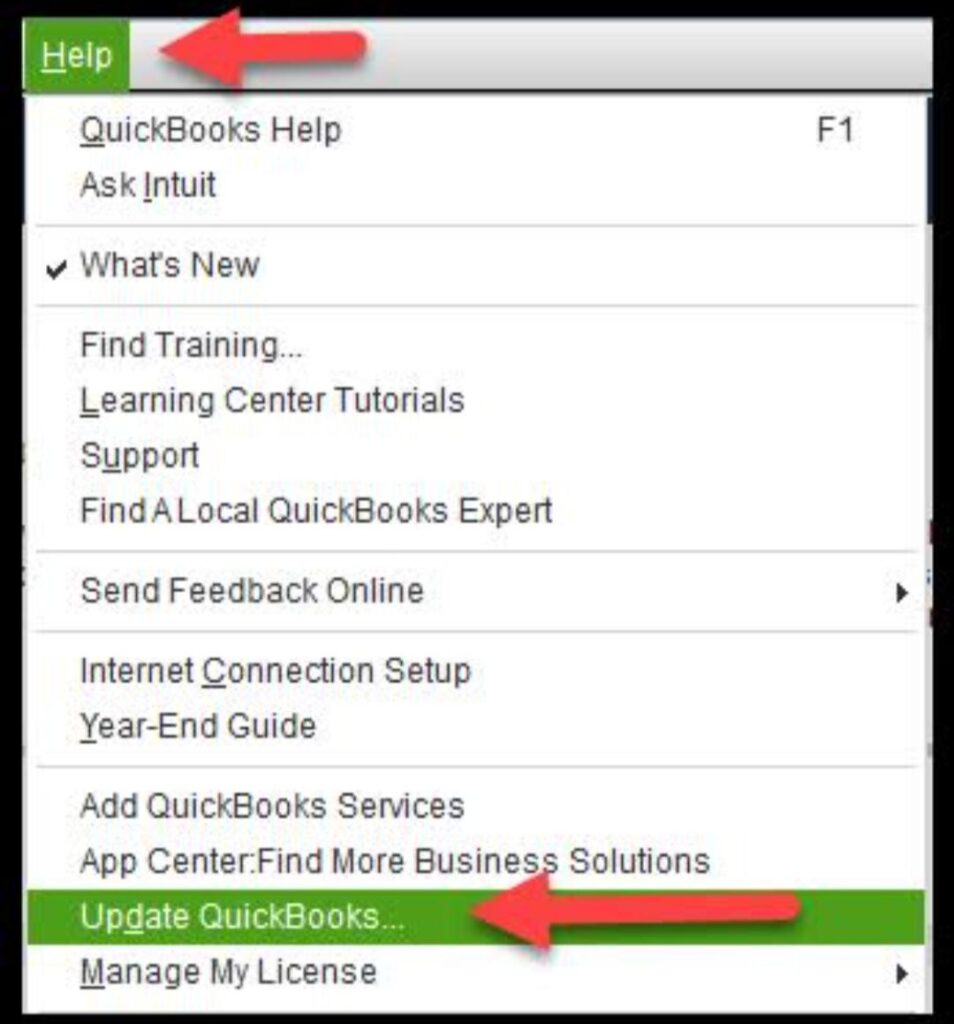
Step 2: Rename the .ND and .TLG Files
.ND and .TLG files are very important files of QuickBooks that help the software run the company files on a network and enable access to user in QuickBooks multi-user mode. If these files have got damaged or corrupted on your system, you can encounter this QuickBooks error. To resolve it, follow the steps mentioned below.
- First, you have to open your QuickBooks company file location, which is C:\Users\Public\Documents\Intuit\QuickBooks\Company File [Default Location]
- Now, find out the files that have ND and .TLG extensions.
- Right-click on the file names and select the rename option and add “.OLD” at the end of the file names. ( Example: change CompanyName.qbw.ND to CompanyName.qbw.ND.OLD)
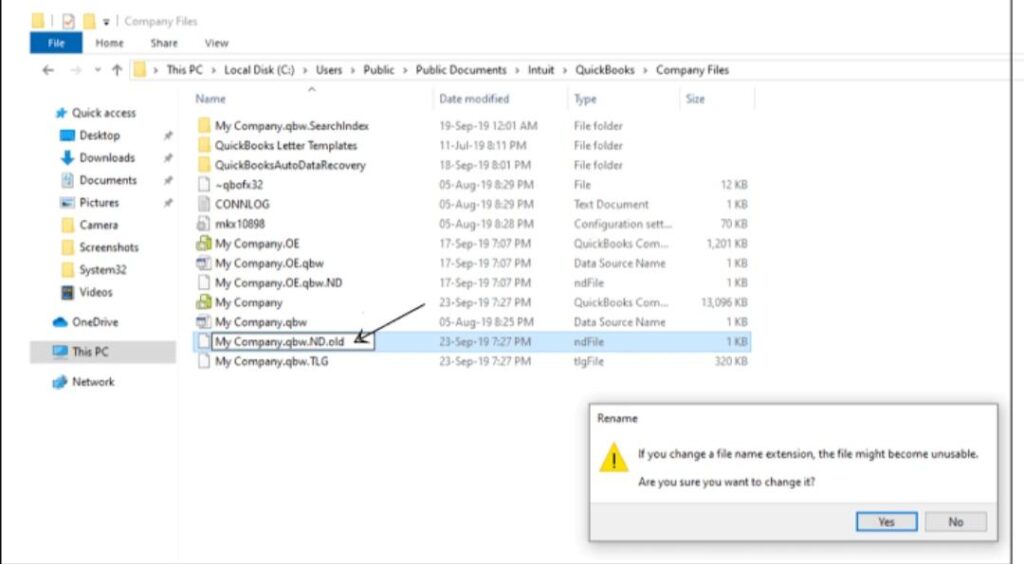
- Click Yes to confirm the action.
- Check whether the issue is solved. If it is not solved yet, follow the next methods mentioned below.
Method 3: Copy your company files to the Desktop
You can try to copy your company file to your desktop and use that one.
- Right-click on your computer screen and then go to new and make a new folder.
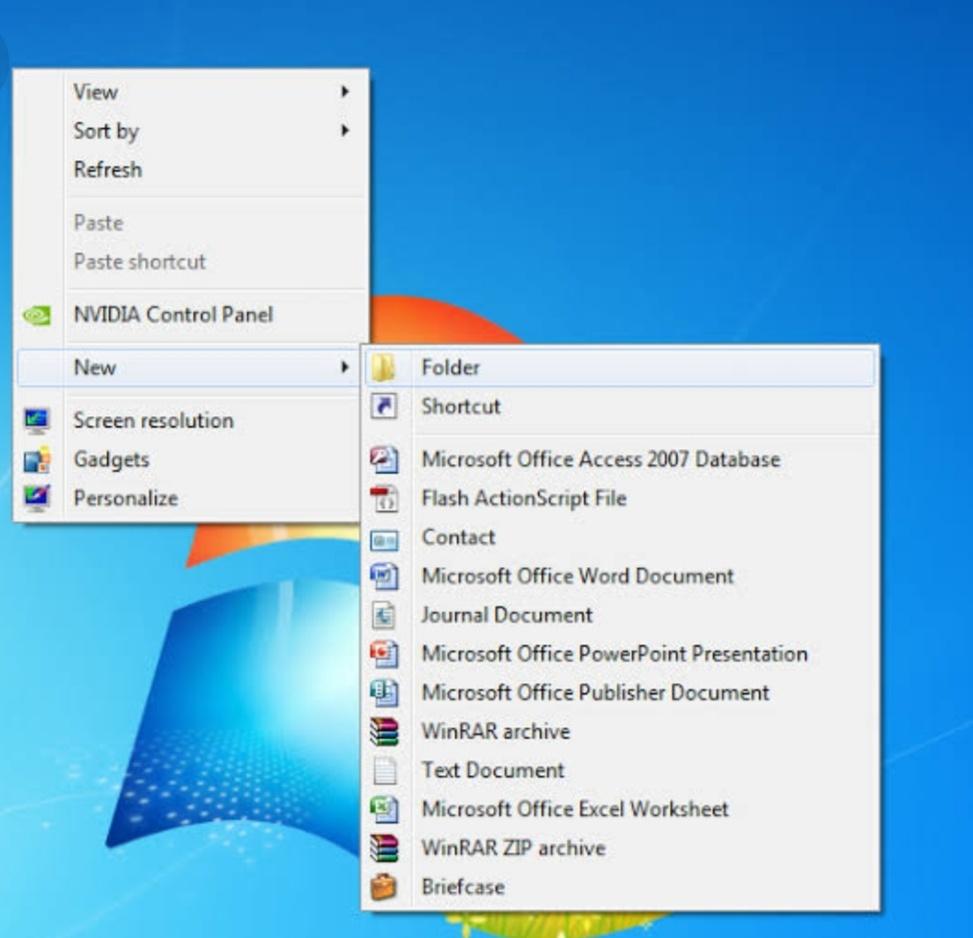
- Go to the location where your current company file is saved.
- Select copy and open your new folder.
- Paste your company files into that new folder.
- Now, you have to press and hold the Ctrl key until you can see no company open window on your screen.
- Click on open or restore existing company and select the open a company file option.
- Click next and browse to the desktop file that you have recently copied into a newly created folder.
- Click open and check whether it is opening or not.
Also, Check how to fix QuickBooks desktop is unable to send emails to outlook
Method 4: Download and Run QuickBooks Database Server Manager
QuickBooks database server manager is a feature of the QuickBooks tool hub that can solve the server-related issues of QuickBooks.
- First, download the QuickBooks tool hub and press CTRL +J to enter your downloads.
- Click on QuickBooksToolsHub.exe and install that on your system.
- Once the installation is completed, open the QuickBooks tool hub from the icon available on your desktop.
- Go to the network issue tab and click on QuickBooks database server manager to run it.
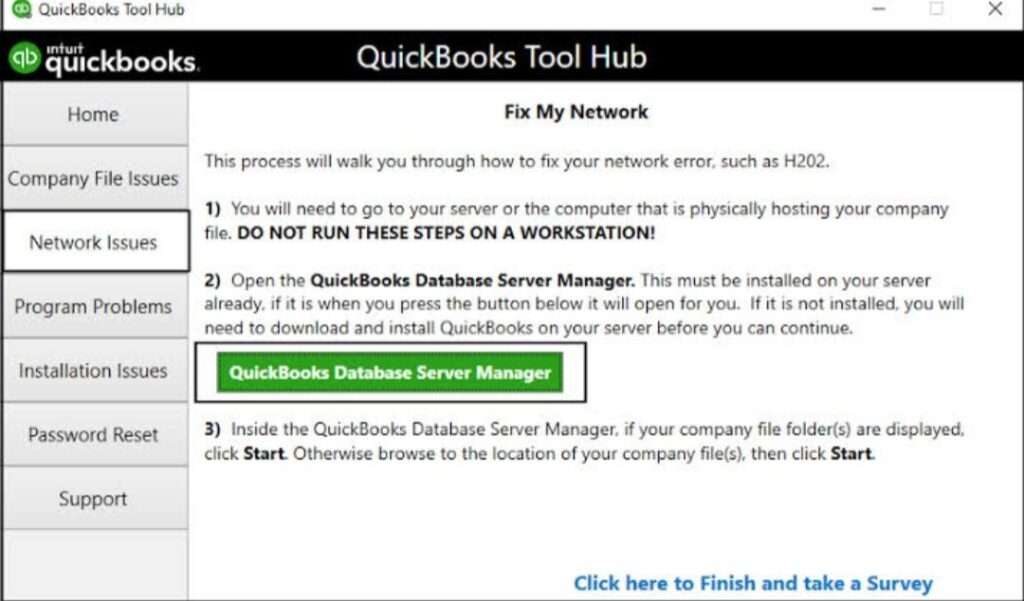
- Now, you have to scan your company file location.
- Go to the scan folders tab and click on the Browse option.
- Click “OK” and then “Start Scan” after selecting the folder where your company file is saved.
Contact QuickBooks Error Support
Unfortunately, if you are still unable to fix QuickBooks Error 6102, 1061 after applying all the above-mentioned methods, you can reach out to the QuickBooks error support team for further assistance.
Frequently Asked Questions
Can you use an outdated version cause QuickBooks error code 6012, 1061?
It is always advised to use the latest version of QuickBooks to eliminate several errors in your software. To resolve this issue, you should upgrade to the most recent version if you are using an older version.
How to understand that you have QuickBooks Error Code 6012, 1061?
You will understand that you are having QuickBooks error code 6012, 1061 when you are facing problems working with your company file and you have already got the popup message that indicates that you are having QuickBooks error code 6012, 1061.
What is the most promising method to solve QuickBooks Error Code 6012, 1061?
Renaming the .ND and.TLG files are the most promising method to solve this error code of QuickBooks as, most of the time, this error occurs due to corrupted ND and.TLG files.
Fix QuickBooks Connectivity Error like Error 12057
QuickBooks error 12057 usually occurs when a user tries to update the QuickBooks software or QB payroll service to the most recent maintenance release. The most recent QuickBooks application allows you to take advantage of the program’s enhanced features.
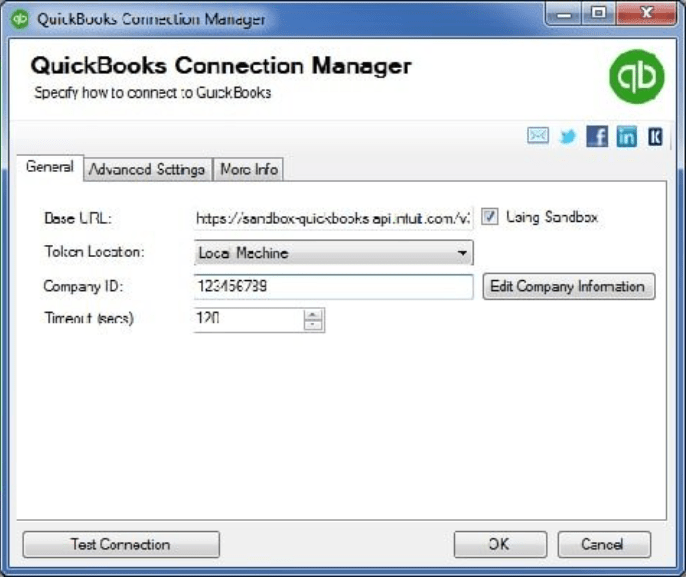
However, several technical issues may prevent you from updating the QuickBooks Desktop or the payroll service, which we will discuss in this blog. Furthermore, by reading this blog until the end, you will be able to resolve QuickBooks error 12057 like a pro. So, continue reading.
What Is QuickBooks Connectivity Error 12057?
The error code 12057 is part of the -12000 error code series, which indicates that a user is having trouble updating the QuickBooks Desktop or the QB payroll service. One of the most common causes of these error codes within the system is misconfigured system files, which promote errors when updating software.
Causes of QuickBooks Error Code 12057
- The firewall or Internet security settings prevent QuickBooks from communicating with the server.
- QuickBooks is unable to establish a network server connection.
- You may not be able to download the most recent QuickBooks update due to a poor Internet connection.
- QuickBooks cannot communicate with the company file
- QuickBooks error 12057 may be caused by incorrect SSL network settings.
- It’s taking longer than usual for the server to respond.
- Internet connection has expired, or a packet has been lost.
- QuickBooks revoked certificate error
Solution of QuickBooks Error Code 12057
The steps to resolve QuickBooks Connectivity Error Code 12057 are as follows:
Step 1: Configure your Computer’s Internet Settings
- Close the QuickBooks
- Open or turn on the Internet Explorer
- Select Tools and then go to Internet Options
- Now select Advanced and scroll down to the Security group
- To clear the checkboxes, click “Check for server certificate revocation” and “Check for publisher certificate revocation.”
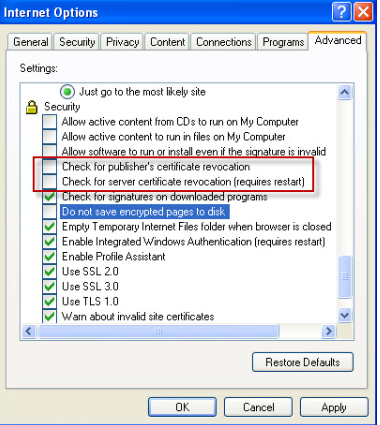
- Close and restart Internet Explorer.
- Minimize the Internet Explorer and restart the QuickBooks program
- Retry the payroll updates
After performing all the above-mentioned steps, open a web browser or go to a website you don’t usually visit to test your internet connection outside of QuickBooks. The problem is with your Internet connection outside of QuickBooks if you can’t view the website or web page.
If you can see the website, proceed to the steps below.
- In the QuickBooks, go to Help and then select Internet Connection Setup
- When this application connects to the Internet, select ‘Use my computer’s Internet connection settings.
- Then, choose Next
- Go to Advanced Connection Settings and select Advanced
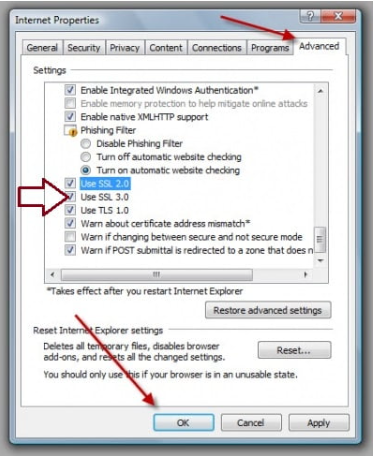
- Now, go to the Security group and ensure the Use ‘SSL 2.0 ‘and Use ‘SSL 3.0 ‘options are selected
- Select Ok and then Done
- Lastly, check the Internet Security & Personal Firewall setting configuration
Also, Check how to Fix QuickBooks TLS 1.2 Error
Step 2: Check Your System Date And Time
The date of release is always associated with QuickBooks updates. QuickBooks Error 12057 prevents you from updating if your system’s date and time are incorrect. The steps to fix the system date and time are as follows:
- Close QuickBooks desktop
- Click on Clock and Region in the Control Panel.
- Then select Date and Time and make changes
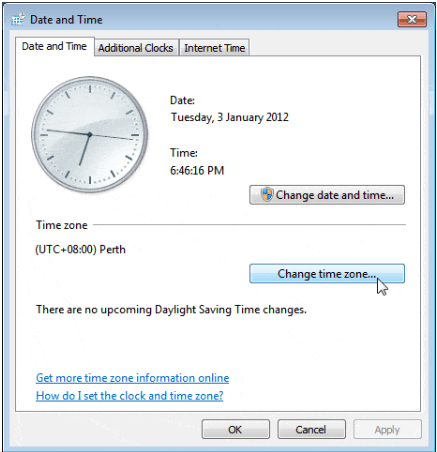
- Restart QuickBooks and try Payroll Update once more.
Step 3: Install Microsoft and QuickBooks Updates
- Close all QuickBooks-related applications.
- Then, close QuickBooks
- Install Microsoft Windows Operating System updates
- If your computer does not restart after the installation, press the ‘Restart’ button manually.
- After that, go to the ‘Help’ menu in QuickBooks.
- Select Update QuickBooks desktop
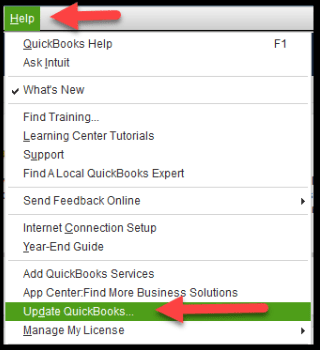
- Select ‘Options ‘and choose ‘Yes enable QuickBooks Automatic Updates’ checkbox
- Click on ‘Mark All ‘
- Next, select Update Now and then Get Updates
- Wait for the updates to finish.
- After the updates have been installed, close QuickBooks.
Contact QuickBooks Error Support
To fix installation-related errors, you can also use the install diagnostic tool from the QuickBooks tool hub. If you have any other queries about QuickBooks Error 12057, get in touch with the QuickBooks Error Support team, and an expert will assist you with advanced troubleshooting methods.
Frequently Asked Questions
How To Contact QuickBooks Support to fix QuickBooks Error 12057?
You can reach out to our QuickBooks desktop support team via official mail or call at +1800-994-0980.
What Is QuickBooks Payroll?
QuickBooks Payroll Support is a subscription that allows you to use your QuickBooks Desktop Software’s payroll features. Depending on the features you need, you can choose from Basic, Enhanced, or Assisted Payroll.