
Blog
QuickBooks Error 181016 in Point of Sale
QuickBooks Point of Sale is popular retail accounting software. It has a user-friendly interface and several useful features that make daily managing transactions a breeze. There are some drawbacks to the abundance of benefits. One of them is the QuickBooks POS software errors that you may encounter. Here are a variety of errors in QuickBooks POS that you may encounter. The error usually occurs during the financial transaction. QuickBooks Error 181016 is one such error that essentially prevents financial transactions from taking place.
If you are having trouble with QuickBooks POS Error 181016 and want to fix the issue, follow the steps outlined in this article.
Causes Of QuickBooks Error 181016
If this error occurs to you while working with QuickBooks POS, you will see the following error message:
Error: 181016 “Problem could not open the QuickBooks Point of Sale data: [company name]” or
Error: 181016 “Problem could not create a company: [Company Name]”
The above error is caused by a non-unique company name in your network, which is being prevented from communicating by your system’s firewall.
The following are some potential causes of QuickBooks Point of Sale Error181016:
- Log in to the system as an Administrator.
- Problems with your company data folder
- When opening files or folders, the system firewall and other anti-virus software installed on the computer create a barrier
- System’s TCP/IP may be disabled or corrupt.
How To Resolve QuickBooks Error 181016?
To resolve the QuickBooks Error 181016, follow the steps below:
Method 1: Create a New Company File
The following are the detailed steps:
- Log in as an administrator
- Go to the File menu to see if the issue is with the data.
- Select Company operations
- Now, choose ‘Create new company’
- Click on the ‘Next’ option.
- To test the file, give it a unique name.
If the error persists, you should open the original file directly. To do so, follow these steps:
- From the File menu, select Company Data.
- Click on Open
- Now, choose an Alternate location
- Select Browse and type the file’s address.
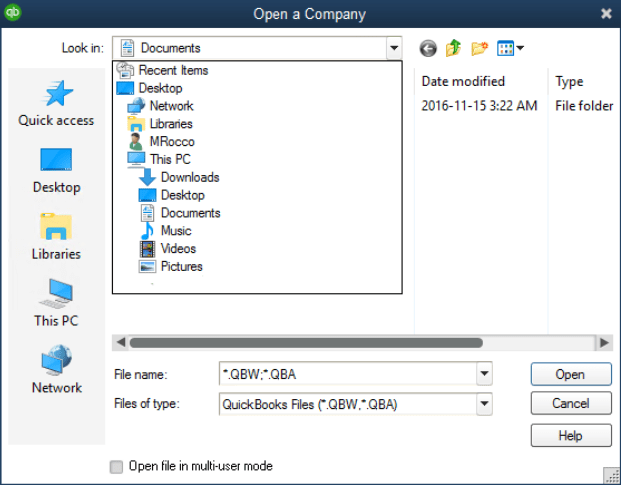
- Select ‘DB’ and click ‘Open’
- To finish the process, select OK.
Method 2: Rename Company File
If the problem with the previous file persists, you can create a new company file and transfer the data to it. The procedure is as follows:
- Return to the ‘File’ menu
- Select Company data
- Choose Rename and make sure the data is the same as in the previous file.
Also Learn how to update QuickBooks company file to a newer version
Method 3: Using QB POS Troubleshoot Connection Tool
To fix the problem, follow these steps:
- Open QBPOS Connectivity Tool
- Check the QuickBooks database server manager for any damaged or corrupt installation files.
- Make sure the system firewall or anti-virus application isn’t the source of the problem. If the problem persists, remove them or set QuickBooks as an exception.
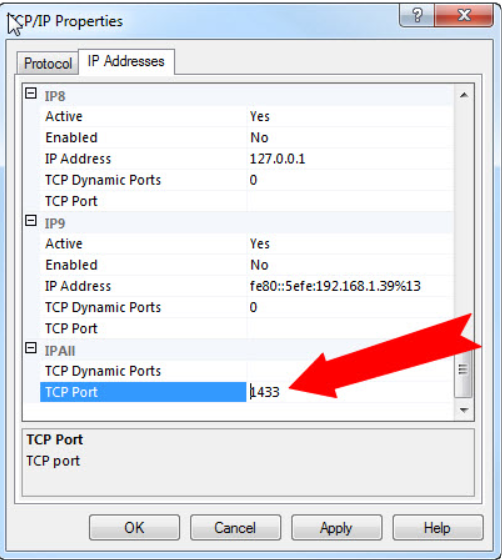
- Make sure TCP/IP is enabled and working properly.
Method 4: Update QuickBooks To the Latest Version
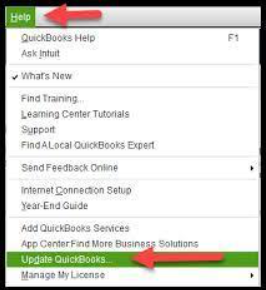
If QuickBooks is not updated to the latest version, the POS error applicate update will appear. To update QuickBooks Desktop, follow these steps:
- Open QuickBooks and go to the Help button
- Select Check for New Updates from the software updates menu.
- Available users will receive a pop-up message asking them to upgrade to the latest version of the accounting software if new updates are available.
You can also choose automatic updates to avoid having to manually update the software at regular intervals.
Contact QuickBooks POS Support Professionals
The above-mentioned methods should suffice for troubleshooting QuickBooks Error 181016. You should now be able to use QuickBooks Desktop or QuickBooks Point of Sale as usual. However, these solutions will only work if the error is still in its initial state. If the error has been present for a long time, it may become unrecoverable. In such cases, you should contact our QB POS support team to get immediate assistance with your problems.
Frequently Asked Questions
What is QuickBooks POS?
QuickBooks POS includes advanced inventory, inventory tracking, and customer management tools to help users manage sales more efficiently.
What is QB POS Connection Tool?
The QuickBooks POS connectivity tool enables users to resolve a variety of POS-related issues.
Fix Error Application Update Required QuickBooks Point Of Sale or QuickBooks Point of Sale Update Error
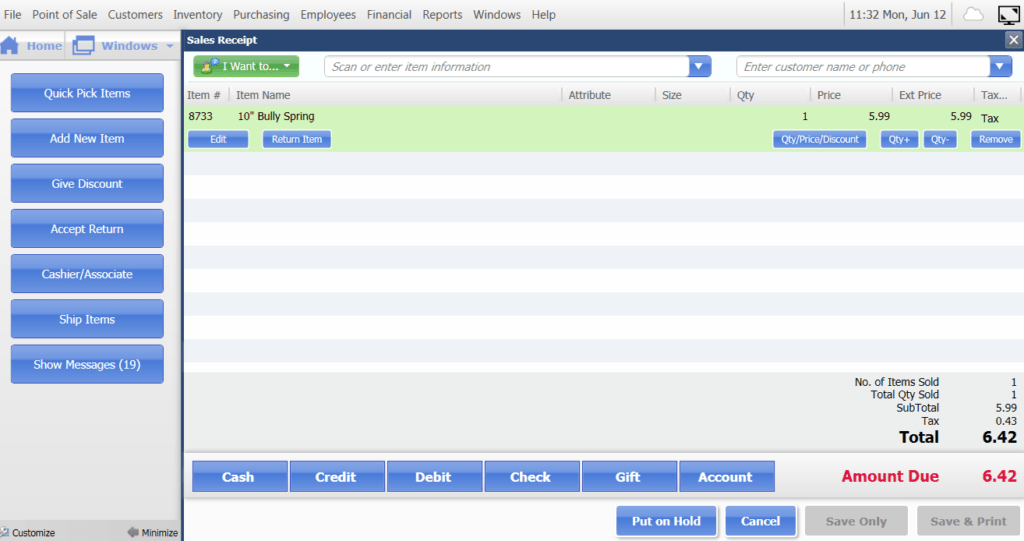
QuickBooks Point of Sale (POS) offers advanced inventory and customer management tools that aid users in seamless sale management. The retail point of sale system is suitable for various businesses such as gift shops, sporting goods, and more. At frequent intervals, QuickBooks rolls out crucial updates to elevate the functioning and fix issues in the POS. However, there are certain errors that pop on the screen while users try to update the QuickBooks desktop point of sale. Let’s understand the QuickBooks point of sale update error that restricts the user from updating QuickBooks POS.
What Error Messages Can You Expect?
There are certain POS error messages that can appear on the screen when users try to update QuickBooks POS. Some of QuickBooks point of sale update error messages that you can pop up on the screen are:
- Error: Could not load database
- The problem could not connect to the database.
- Error 181021 QuickBooks POS message
- Error 181016
What Causes QuickBooks POS Upgrade Error?
Certain triggers are associated with QuickBooks POS update errors. The list of major points that causes QuickBooks POS update error are:
- If there are multiple QuickBooks POS software installed on the same system.
- When essential, QuickBooks POS files are blocked by Windows Firewall.
- When users are not logged in with administrator rights
- The company data file folder is compromised.
- When a virus or malware attacks a crucial QuickBooks file
- When QuickBooks software is not installed to the latest version
- When the TCP/IP is disabled or not installed correctly
- QuickBooks Point of sale multi-user setup error
Solutions To Fix QuickBooks POS Upgrade Error
Now that you have identified the cause, you must understand the different methods to fix the QuickBooks point of sale update error and allow users to update the POS to the latest version. Follow the fixation methods listed below to fix the issue.
Access Windows System With Administrator Rights
To verify whether you are logged in to the operating system with administrator rights, follow the steps below.
- Press Windows+R to open the Run box
- Type Control Panel and navigate to the View by option tab.
- Next, click on user accounts.
- Click on the manage another account option and check whether the account has been logged in with administrator access.
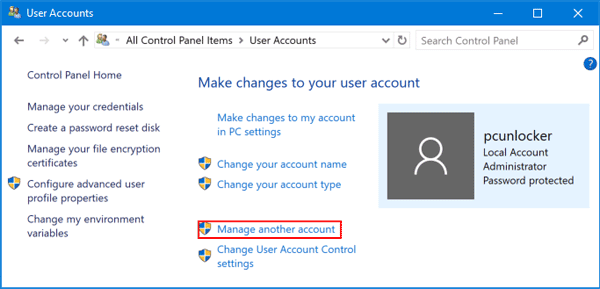
Once you have verified, open QuickBooks and try to update the POS. If the error still exists, jump to the next method.
Rename the Company File
Before renaming the company file, you must open the existing company option and check for the same company name on the list. To rename the duplicate files, follow the steps below.
- Open the File menu and navigate to company operations.
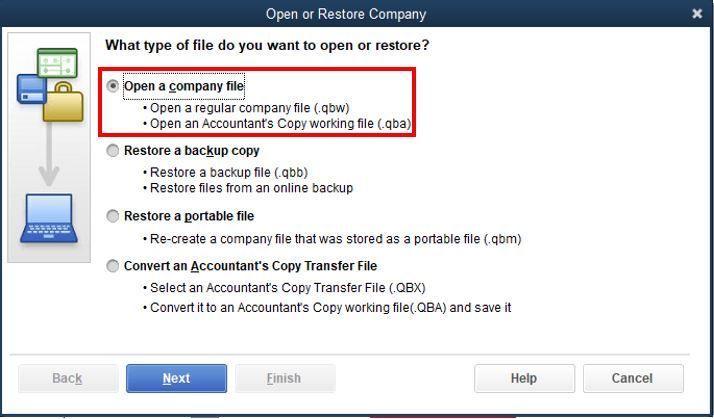
- Click on rename company option to change the name of the file.
- Click on the Next button and write a new company name and save the changes.
Once you have renamed the file, check for the error. If the QuickBooks Point of sale update error still exists, follow the next method.
Update QuickBooks To the Latest Version
The POS error applicate update will appear if QuickBooks is not updated to the latest version. To update QuickBooks desktop:
- Open QuickBooks and navigate to the Help button
- Hover to the software updates and click on check for new updates.
- If there are new updates, available users will get a pop-up message that will ask them to upgrade to the newest version of the accounting software.
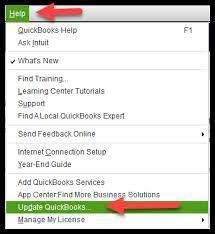
You can also select the automatic update to remove the hassle of manually updating the software at frequent intervals.
Use QB POS Connection Tool
To use the QuickBooks POS Connectivity tool, follow the steps mentioned below.
- Firstly download the latest version of the QB POS connection utility tool from the official website of Intuit.
- Agree to all the utility tool terms and conditions and initiate the installation process
- Open the tool and start the fixation process.
Let the tool run, and it will automatically check for all the possible errors.
Contact QuickBooks Point of Sale Experts
If the QuickBooks point of sale update error fixation methods mentioned above does not solve the issue, contact us to resolve the issue. Our QB POS support team offers 24/7 technical assistance to QuickBooks point of sale users who face multiple issues while working on the software.
FAQs
What is QuickBooks POS?
QuickBooks POS offers advanced inventory, inventory tracking, and customer management tools that aid users in seamless sales management
What is QBPOS Connection Tool?
QuickBooks POS connectivity tool allows users to solve various issues that are associated with the POS system.
QuickBooks POS Update – How to update QuickBooks Point of Sale
QuickBooks POS has been exclusively created for retail businesses to offer seamless integration between sales and inventory management. The retail QuickBooks point of sale system offers various features such as inventory management along with payment and return processing. Uniquely, POS tracks and saves customer data records to aid users in tracking purchase history and patterns. QuickBooks POS Update is constant at frequent intervals for adding new features to the system. Here, we will discuss the process of updating QuickBooks POS.
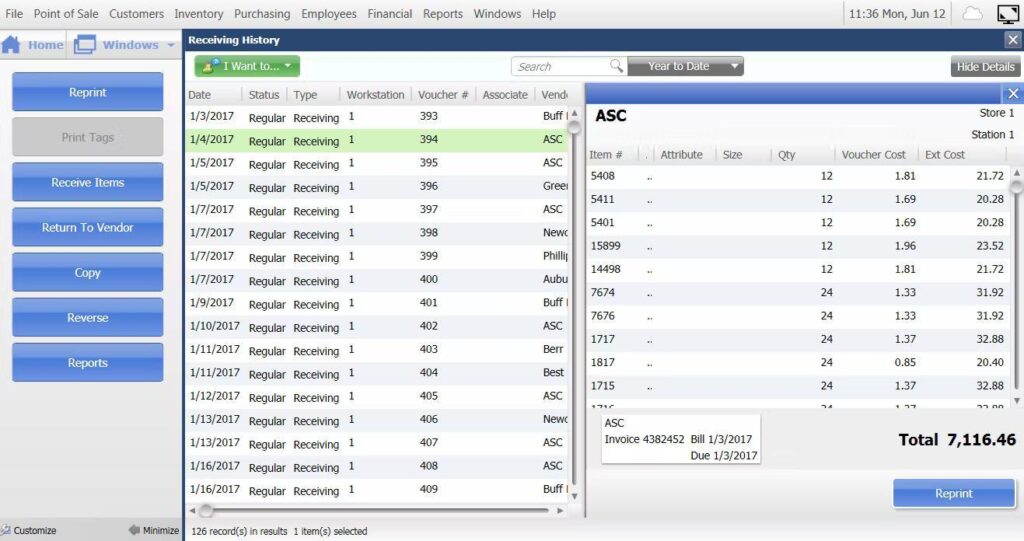
How to Update QuickBooks POS?
You must be thinking that the QuickBooks POS update must require technical assistance. However, you can update the QuickBooks POS by following simple steps. Additionally, you can choose between automatic and manual updates. To update the QuickBooks POS manually, follow the steps mentioned below.
- Firstly open QuickBooks and log in to your point of sale system as an admin.
- Navigate to the Help menu and click on software update. Then click on check for updates. If there is an available POS update, you will be notified with a pop-up message.
- Finally, click on the update now and then click OK.
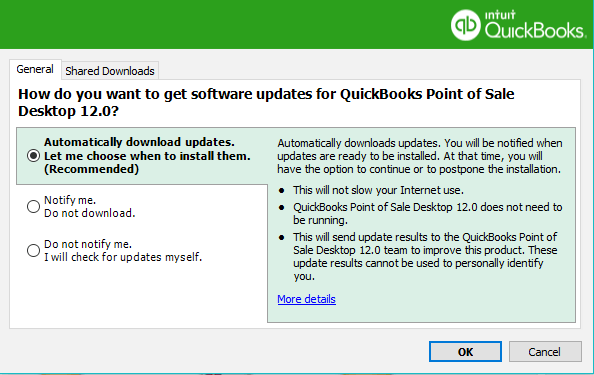
If you wish to select automatic updates, follow the points mentioned below
- Open QuickBooks and log in to your POS system with admin rights.
- Navigate to the Help menu and click on the software update tab.
- Next, click on the update preference and select the general tab.
- Click on Automatically download updates. You also get the option to select notify me to get updates about the new updates of QuickBooks POS.
- Lastly, select OK and finish the process.
Also, Check how to setup QuickBooks POS in multi-user mode
Now that you are aware of the process of updating QuickBooks POS, you can also find out the current version of QuickBooks POS. To know which QuickBooks POS version is installed on the system, follow the steps below.
- Open QuickBooks and sign in to your Point of Sale System.
- Navigate to the Help menu and click on QuickBooks Desktop Point of Sale.
- Review the release number to get information about the QuickBooks POS.
Contact Point of Sale Professionals
If you have any queries regarding QuickBooks POS, you can contact QB Point of sale support experts, which offer 24/7 technical assistance to POS users.
FAQs
For Which Businesses QuickBooks POS Best Suited For?
QuickBooks POS is suited for retail businesses such as small franchises, shoe stores, gifting shops, clothing stores, and more.
What are Some of the Premium Features of QuickBooks POS?
QuickBooks POS offers sale features like inventory management, return processing, and payment management. You also get customer data tracking and management features under QuickBooks POS.
QuickBooks update brings the latest features on board and fixes different bugs in the software that degrades the user experience. While updating the accounting software service, a QuickBooks update service error appears on the screen and restricts the user from switching to the latest version of QuickBooks software. In most cases, users receive a specific error code and message that sheds the detail on a service error. However, sometimes the accounting software crashes with a QuickBooks update service error, which leaves the user with certain assumptions regarding the cause of the error. Here, we will discuss QuickBooks update service error’ causes and fixation methods. So keep reading.
Various QuickBooks Update Service Error
When the QuickBooks fails to get the latest update, there are various error codes that appear on the screen. The most common error codes linked with update service errors are 1603, 12157, PS038, 15271, and error 404.
What Causes QuickBooks Update Service Error?
There are certain reasons that are associated with QuickBooks update service errors. Some of the prominent reasons behind the error are:
- Digital signature problems lead to QuickBooks update service errors.
- Various issues with internet connectivity and firewall settings trigger QuickBooks update service error.
- When multiple versions of QuickBooks are installed in the same system, the error will appear on the screen.
- Incorrect system dates and times also lead to QuickBooks update service errors.
- When essential QuickBooks files are damaged due to virus or malware attacks, the error will be inevitable.
Solutions to Fix QuickBooks Update Service Error
Now that you know what causes the QuickBooks update service error, you must resort to the fixation methods to fix the issue to the earliest and avoid any data loss. Follow the troubleshooting methods listed below in chronological order to fix the QuickBooks update service error.
Check System Date and Time Settings
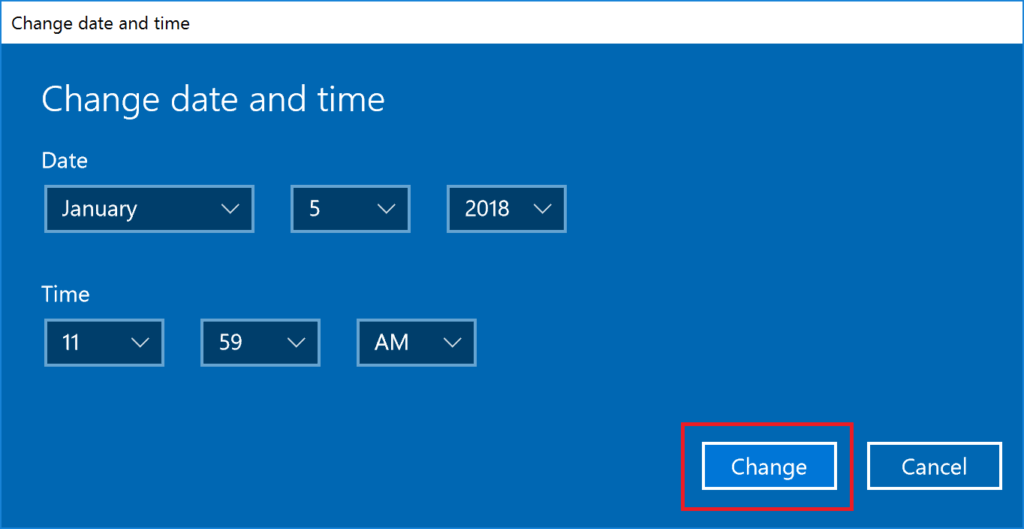
You can simply alter the date and time settings of your system to fix the issue. Follow the points below to fix the update error in QuickBooks.
- Navigate to Desktop and right-click on System Clock.
- Click on the option Adjust Date/Time.
- Next, click modify Date and Time and make the necessary changes.
- Hit OK twice and open QuickBooks.
- Check for new updates and see if the error appears again.
If the error appears on the screen, follow the next method.
Run QuickBooks With Administrator Rights
Sometimes the error appears when QuickBooks does not have administrator rights. To run QuickBooks with administrator rights, follow the steps mentioned below.
- Close all the programs and restart your computer system.
- Next, navigate to the QuickBooks Desktop app and right-click on the app.
- Select the option Run as Administrator.
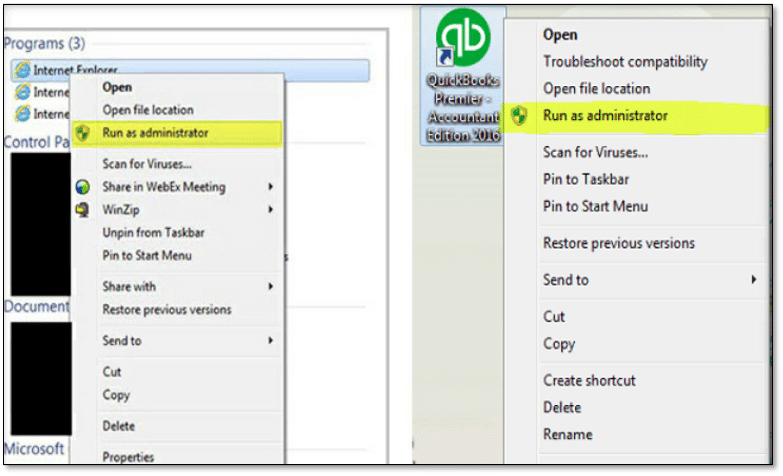
Open the software and check for the error. If the error persists, follow the next method.
Use QuickBooks Tool Hub
QuickBooks Tool Hub is a comprehensive tool that aids users in fixing different issues and bugs present in the software. In the latest version of the software, the QuickBooks Tool Hub is integrated into the platform. To use the utility tool, follow the points mentioned below.
- Download and install the newest update of QuickBooks Tool Hub (Older Versions only).
- Open the utility tool and navigate to the Program Problems Tab.
- Under the Program Problems Tab, click on the Quick Fix My Program tab.
- Wait for the fixation process to finish and restart the software after the process.
- Access your QuickBooks app and check for system updates.
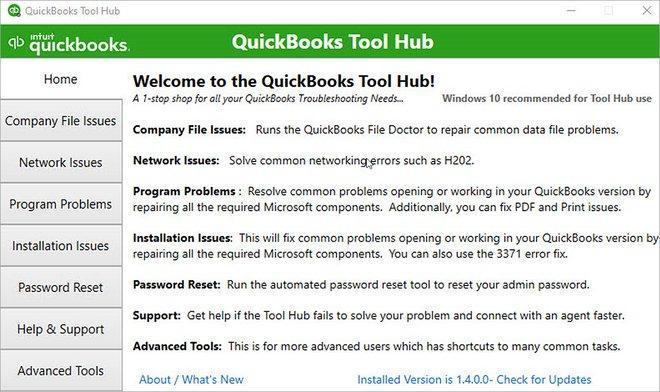
If the error persists, follow the next troubleshooting method.
Remove Different Copies of QuickBooks Desktop
When there are different versions of QuickBooks present in the same system, the update service error will appear on the screen and restrict the user from various actions. It is advised that you must remove the different copies of the QuickBooks desktop and keep a single application installed on Windows. Once you have deleted different copies, check for the update error.
Contact QuickBooks Professionals
The methods mentioned above will solve the update service error without any hassle. However, if the error still appears after trying all the methods, you must reach out to our QuickBooks desktop support advisors for technical assistance.
FAQs
Does improper Windows Firewall Settings Trigger QuickBooks Update Service Error?
Yes, when the firewall settings do not align with QuickBooks, the update service error appears on the screen.
How Can I Reach Out To the QuickBooks Error Support Team?
You can contact the QuickBooks error support team via chat, e-mail, or contact number.
QuickBooks Database Server Manager (QBDBSM)
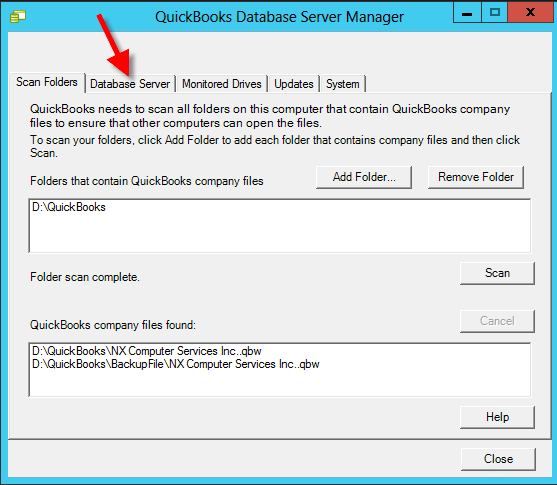
Intuit developed QuickBooks to be a multi-user running application that allows multiple users to work at the same point in time. QuickBooks Database Server Manager (QBDBSM) is an essential utility that allows the QuickBooks server to function with multi-user access. To use QuickBooks multi-user mode database server manager is the most important tool. In this article, we are going to show you how to set up, install, and update your QuickBooks Database server manager.
Install QuickBooks Database Server Manager
- Locate the QuickBooks installer on your computer and initiate the installation wizard
- If your computer is connected to a network then click yes to download an update or no if you don’t have an active internet connection
- Click next after I accept all terms
- Choose Custom and Network options
- Choose your installation type whether you are using QuickBooks on the same computer or another, if you are using QuickBooks on another computer then you are required to enter your QuickBooks license number for the verification
- After choosing the installation type click on Yes, Allow access
- Click on all positive options and proceed further to set up your QuickBooks DataBase server manager
Setup QuickBooks Database Server Manager (QBDBSM)
- QuickBooks Database Server Manager will allow you to scan and monitor your QuickBooks company file stored locally, and then configure it for multi-user access.
- Launch QuickBooks Database Server Manager
- Choose Scan folder
- If you are not sure of the company file folder location, you can scan the entire disk
- Click on Scan and it will display all the files found on your server
- The monitored Drive feature will keep QuickBooks Database Server Manager up to date as you add new files to the server. The monitored drive feature will help you to monitor all QuickBooks company files that were added, removed, or renamed in your local drive.
- The database server feature is used to determine the number of company files connected to the server and the number of users logged in to each company file
- QuickBooks database server manager status should be running when the server is hosting files, use the Service Administration tool to configure QuickBooksDBXX
- The update feature will allow you to update your QBDBSM
- System feature will allow you to find system information where QuickBooks Database Server Manager is installed
Update QuickBooks Database Server Manager
- Download QuickBooks Desktop Latest release of the version
- Reboot the server after the patch is installed
- After the server gets updated you will get a message The company file needs to work with this version of QuickBooks
- There will be a prompt to create a backup of your company file, do not forget to backup your file as updates can affect current settings as well
- After the backup is complete you will be able to open your file
DOWNLOAD QUICKBOOKS DATABASE SERVER MANAGER
Download Link: http://support.quickbooks.intuit.com/support/ProductUpdates.aspx#
If you have any queries contact QuickBooks technical support on +1800-994-0980
QuickBooks Database Server Manager Errors
QuickBooks Install Diagnostic Tool – Fix Common Installation Errors in QuickBooks Desktop
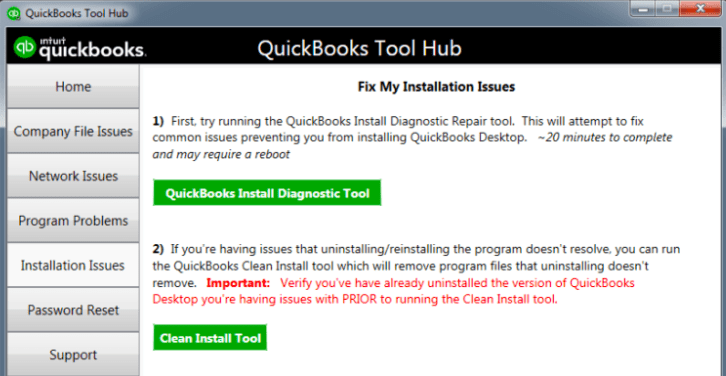
QuickBooks Install Diagnostic tool or QB install tool helps QuickBooks users to identify & resolve common installation issues or bugs. If you come across any QuickBooks errors like MSXML, .Net Framework issues, and C++ issues. Run QuickBooks Install Diagnostic tool to eliminate and resolve potential threats or bugs.
It is also recommended to run QuickBooks install diagnostic tool if you encounter any error in your QuickBooks file or are trying to repair your QuickBooks company file. This tool will decrease the amount of work spent on researching the root cause of the QuickBooks error or malfunction while installation.
Benefits of QuickBooks Install Diagnostic Tool –
- Repair QuickBooks Install Errors Easily
- Reduce time spend on fixing install errors manually
- Reduce Resources spent on error support
List of QuickBooks Errors Fixed by QuickBooks Install Diagnostic Tool
Meanwhile, QuickBooks users have also come up with various QuickBooks errors where windows components fail to function properly and can be resolved by using the QuickBooks component repair tool i.e. QB install tool.
- QuickBooks Error 1935
- QuickBooks Unrecoverable Error
- QuickBooks Error 1603
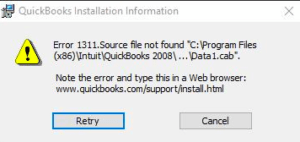
- QuickBooks Error 1904
- QuickBooks won’t open
- QuickBooks has stopped working
- QuickBooks Error 1402
- Microsoft .net Framework Error Codes
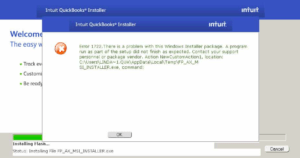
- QuickBooks Install Error 1702
- MSXML, DBMS and C++ Errors in Windows i.e. running QuickBooks
How to Use QuickBooks Install Diagnostic Tool
Well to date there are two methods to use QuickBooks install diagnostic tool or component repair tool. Both of the methods are briefly explained below.
QuickBooks Install Diagnostic Tool is also known as QuickBooks component repair tool or QBInstall Tool
Method #1 – Download & Use QuickBooks Install Diagnostic Tool
QuickBooks Install Diagnostic Tool Download Link – http://dlm2.download.intuit.com/akdlm/SBD/QuickBooks/QBPDF/QuickBooksDesktopInstallDiagnosticTool.exe
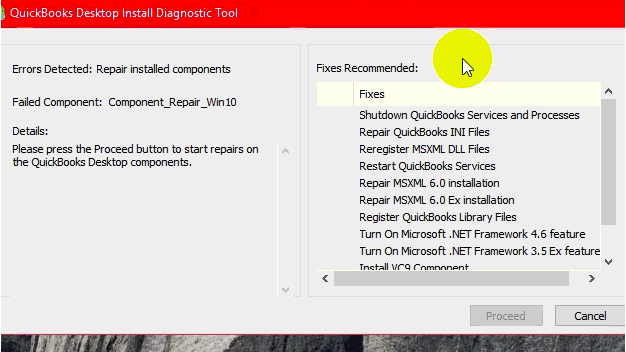
- Download QuickBooks Install Diagnostic Tool by clicking on the link above
- Save the File when prompted
- Run QuickBooks install diagnostic tool to detect errors in your QuickBooks
- Make sure QuickBooks and all background applications are closed
- Tool Installation time depends upon system configuration and performance
- Restart the computer after installation of the Quickbooks diagnostic tool to ensure correct installation
- You need to re-register or reactivate your QuickBooks desktop after using QuickBooks install diagnostic tool
Method #2 – Download QuickBooks Tool Hub to use QuickBooks Install Diagnostic Tool
You can also run the QuickBooks Install Diagnostic tool within the QuickBooks tool hub. Follow the instructions on how to do it:-
- Close all QuickBooks windows
- Download QuickBooks Tool Hub
- Run file QuickBookstoolhub.exe
- Choose on-screen instructions to complete the installation
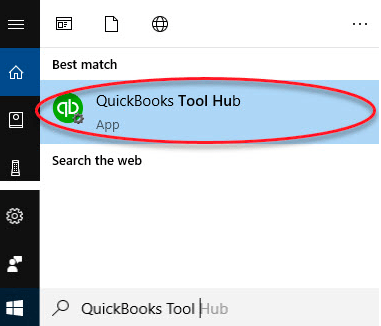
- Locate the QuickBooks tool hub from the search bar
- Launch Tool Hub
- Click on Installation Issues
- Select QuickBooks Install Diagnostic Tool
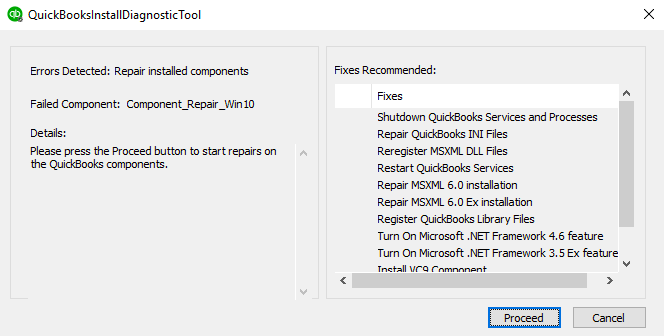
- Click on Proceed to run the scan
- Allow the tool to run & restart your system after the scan is finished
IMPORTANT THINGS TO REMEMBER BEFORE USING QUICKBOOKS INSTALL DIAGNOSTIC TOOL
- Windows should be up to date
- QuickBooks Registration required
- QuickBooks Should be updated
Summary
If the QuickBooks install diagnostic tool fails to resolve your Quickbooks error or problem. Call QuickBooks 24/7 support phone number +1800-994-0980 to connect with a QuickBooks expert to resolve your problem manually via remote support.
QuickBooks Not Working After Windows 10 Update – Here is how to fix it!
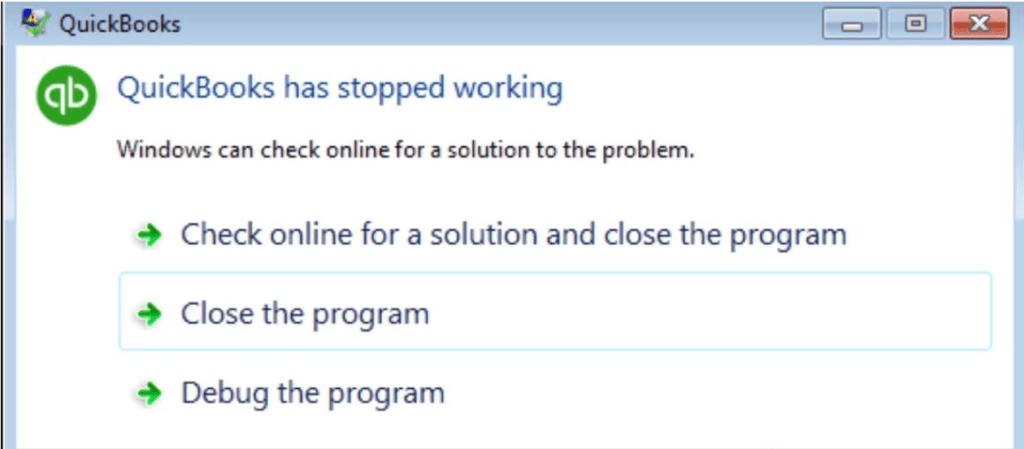
After updating Windows 10, you might have trouble opening QuickBooks. This is a common problem that prevents QuickBooks users from accessing their company files. In this guide, we will discuss a few methods that may help you resolve the issue. But first, let’s figure out what’s causing QuickBooks not working after Windows 10 Update.
Why Does QuickBooks Not Work Properly On Windows 10?
QuickBooks desktop pro for Windows is the most popular small business accounting software for keeping track of all financial transactions, taxes, bills, and sales reports, as well as quickly handling all invoices and receipts with its invoicing and expense management solution. Most importantly, it is fully compatible with Windows 7, 8.1, and all subsequent operating systems. Many users have reported problems with QuickBooks while using Windows 10, particularly after installing new windows updates. Incompatibility can be caused by a number of factors, including:
- An issue with Windows updates
- QuickBooks and Windows 10 compatibility issues
- The QB program may crash due to incompatibility with Internet settings.
Whatever the reason, opening QuickBooks is inconvenient because it prevents QuickBooks from continuing until the fault is fixed.
How to Fix QuickBooks Not Working After Windows 10 Update
Solution 1: Rename The QBWUSER.ini File
Here are the steps to manually open files:
- Press the Windows and E keys together.
- Then, from the upper left, select the Sort out tab.
- Click Find the organizer – QBWUSER.ini
- Select View
- After that, select Covered up documents and envelopes from the Progressed Setting.
- Select the Show stowed away documents and envelopes
- Next, click on OK
- Now, explore the following area
Location: \Users\[name]\AppData\Local\Intuit\QuickBooks [XXXX]
- After right-tapping QBWUSER.ini, select Rename.
- Add .old to the end of the name of the organization document.
- Rename EntitlementDataStore.ecml
- If the application opens after renaming either EntitlementDataStore.ecml or QBWUSER.ini, tap a document.
Solution 2: Restart Your Computer
The following are the steps to restart your computer:
- Select the Start menu
- Press the Power button
- Then, select Restart
- Once the restart process is completed, open QuickBooks Desktop.
Solution 3: Compatibility Check
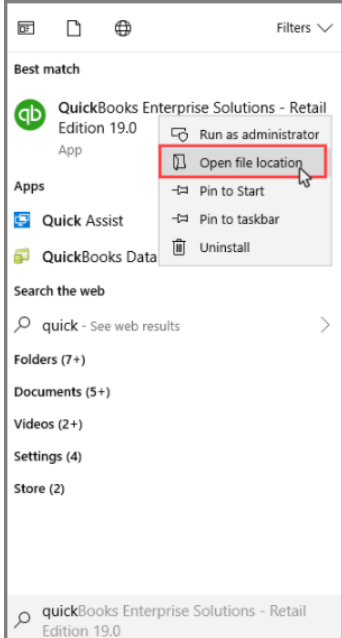
- At first, right-tap on the alternate way of the program
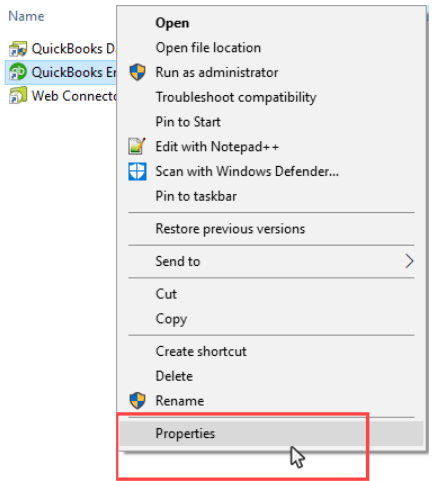
- Then, from the additional options, select Properties.
- Go to the Compatibility tab.
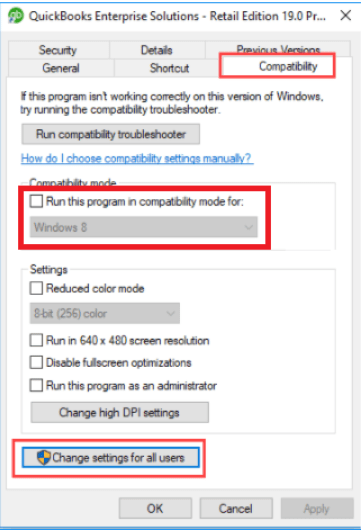
- Select Windows
- Next, to save the progressions, click on Apply
- To close the window, click OK.
- Now, check for errors using the software.
Solution 4: End the Process QBW32.exe
This solution entails preventing the QuickBooks executable file (QBW32.EXE) from connecting to the Internet. Disabling this QB feature may result in the QB installation and data tree being damaged. Make a backup of your data before attempting this method.
If you add a firewall rule to prevent the QuickBooks executable file (QBW32.EXE) from accessing the Internet, you should be able to run QuickBooks without any problems. Follow these steps to do so:
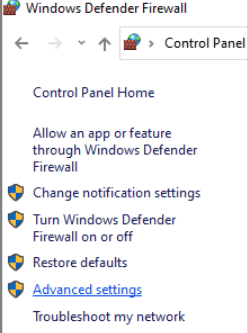
- At first, open Control Panel and select Windows Firewall
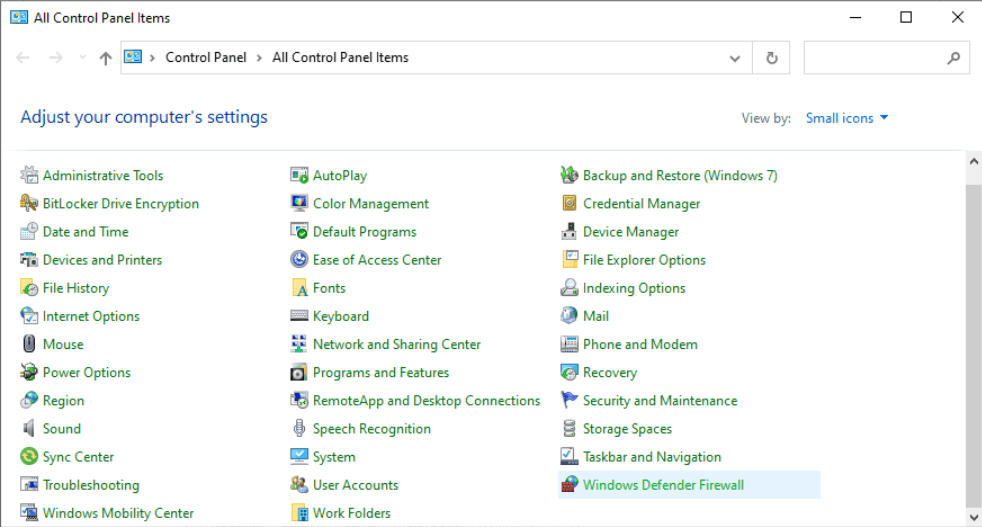
- From the left navigation pane of the Windows Firewall window, select Advanced Settings.
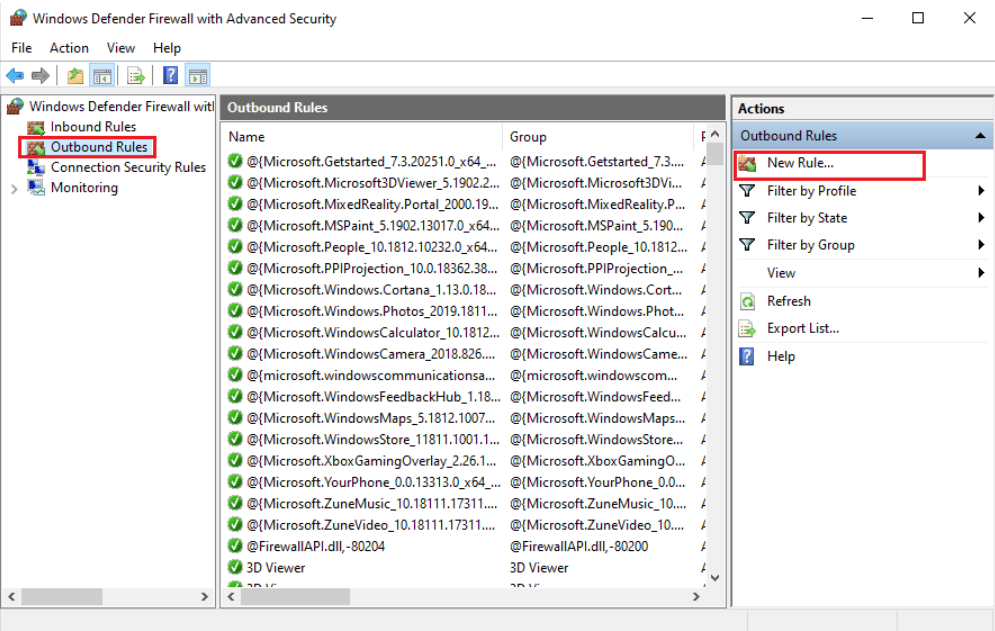
- Select Outbound Rules from the ‘Windows Firewall with Advanced Security window.
- After that, select New Rule from the ‘Actions’ pane on the right.
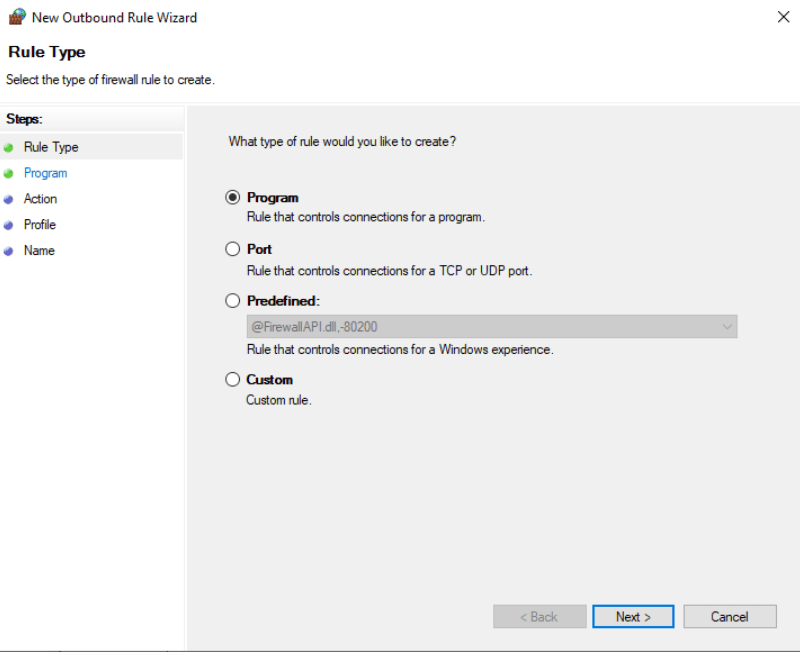
- Next, choose the ‘Program’ radio button in the ‘Rule Type’ window, then press Next.
- Select the ‘This Program Path’ radio button on the ‘Program’ window and type the following path into the program path box.
C:\Program Files (x86)\Intuit\QuickBooks 2010\QBW32.EXE (for 64-bit Windows installations)
C:\Program Files\Intuit\QuickBooks 2010\QBW32.EXE (for 32-bit Windows installations)
- Click on Next
- Choose the Block the connection option in the Action window and click on Next.
- Select the ‘Domain,’ ‘Private,’ and ‘Public’ options in the ‘Profile’ window, then click the ‘Next’ button.
- In the Name windows, give the newly created firewall rule a suitable name and then click Finish.
- Now, close the Windows Firewall application.
You won’t have any issues with the Windows upgrade once you’ve blocked QB from using the Internet. Check if your QuickBooks not working after Windows 10 Update is fixed or not.
[Note: This method works well if you’re accessing a QuickBooks data file on the same PC as QuickBooks Desktop. However, if the QB data file you want to open on the LAN is hosted on a different PC, this method will not work.]
Solution 5: Run QuickBooks Diagnostic Tool
Use the QuickBooks Installation repair tool to fix QuickBooks not working after Windows 10 update.
- Download the QuickBooks Install Diagnostic Tool
- Then go to downloads and double-tap on the record you just downloaded to play it.
- The Wizard of Establishment will appear
- Next, follow the on-screen instruction
- When the establishment is completed, run the tool by right-clicking on the device symbol and choosing Run as Administrator.
- Allow it to examine and fix the issue preventing QuickBooks from opening after an update.
- Restart your computer once it’s finished.
Contact QuickBooks Professionals
After following the steps if QuickBooks not working after Windows 10 Update is not repaired. If you are still having trouble opening QuickBooks, get in touch with our QuickBooks enterprise support experts at +1800-994-0980.
Frequently Asked Questions
What Are The Most Common Causes Of QuickBooks Not Opening?
The primary causes are as follows –
When the length of a company file name exceeds the limit
A faulty hard drive
Improper installation
The QBWUSER.INI file is missing
The update error can also be caused by an outdated operating system.
What are the most common symptoms of QuickBooks not working errors?
QuickBooks freezes unexpectedly while running the same programs
System periodically freezes
QuickBooks won’t open your company file.
Slow response from the system
QuickBooks has almost every feature available for entrepreneurs who are willing to grow their businesses. QuickBooks POS Multi-Store is one of those features that can help you to outstand your competitors in the market.
What Is QuickBooks POS Multi-Store?
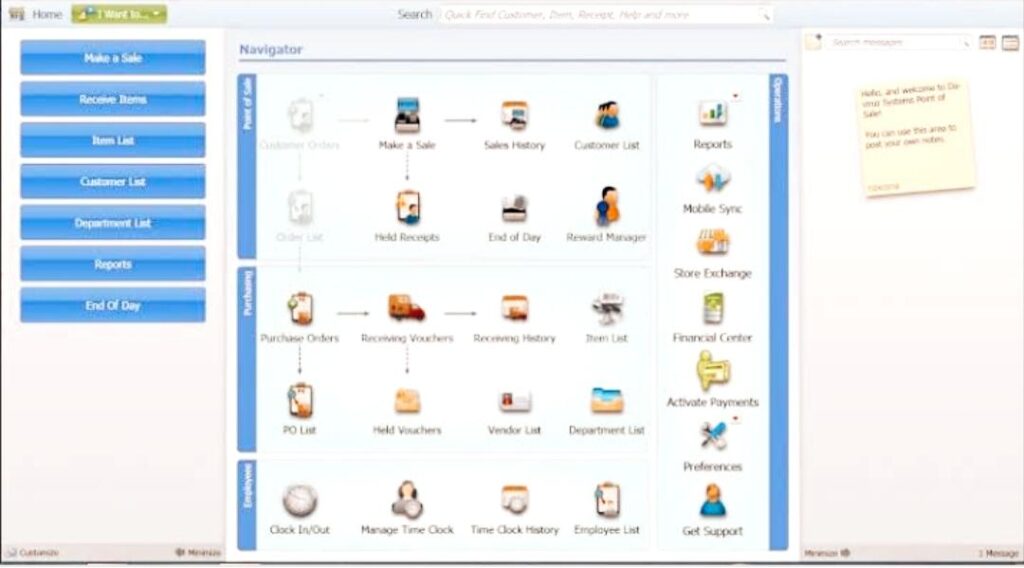
It is a retail solution by QuickBooks that has several beneficial features that can help store owners to grow their businesses and outstand their competitors in this highly competitive market scenario. By using this feature, entrepreneurs can easily handle transactions, manage inventory, create customizable sales reports, analyze sales data, etc.
Also, Check how to download & install QuickBooks POS Connectivity Tool
What Are The Top Features Of QuickBooks POS Multi-Store?
Transaction Management
This allows users to authorize, record, and process various debit and credit cards within no time. Not only that, but it also supports all popular cards as well as cashless payments such as Apple Pay, QuickBooks Payment Card Reader, Google Pay, and even Samsung Pay.
Easy Interface
QuickBooks POS Multi-Store has an easy-to-use interface and not only that, but it has several features that make all the processes very easy to track and handle. One can manage up to 20 stores by using a single office and monitor all those data precisely without any error. It allows users to keep track of petty cash payouts and limit administrative access. By using premium features, you can even create customized gift cards with your store’s logo.
Ringing Up The Sales
QuickBooks POS multi-store allows users to have a smooth selling experience. It uses multiple features through which one can ring up the sales. Even if the server is down, it will allow you to make sales by using smartphones or tablets. You’ll be surprised to know that it supports both Android OS and iOS.
Leveraging The Inventory
Retailers find it hazardous to keep track of inventories. Using the traditional way can cause multiple errors in this process. On the other hand, QuickBooks POS Multi-Store allows users to leverage the inventory and utilize resources efficiently.
One can do it by tracking packages by using a shipping manager, tracking UPC codes, serial numbers, layaways, and sales orders. It also allows users to set pre-inventory level notifications, which means if any product is about to run short, you can set the notification and you will be notified when you need to re-purchase that item.
Learn how to fix QuickBooks POS got stuck error
Real-Time Stock Management
QuickBooks POS Multi-Store allows users to get real-time stock management as the system reflects the sale and purchase transactions instantly. It makes the whole process easier so that the retailer can understand the current scenario of the store seamlessly.
This technology also analyzes the sales and starts to create an estimated inventory and stocks up all the products that the customers like and you will need in the near future.
Improve Customer Experience
It records customers’ preferences at the time they purchase anything from your store. It helps retailers to create strategies for individual customers, and also, if you want, you can create personalized discounts and offers for individual customers; you can do that seamlessly. You can offer birthday discounts, anniversary discounts, loyalty discounts, etc.
This is how customers will always find what they love in the stock. It will improve their experience and also will increase the sales.
Learn how to fix QuickBooks POS multi-user error
Keep Track Of Your Financial Data
Every time when you make any transaction, no matter whether it is a sale or purchase, QuickBooks POS multi-store always updates your books and keeps track of your financial data without any errors. It saves your time and also eliminates the chances of human error. It makes it easier for you to manage all your finances.
On the other hand, QuickBooks POS Multi-Store allows smooth data sharing with QuickBooks desktop and if you sync both the software, it will save you more time and help you to do your work without any hazards and errors.
Also check how to use QuickBooks fixed asset manager.
How To Download QuickBooks POS Multi-Store?
To download QuickBooks POS Multi-Store, all you have to do is,
- Go to the official website of Intuit
- Then, download QuickBooks POS Multi-Store from there
- Save it to a folder of your preference and go to that folder.
- Right-click on that set up file and launch that on your system.
- Now, open QuickBooks desktop point of sale and go to the help menu.
- From the help menu, you will have to select the option of registration.
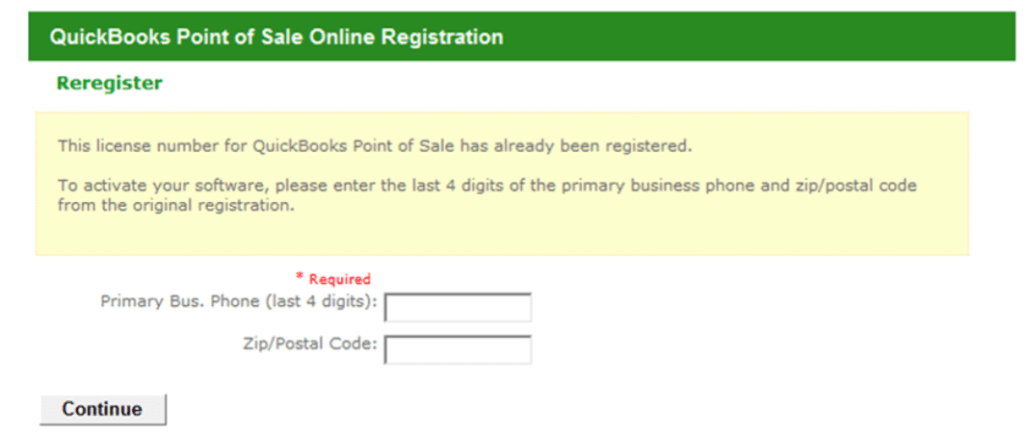
- Now, you will be able to see some on-screen instructions to follow. Follow all those instructions correctly and input the details to activate QuickBooks POS on your system.
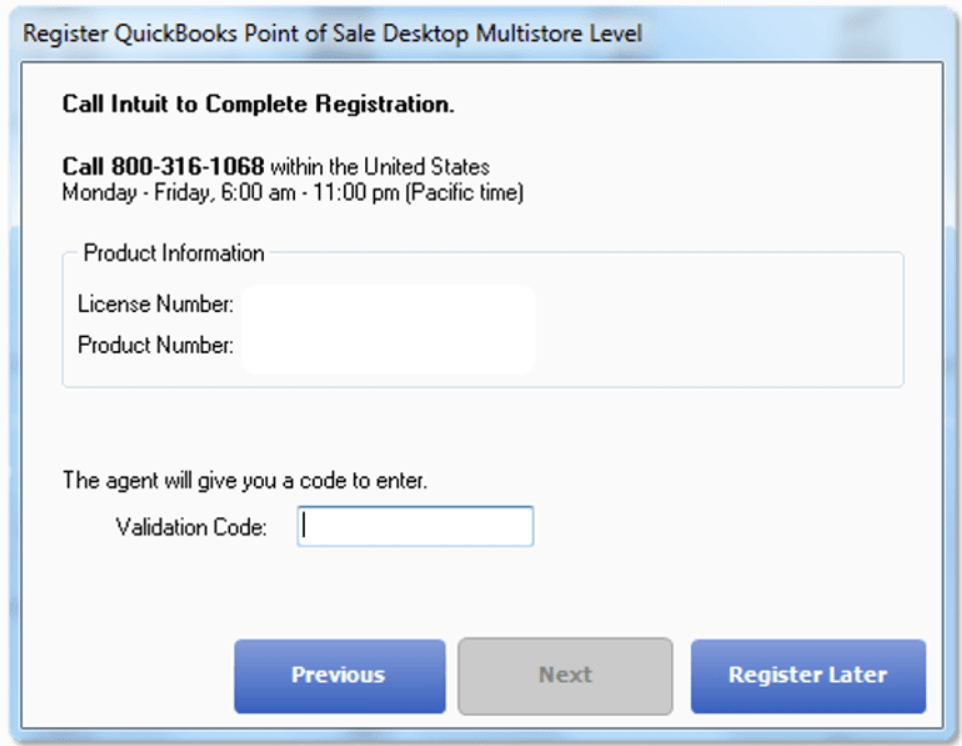
(Note– make sure to download the newest version of QuickBooks POS and also make sure that you have the latest version of QuickBooks desktop before downloading QuickBooks POS Multi-Store)
Contact POS Support
QuickBooks POS Multi-Store is an amazing feature for retailers that allows retailers to manage all their stores from a single place precisely without any hazards. If you need help setting up multi-user in point of sale, contact QuickBooks Point of sale support experts at +1800-994-0980.
Hope the article was helpful to you and has solved all your confusion.
Frequently Asked Questions
What Are The System Requirements To Use QuickBooks POS?
If you are willing to use QuickBooks point of sale, you must have Windows 10, all editions including 64-bit, natively installed, or Windows 8.1 (Update 1) all editions including 64-bit, natively installed.
Does QuickBooks POS Multi-Store Work With QuickBooks Online?
Besides QuickBooks desktop, QuickBooks POS Multi-Store seamlessly integrates with QuickBooks Online and you can enjoy the same features by using QuickBooks POS on QuickBooks online.
How Many Items Can QuickBooks POS Handle?
QuickBooks POS can handle 14,500 items. Now, QuickBooks has set this boundary
In this cashless era, not everyone carries cash with them, and for most transactions, people rely on credit or debit cards. It means that if you don’t have a card reader, you will lose the sale.
Now, when we are talking about one of the best accounting software in the world, QuickBooks, let’s know about its own powerful card readers that will help your customers to make fast payments and also will allow you to run your business from anywhere. It is the most convenient option for customers as well as QuickBooks users to see the amounts and totals by using the interactive LED display.
QuickBooks Card Readers
QuickBooks desktop has powerful card readers that will allow your customers to pay more securely and fast. These are QB21, QB31, and QB33. If you are a QuickBooks user and still haven’t used these card readers, move on with the complete article and learn about the exciting benefits of each card reader. Let’s start.
QB21 Card Reader
It is one of the most preferred card readers of QuickBooks; the features are mentioned below.
- This one accepts EMV chip cards as well as Magstripe debit and credit cards.
- It connects with the QuickBooks GoPayment iOS as well as Android operating systems by using Bluetooth.
- It is chargeable, and you can charge it by using a USB cable.
QB31 Card Reader
It is the next card reader from QuickBooks that allows users to do fast and secure transactions. The key features of this card reader are mentioned below.
- This card reader accepts almost every payment process, including Apple pay EMV chip cards, Magstripe debit, and credit cards, Google pay, and even Samsung pay. In short, this is the perfect card reader for your customers who have different payment options.
- It is chargeable, and the charge usually stays for more than a week. ( Depending on frequently you are using that)
- It works with the QuickBooks Gopayment app, QuickBooks online mobile app, IOS, and Android operating system by using Bluetooth connectivity.
QB33 Card Reader
This card reader is also known as the QuickBooks GoPayment note reader. The key features of this card reader are mentioned below.
- This card reader accepts Magstripe credit and debit cards as well as EMV chip cards
- It is chargeable, and you can charge it through a USB cable.
- This card reader connects with QuickBooks GoPayment, IOS, and Android mobile apps by using Bluetooth connectivity.
- It has extra features to work with QuickBooks desktop versions ( 2018 or above) via a USB cable.
Now, you can choose which card reader suits you the best among the above-mentioned options.
Download & Install the Latest QuickBooks desktop trial
Things To Do Before Start Using A Card Reader
Before you use your card reader for processing payments from any debit card or credit card with EMV chips, you have to update the QuickBooks card reader. The process is mentioned below
Update Card Reader Using the BBPOS Chipper OTA App
It is a program that you can download to your system, and by using it, you can update your card reader.
Follow the below-mentioned steps for doing that.
- First, you have to disconnect the card reader from QuickBooks online mobile and GoPayment application.
- Now, shut down your QuickBooks desktop program and connect the card reader with the computer by using a USB cable.
- If the application shows that it is still connecting, you have to close all the QuickBooks desktops and disconnect mobile with the QuickBooks Online mobile app as well as QuickBooks Gopayment.
- If it is still not connected, you have to press and hold the power button for 3 seconds until the device turns off.
- Wait 10 seconds, turn on the device, and try to connect it again.
- Now, download the BBPOS Chipper OTA app and open it.
- When it detects your device, click yes to update your card reader.
- The up-gradation process can take a few minutes and make sure not to disconnect the device during the process.
- Once updated successfully, click on the disconnect button.
- Your card reader is now updated.
Update Card Reader Using the QuickBooks Online Mobile or GoPayment apps
Before doing this process, you have to make sure that you have updated to the latest updated version of QuickBooks and that your card reader is fully charged. Also, make sure to have a good internet connection to update the card reader.
When you meet all the requirements, follow the steps mentioned below
- First, you have to open your QuickBooks online mobile or GoPayment app and select settings.
- Click on the card reader option and connect your card reader to the device.
- If you see that it is not connecting, you have to restart the system and try it again.
- Now, once it is connected, you have to go to my reader’s section to check whether any update is available or not. If it shows that update available, it means that you need to update your card reader, and in that case, you have to click on the continue button to continue the process.
- Then select software update and the upgrade process will now start.
- It can take around 5 minutes to update, and make sure not to perform any other activity while it is updating.
Also, Check how to Fix QuickBooks Error 1327
How To Order A Card Reader For QuickBooks GoPayment App?
If you are willing to order a card reader for your QuickBooks GoPayment app, you have to follow the steps mentioned below
Step 1: Order A Card Reader
First, you have to order the card reader and while placing the order, make sure to use your business physical mailing address. Follow the steps mentioned below
Steps to order if you have the green GoPayment app
- First, you have to go to the GoPayment app home screen and look for an ☰ icon that indicates more. Click on it.
- Now, you have to click on hardware and after that, click on the order card reader.
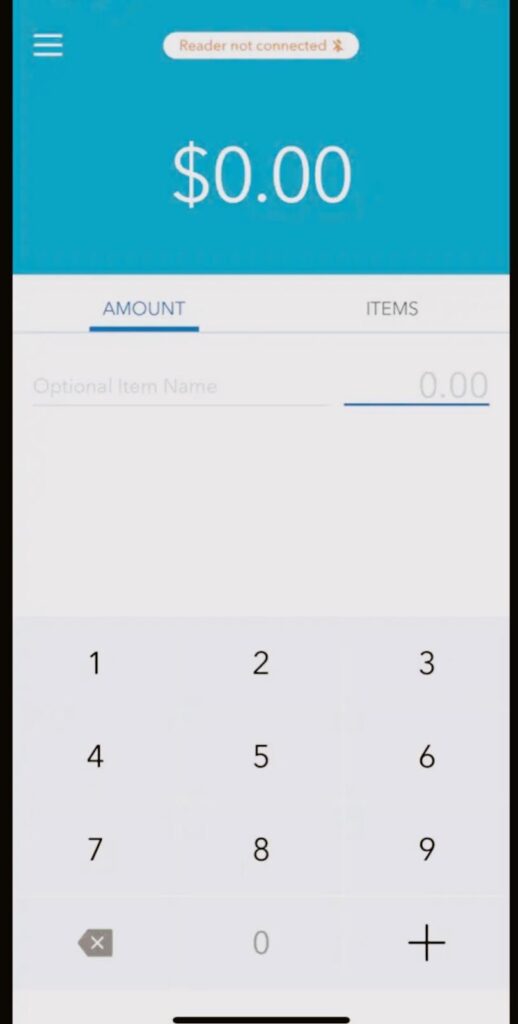
- You’ll be provided with the options and you have to select which card reader you are willing to order.
- Follow the on-screen instructions to finish the process.
Steps To Order If You Have The Blue GoPayment App
- First, you have to go to the GoPayment app home screen and click on More ☰.
- Click on the settings option and after that, click on the order card reader.
- Click on the card reader you are willing to buy.
- Complete the on-screen instructions to finish the process.
Steps To Order From The Merchant Service Center
If you are ordering a QuickBooks card reader for the very first time, this process will be advised for you.
- First, you have to log in to your merchant service center and click on the account option.
- Move towards the order card reader option and click on the place your order for the card reader that you are willing to purchase.
- Complete on-screen instructions to finish your order.
Also, check how to synchronize QuickBooks Online with the Desktop version
Step 2: Set up your card reader
Now, you know how you can order your card reader. The next thing you have to know is how to set up your card reader. Before moving further, make sure to note that card readers are only compatible to work with the GoPayment app and other QuickBooks products. If you are willing to use QuickBooks online on a web browser, you have to create and email invoices to your customers to receive the payment.
Now, let’s carry on with the steps to set up the card reader.
To set up the card reader, the initial steps are,
- Plugin with power sources your Bluetooth reader to get the battery fully charged, and for that, use the USB cable that comes with that reader.
- When the card reader is fully charged, you have to pair it with your GoPayment app.
Steps To Set Up If You Have The Green GoPayment App
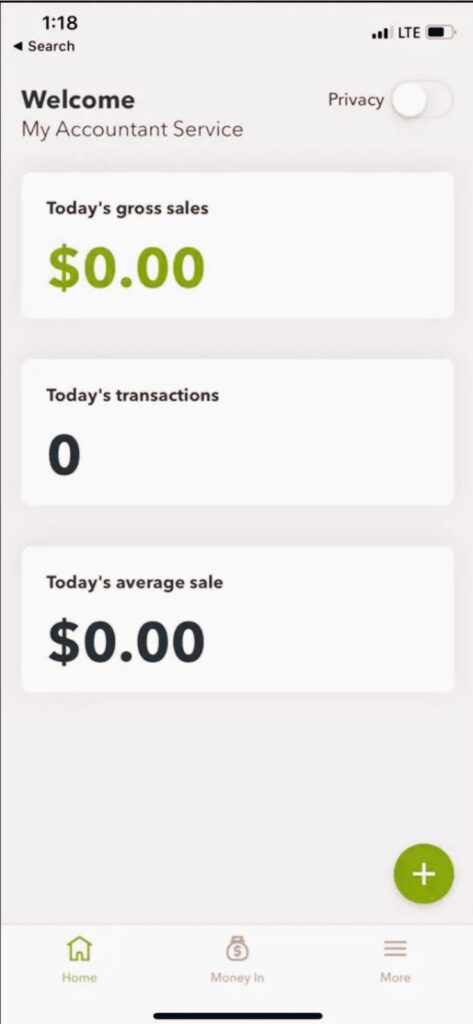
- Turn on the Bluetooth on your mobile phone.
- Find out the side button of the card reader and press and hold that until it starts blinking green.
(Note – it means that the card reader is turned on)
- Now, you have to go to the GoPayment app and click on the more ☰ option.
- Now, click on hardware and the list will open on your screen.
- Choose card readers
- Click on Bluetooth in the type section and again check whether the card reader is on or not.
- Click on add new reader to start the pairing process.
- Click the card reader’s name to pair it.
- Once the process is completed, process your payment.
- For doing this, click on the plus (+) icon and then go to the new payment option for making a payment.
Steps To Set Up If You Have The Blue GoPayment App
- First, you have to turn on your mobile phone, and then you need to turn on the Bluetooth.
- Press hold the side button of your card reader until it blinks green.
- Go to the GoPayment app and click on the menu option.
- Click on settings and go to the card reader.
- Now, click on Bluetooth in the type section and then click on add a new reader to start the pairing process.
- Select the name of your card reader under my card readers section.
- Now your card reader is all set to process payment. You can start a new payment by clicking on the + icon.
Contact QuickBooks Professionals
QuickBooks readers are efficient, convenient, and completely secured and one can use them for almost any kind of quick transaction. Hope the article helped you to choose which card reader to purchase. If have any queries contact our QuickBooks 24/7 support experts for immediate assistance.
Frequently Asked Questions
How To Turn Off QuickBooks Card Reader
To turn off the QuickBooks card reader, you have to press and hold the side button of the card reader until the screen goes black.
How To Use GoPayment?
Follow the steps mentioned below for that,
First, open the GoPayment app.
Then, tap on the + button and select invoice payment.
Select customer, or you can use the search field.
Now, select the existing invoice the customer is paying for and tap charge.
Select the payment method and start the transaction.
How Much do Quickbooks GoPayment Charge Per Swipe?
QuickBooks GoPayment charges 2.4% plus 25 cents per swiped, dipped, tapped, and contactless transaction. 3.4% plus 25 cents per keyed-in transaction. 2.9% plus 25 cents per invoice transaction.
QuickBooks Desktop is available for free for a 30-day trial period from Intuit. During this time, you can test all of the features and make your final decision. If you want to keep using the QuickBooks desktop free trial version after it expires, you’ll need to buy a QuickBooks license key. A free trial of the QuickBooks Desktop is a fantastic idea before making a final purchase. This article explains how to get the QuickBooks Desktop Trial versions for Mac, Pro, Premier, and Enterprise. Before you begin downloading, make sure your computer meets all of the system requirements. Read the article thoroughly to get a detailed idea of getting the QuickBooks Desktop free trial versions.
System Requirements For Downloading QuickBooks Desktop Trial Version
Before you download the QuickBooks Desktop free trial version, make sure your system meets the minimum requirements. Take a look at the system requirements for downloading QuickBooks Desktop free trial version 2023.
Operating System:
- Windows 8.1 and 10, 64-bit editions only (32-bit will not work).
- Windows Server 2019, 2016, 2012 R2, and 2012 (Standard and Essentials)
Database Servers:
- Fedora 31, 32, and OpenSuse Leap 15.1, 15.2
- Red Hat Enterprise 8 (RHEL 8)
[Note: Window 10 S mode is not supported.]
Browser:
QuickBooks Desktop will need Internet Explorer 11 of 32-bit and a strong internet connection.
Hardware and Operating System:
Processor: Minimum 2.4 GHz
RAM: At least 8 GB for 64-bit; 16 GB RAM is recommended
Server RAM: 8 GB RAM for 1 user, 12 GB RAM for 10 users, 16 GB RAM for 15 users, and 20+ GB RAM for 20 users
Disk Space: 2.5 GB (excluding data files) in addition to 60 MB for Microsoft. NET. 4.8 runtime, 4 GB of additional RAM, and twice the largest file backup size + 100 MB
[Note: For the best performance, keep the QB data file on an SSD drive.]
Optical Drive: 4X DVD ROM drive
Display resolution: 1280 x 1024 or higher, with up to two additional monitors.
Steps To Download and Install QuickBooks Desktop With License
At first, you have to download a suitable link for your desktop, and then you will need a QuickBooks License and Product Number, which are printed on the inside of the QuickBooks cover and emailed to you when you order the product.
Then, to download and install, follow the steps.
- After you have downloaded QuickBooks Pro and Premier, you’ll need a license and a product number.
- Then, in the dialogue box, click Run and then Yes.

- The Intuit Download Manager window will open. It takes a while. Then select Done.
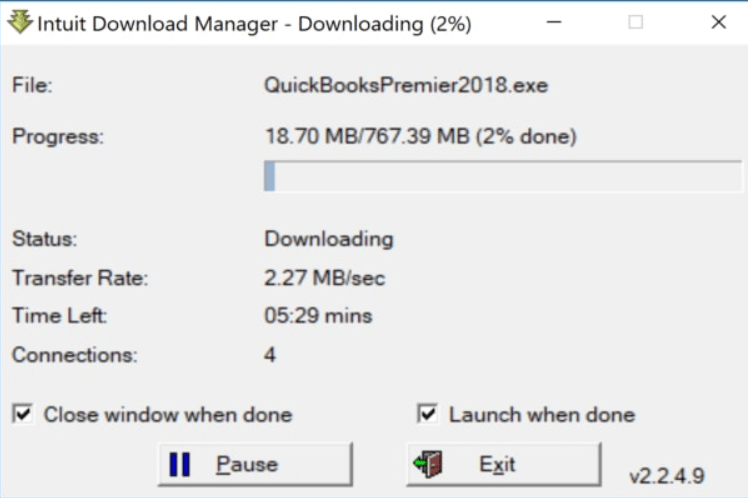
- After that, in the QuickBooks Financial Software window, click Next after completing the download.
- A license agreement will appear before you can continue. Read the agreement and click “I accept the license agreement’s terms.”
- Select the Next option once more.
- Now, enter the license and product key.

- Click Next after selecting the recommended option.
- In the next window, click Install.
- The QuickBooks Desktop Installer will be used to begin the installation process. It could take a few moments.
- Once the installation process is finished, press the Open button, and it will be ready to use.
- If the “How QuickBooks Desktop uses your internet connection” option appears, select OK.
Steps To Activate The QuickBooks Trial Version
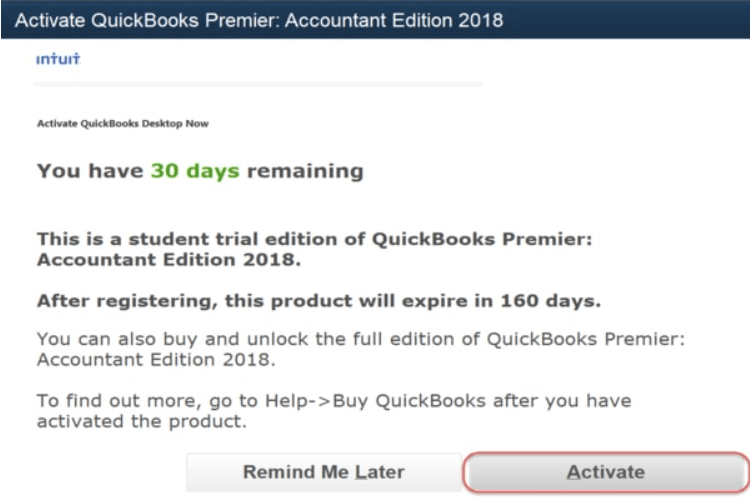
Following the QuickBooks desktop download and installation, you must activate your QuickBooks desktop free trial version. Activate it using the steps below and optimize it for 30 days.
- First, select Activate
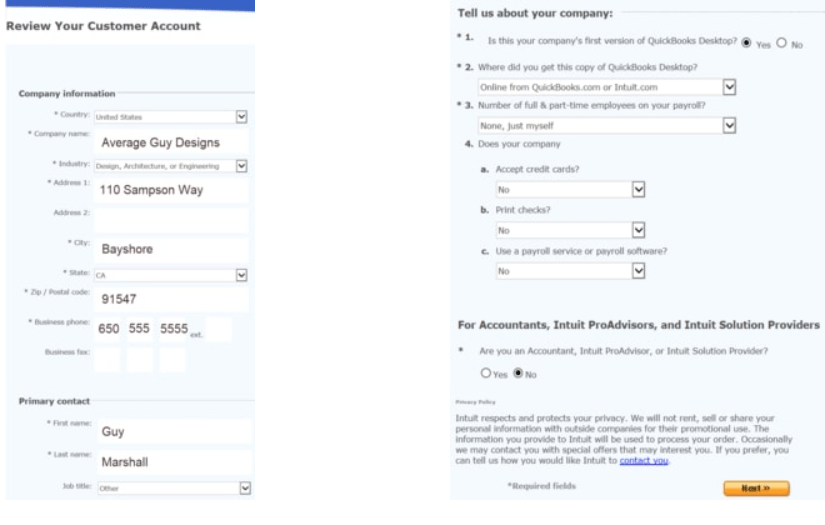
- Fill in your email address, name, phone number, and all other required fields (* indicates mandatory fields).
- Then, go to the Next option once you’ve finished.
[Note: In the company name field, you must enter a company name. If your business doesn’t have a name, you can use your own.]
- After the activation, a confirmation window will appear. For future use, print or save it as a pdf file.
Switch QuickBooks Desktop Version
You can switch to a different QuickBooks version at any time. Switching to the advanced version is recommended if your company is rapidly expanding. Based on your business needs, you can upgrade or downgrade to a different version. Let’s look at how to switch QuickBooks Desktop versions without having to uninstall them.
- First, go to Help and select Manage My License.
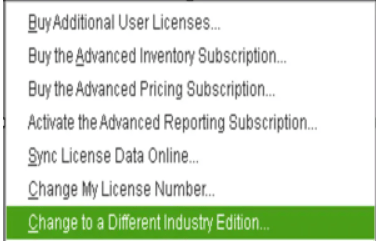
- Select the version you want to switch to by clicking Switch to.
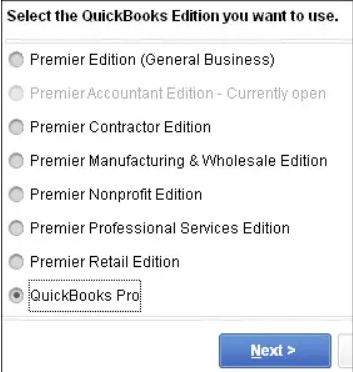
- Fill in your new license and product numbers.
- Allow the conversion to begin by clicking the OK button.
Also check how to use QuickBooks conversion tool
QuickBooks will automatically restart after the conversion is complete, and you can then enjoy your new QB Desktop version.
Wrapping Up!
Hopefully, the article was useful, and you can now install and activate the QuickBooks Desktop free trial version. If you have any queries about the topic, get in touch with the QuickBooks desktop support team.
Frequently Asked Questions
Are The Trial Versions Of QuickBooks 2018 And 2017 Compatible With Windows XP And Vista?
No, the trial versions of QuickBooks 2018 and 2017 are not compatible with Windows XP or Vista.
Can I Install The Purchased Version Using The Trial Version?
In any case, you cannot install the purchased version using QuickBooks desktop free trial version.