
Blog
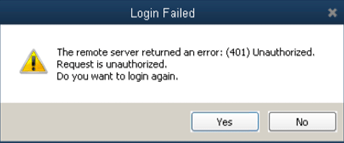
We understand the annoyance when QuickBooks users come across unauthorized request error 401. QuickBooks Error 401 – Request Is Unauthorized appears when QuickBooks desktop users are trying to login into the desktop application or company file.
Welcome to our step-by-step guide on how to resolve or fix QuickBooks Error 401. QuickBooks error 401 can get its ugly head stuck on any version of QuickBooks desktop, be it Pro, Premier, or Enterprise.
What is QuickBooks Error 401?
QuickBooks Error 401 real-time snapshot:-
Login Failed – The remote server returned an error: (401) Unauthorized. The request is unauthorized. Do you want to log in again?
QuickBooks error 401 is an error that is related to the authentication of data exchange protocol between your QuickBooks and Intuit server. It highlights the request which is not authenticated by the server. The cause of QuickBooks error 401 can be due to incorrect credentials, incorrect installation, data file corruption, certificate revoked or expired, network misconfigurations, etc.
QuickBooks Error 401 usually happens when a QuickBooks desktop user is trying to perform an action as below:-
- login to QuickBooks desktop account
- login to QuickBooks desktop company file
- login to QuickBooks desktop payroll or enhanced payroll
- log in to a third-party application integrated with QuickBooks desktop
- Sending invoices or reminders to clients
- Sending accountant file
Root Cause of Error 401
The root cause for error 401 in QuickBooks desktop in many user cases is that your QuickBooks installation files are corrupt or outdated and you need to re-install or repair your QuickBooks desktop installation and ensure QuickBooks is updated to the latest release.
Repair QuickBooks Error 401 Step by Step
Troubleshooting QuickBooks error 401 is significantly important in order to resume the financial management of the company. Here are verified methods to resolve unauthorized error 401 in QuickBooks desktop.
Use QuickBooks Install Diagnostic Tool
Download & Run the QuickBooks Install diagnostic tool to ensure that your QuickBooks installation files do not have any problems.
You can also run the QuickBooks Install Diagnostic tool within the QuickBooks tool hub. Follow the instructions on how to do it:-
- Close all QuickBooks windows
- Download QuickBooks Tool Hub
- Run file QuickBookstoolhub.exe
- Choose on-screen instructions to complete the installation
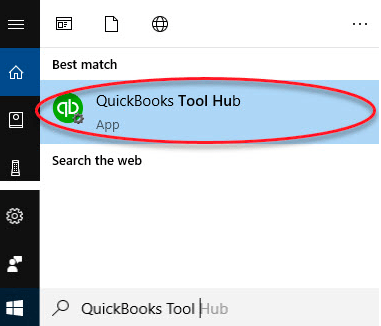
- Locate the QuickBooks tool hub from the search bar
- Launch Tool Hub
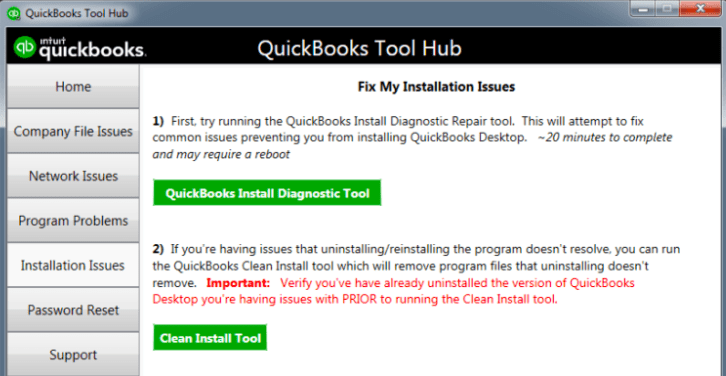
- Click on Installation Issues
- Select QuickBooks Install Diagnostic Tool
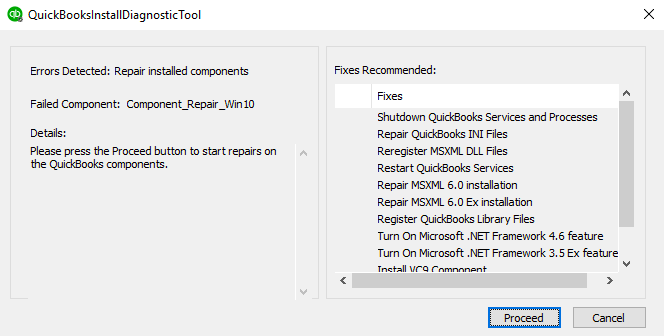
- Click on Proceed to run the scan
- Allow the tool to run & restart your system after the scan is finished
Verify QuickBooks Desktop Login Credentials
QuickBooks error 401 can also majorly appear when the user uses incorrect credentials to log in to QuickBooks desktop. If you have forgotten the username or password. You can set a new password using the QuickBooks password reset tool in the tool hub.
Clear Cache/Cookies of the default browser
Access your system’s default browser. Navigate to privacy options and clear all-time cache and cookies.
Update QuickBooks Desktop
To get rid of QuickBooks error code 401, the QuickBooks desktop should be updated to its latest release. Here is how you can do it:-
- Launch QuickBooks desktop as administrator.
- Navigate to Help on the top menu.
- Click on QuickBooks Update.
- Choose all required options and click on Update.
- Restart QuickBooks desktop after the update and check for error 401.
Disable third-party or unknown browser extensions
If you are experiencing the error 401 when logging into your Quickbooks desktop account. If you have any browser extensions on then disable them and try logging in to QuickBooks desktop again. Here is how to do it:-
- Open Default browser.
- Navigate to Settings.
- Locate Extensions.
- Disable the extensions.
- Restart the QuickBooks desktop and try to log in to QuickBooks.
Contact QuickBooks Error Support
In conclusion, QuickBooks Error 401 can lead to time loss and getting late on your financial management tasks, but by following the above-verified troubleshooting steps by our support team, you can quickly overcome Error code 401.
If in case you need assistance from a proven expert on error code 401. Contact the QuickBooks Error Support team on the helpline mentioned above or click on the live chat support box below.
Frequently Asked Questions
What is Error 401 in QuickBooks desktop?
QuickBooks error is an HTTP status code error in QuickBooks desktop which indicates an unauthorized request by a user.
Does the QuickBooks tool hub repair QuickBooks error 401?
Yes, the QuickBooks tool hub repairs error code 401 easily. But in many cases, a user needs to perform other steps in order to get rid of the error completely.
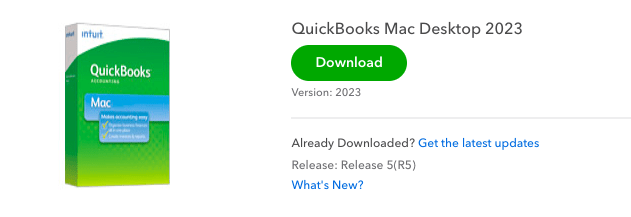
Managing finances is the most important task for a business owner in today’s fast-emerging world. Business owners need efficient tools to run their business accounting smoothly. QuickBooks For Mac no subscription is no doubt a majestic software to manage your books efficiently. Intuit has recently discontinued desktop versions and has changed the subscription plans. With this pricing, some QuickBooks for Mac users have to compromise on some features and have to migrate eventually. We as QuickBooks for Mac experts understand the need for cost-effective solutions.
For users looking for QuickBooks for Mac without a subscription version, you are at the right place. Here is how you can download & use QuickBooks For Mac No subscription which is efficient software for Apple users to manage their books.
QuickBooks For Mac Without Subscription – One-Time Fee Only
Are you considering to continue using QuickBooks Desktop for Mac? Or Are you looking for QuickBooks for Mac without a subscription version? Then you have come to the right place. We as the best in the industry QuickBooks for Mac Support experts will help you buy QuickBooks for Mac No subscription model from the right places.
QuickBooks for Mac is a marvelous desktop accounting software with a range of advanced features which allows business owners to manage their books with ease. With a 100% success rate QuickBooks desktop for Mac No subscription has proved to be the pioneer in the accounting software industry. In this comprehensive guide, we will help you from buying to the installation of QuickBooks for Mac without a subscription for your business.
Pricing
As mentioned in the support article, the pricing for QuickBooks for Mac without a subscription will be a one-time purchase at the time of license registration and checkout. For Multi-user, there will be an additional cost for the license.
QuickBooks Desktop for Mac can have up to 3 users who can work simultaneously together. The user pays a fixed price for every license. For example – QuickBooks For Mac 3 User License – (fixed price X 3).
Call our toll-free or click on the chat box to buy QuickBooks For Mac No Subscription Now!
Software Requirements & Information
| Software Name | QuickBooks Desktop For Mac |
| Developed by | Intuit Inc. |
| Category | Accounting/Finance Software |
| File Name | quickbooksformacnosubscription.dmg |
| File Size | 193.6 MB |
| Supported OS | Mac OS X v10.15 (Catalina) |
| Version | Mac |
- Active and stable Internet Connection.
- Report data export utility MAC OS applications like Apple 365 or numbers, MS Excel 2016, or the upper version.
- Reliable email services to exchange and sync data like Apple Mail, Outlook, etc
Benefits of QuickBooks For Mac without Subscription
The most important benefit of QuickBooks for Mac with no subscription is that you only have to pay a one-time fee for the license per user. There are several other benefits of this robust software for enterprises and small businesses. Here’s why it’s worth considering:
Apple Friendly
QuickBooks for Mac has a track record of more than 20+ years in the industry ensuring smooth performance with Apple and easy integrations with other MAC OS applications.
Advanced Features and Insights
QuickBooks for Mac offers a wide range of advanced features, which enable users to manage invoices, track expenses, and generate accurate financial reports effortlessly.
Interface
QuickBooks Desktop for Mac without a subscription is specifically tailored for the Mac environment with industry-specific features. Easy-to-use interface allows business owners to stay on top.
Click on the link, If you are looking to buy QuickBooks desktop pro 2021 no subscription version.
Key Features
QuickBooks Mac No Subscription has an array of features, some of the key features are highlighted below:
- Invoicing and Billing
- Expense Tracking
- Financial Reporting
- Inventory Management
- Customer and Vendor Management
- Multi-Currency Pricing Management
Install QuickBooks For Mac No Subscription
After getting in touch with one of our desktop experts, get started with the installation and setup for QuickBooks Desktop for Mac.
Follow these simple steps
- Download the QuickBooks for Mac No Subscription software installer from the instructions provided in the confirmation link from the buyer.
- Follow the onscreen instruction after launching the QuickBooks for Mac installer.
- Create a new QuickBooks for Mac account and enter the essential company or business details asked.
- Set up your chart of accounts in QuickBooks Desktop for Mac according to your requirements.
Contact QuickBooks For Mac Support
Stay ahead in business finances with QuickBooks Desktop Mac valuable insights and features. If you face any issues while purchasing or setting up QuickBooks for Mac without a subscription. Connect with one of our support representatives from our premium QuickBooks Mac Support team. We are available around the clock via flexible support channels like toll-free helpline and live chat support.
Frequently Asked Questions
Is QuickBooks For Mac without a subscription available?
Yes, QuickBooks for Mac No subscription version is available in limited quantity. You can purchase it from any authorized Intuit reseller.
Can I access QuickBooks Desktop For Mac from multiple devices?
Yes, In QuickBooks Mac multi-user version, you can simultaneously work on multiple devices.
Can in backup data in QuickBooks Desktop Mac?
Yes, You can manually backup data in QuickBooks for Mac. It also allows you to set up automatic data backup functionality which timely local and cloud backups.
Can I use QuickBooks Mac on Cloud?
Yes, After purchasing the QuickBooks Mac desktop cloud support bundle from us you can actively use QuickBooks desktop Mac from any device and location.
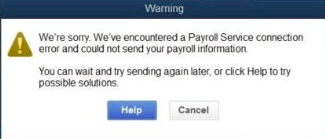
During business operations in QuickBooks desktop, the payroll feature plays a vital role in day-to-day bookkeeping. In some desktop versions users have reported frequent appearances of payroll server error or payroll connection error while processing payroll data or sending direct deposits. Payroll service connection error in QuickBooks desktop appears due to inappropriate connection settings or network misconfiguration.
In this troubleshooting guide for QuickBooks payroll service server error follow the permitted and correct methodology to rectify the error immediately. If you want to get into the intricacy of the error and want a full detailed error log report, root cause report and removal help call the support phone number mentioned above.
QuickBooks Payroll Service Connection Error Snapshot & Message
- We are sorry. We have encountered a payroll service connection error and could not send your QuickBooks payroll information to the server. You can wait and try sending it again later, or click Help to try possible solutions.
- QuickBooks Desktop Payroll Service Server Error. Please try again later. If this payroll server connection error persists, please contact QuickBooks Desktop Technical Support.
- QuickBooks Payroll Connection Error.
Causes of Payroll Service Connection Error
After understanding that this is a payroll-related error. You need to locate the root cause of the error in order to fix the payroll service connection error in QuickBooks desktop. There can be various causes of this error. Review the causes listed below, identify the problem, and use the easy methods to resolve this error on your own.
- Internet connection issues or slow internet
- Payroll Tables are not up to date.
- Server network connection issues or server overloaded
- Invalid or expired security certificate
- Sending QuickBooks Payroll data in a multi-user environment
- Firewall Misconfiguration
- Incorrect date and time on server or workstation
- Internet Explorer Misconfiguration or Script Error
Note: Ensure After Trying the solutions below, try sending the payroll data or direct deposit to check the error removal in single-user mode.
How to Fix Payroll Service Connection Error in QuickBooks Desktop
To ensure smooth and timely payroll operations on QuickBooks desktop. It is crucial to resolve Payroll service connection error in QuickBooks desktop versions like Pro, Premier, and Enterprise. Walk through these easy methods to easily eliminate payroll server connection errors in QuickBooks desktop.
Check Network Connectivity
Ensure your local Internet Connection is stable and up to its daily performance. A slow or intermittent connection can cause server errors.
Verify your Internet Connection performance:-
- Go to Internet Settings or Wifi Settings.
- Disconnect and connect to a different network.
- Check the payroll entry or direct deposit and see if you are still getting server errors in the new internet connection.
Check QuickBooks Internet Connection From Inside
When encountering network problems, the most prevalent course of action to rectify the issue involves verifying your internet connection. To determine whether your QuickBooks software is successfully connecting to the internet, you can utilize the QuickBooks Internet Connection Setup.
To verify this, adhere to the subsequent guidelines:
- Access QuickBooks.
- Navigate to the “Help” menu.
- Opt for the “Internet Connection Setup” choice.
- Confirm that the “Utilize my computer’s Internet connection settings to establish a connection when this application accesses the Internet” selection is enabled.
- Proceed by selecting “Next” and subsequently “Done.”
- Conclude by closing the software. Upon reopening, you should observe that the internet connectivity is restored.
Check whether you are getting a payroll service connection error again or not.
Download Latest QuickBooks Payroll Tax Table Updates
Download & Install the latest Payroll tax table updates from the dashboard. Follow these steps:-
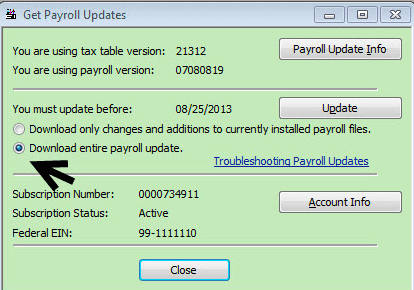
- Open QuickBooks and run it as an administrator
- Go to Employees > Select Get Payroll Updates
- Choose to Download the Entire Payroll Update
- Click on Update
- After updating, the user will see the message “A new tax table / Updates to your Payroll tax forms have been installed on your computer.”
- Click on Ok
Check Date & Time Settings
Incorrect host system or workstation date and time settings can lead to server errors. To verify and adjust the correct date and time in the system:
- Right-click on the clock or date and time displayed in the bar at the bottom location of your screen.
- Choose the option “Adjust date/time” and ensure the time and date settings of the system are accurate.
Configure Internet Explorer Settings
Internet Explorer or the default browser select to exchange data with Intuit servers can also be the major cause of the payroll service connection error in QuickBooks Desktop.
QuickBooks uses Internet Explorer settings to establish a connection. Follow these easy steps to reconfigure Internet Explorer settings:
- Right-click on Internet Explorer and run it as an administrator.
- Choose Internet Options and navigate to the Advanced Options tab.
- Choose to Restore advanced settings and then click on Apply and then OK.
Note: Check to ensure that this step resolves the payroll service connection error. If not then try to check for script errors. Here is how to fix QuickBooks Script Error in desktop 2023, 2024.
Firewall and Security Configuration
IP Whitelisting
Add the QuickBooks desktop payroll service server’s IP addresses to your server or system firewall’s whitelist to ensure seamless data flow.
Block Third Party applications
Block unknown or untrusted third-party applications on the server or system. Check for free applications as they can cause security issues in your server or system.
Contact QuickBooks Payroll Support
As Ever-Evolving QuickBooks payroll support expert team we ensure addressing frequent payroll service errors reported by QuickBooks desktop users. By performing the troubleshooting steps for payroll service connection error in QuickBooks outlined above, you can effectively remove the error permanently from your QuickBooks.
In case If you need personalized assistance from a QuickBooks payroll support expert contact our QuickBooks payroll support phone number mentioned above. Your seamless error support or query resolution experience is our priority at first.
FAQ’s
What is QuickBooks payroll service connection error?
The Payroll service connection error is when a user is unable to work on payroll, send payroll data to the server, or do direct deposit in QuickBooks desktop.
How to fix payroll server error in QuickBooks
By using primitive resolving options to ensure no other loses. Use QuickBooks experts acknowledged troubleshooting steps for this payroll server error.
Want to install a multi-user or Install QuickBooks desktop on a server? Learn how to set up and Install QuickBooks desktop on a server to use QuickBooks desktop in multi-user mode. By following this efficient method you can easily setup QuickBooks desktop on a server so that other computers connected to the network can access the company files in multi-user mode.
We will walk you through comprehensive steps so that you can easily set up a multi-user network for QuickBooks to access company files from other computers. This feature in modern days is really helpful for enterprises who want to manage their financial data frequently.
Tips before Installation
Before diving into the installation process, it’s important to ensure that your system meets the necessary requirements. Here’s a checklist to ensure a smooth setup:
Hardware Requirements:
- A dedicated system or server to host QuickBooks desktop administrator.
- Well-equipped network infrastructure for smooth operations.
- High-End or sufficient workstation or server that meets QuickBooks desktop multi-user requirements.
Software Requirements:
- Latest QuickBooks desktop versions like 2023, 2024, or the latest Pro, Premier, and Enterprise.
- Windows admin privileges and all other admin privileges should be enabled for user rights and permissions.
Step by Step Installation for QuickBooks Desktop on Server
Install QuickBooks on a server or host computer
- Download QuickBooks desktop from the official site and install using the on-screen instructions
- Choose the Custom & Network Install option
- Follow the instructions according to your technical requirements and complete the installation.
- Select local drive to store the company files as it will be more secure and easier to access.
Configure Folder User Permissions
Create a shared folder on the network drive and set up user roles and permissions to align with the multi-user environment.
Setup QuickBooks Database Server Manager
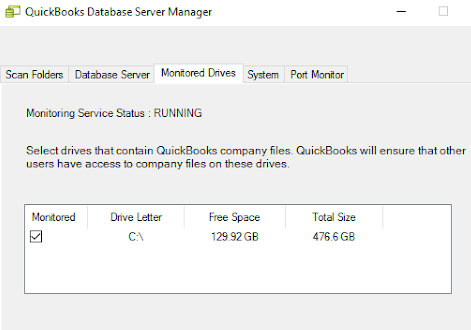
- QuickBooks Database Server Manager will allow you to scan and monitor your QuickBooks company file stored locally, and then configure it for multi-user access.
- Launch QuickBooks Database Server Manager
- Choose Scan folder
- If you are not sure of the company file folder location, you can scan the entire disk
- Click on Scan and it will display all the files found on your server
- The monitored Drive feature will keep QuickBooks Database Server Manager up to date as you add new files to the server. The monitored drive feature will help you to monitor all QuickBooks company files that were added, removed, or renamed in your local drive.
- The database server feature is used to determine the number of company files connected to the server and the number of users logged in to each company file
- QuickBooks database server manager status should be running when the server is hosting files, use the Service Administration tool to configure QuickBooksDBXX
- The update feature will allow you to update your QBDBSM
- The system feature will allow you to find system information where QuickBooks Database Server Manager is installed
Configure Firewall Settings
- To allow QuickBooks desktop data exchange on the network configure the firewall setting to allow the communication.
- To avoid interruption in QuickBooks desktop online services add not compatible or unwanted applications to exceptions in administrator and firewall settings.
Turn on Hosting in QuickBooks Desktop Admin
To turn on the hosting option in QuickBooks desktop. Follow these easy steps.
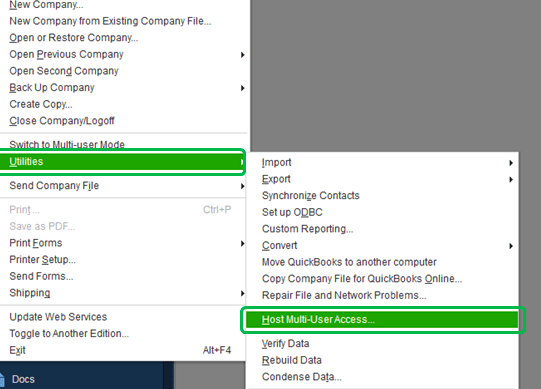
- Launch QuickBooks desktop on a server and on the top menu.
- Go to the file option.
- From the drop-down choose utilities.
- Choose the Host Multi-User Access option.
- Click on yes.
Install QuickBooks Desktop on other computers
After following the steps mentioned above download & install QuickBooks Desktop on your workstation and use multi-user mode to simplify your daily bookkeeping.
Contact QuickBooks Desktop Support
By using these easy steps you will be able to setup and install QuickBooks desktop on a server or multi-user environment. Using QuickBooks desktop pro, premier, or enterprise versions in multi-user mode will significantly increase your business’s productivity.
If you face any challenges installing QuickBooks desktop on a server or any other error during the installation. Feel free to get in touch with our QuickBooks desktop support phone number mentioned above or click on the chat support box on the right.
How to install QuickBooks desktop on a server?
Choose the Custom & Network Install option
Follow the instructions according to your technical requirements and complete the installation.
How to use QuickBooks in Multi-user mode?
Setup & Install QuickBooks desktop on a server and other computers. Add user on QuickBooks desktop account from camps. Add user privileges and permissions.
Error – Your QuickBooks subscription has lapsed – what is this error and how to fix it?
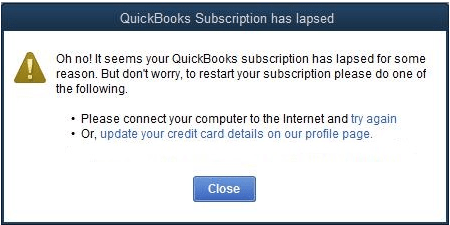
Have you been prompted with the QuickBooks error “QuickBooks Subscription Has Lapsed” or “it seems your QuickBooks subscription has lapsed for some reason?” Here is a small guide for you to learn about the error and how to fix it:
What is “it seems your QuickBooks subscription has lapsed for some reason”?
Subscribing to QuickBooks offers the users a temporary license to use the software. QuickBooks often fails to authenticate the subscription prompting the error “QuickBooks Subscription Has Lapsed”. As soon as you get this error you will be unable to use QuickBooks software.
The error message reads as follows: “Oh no! It seems your QuickBooks subscription has lapsed for some reason. But don’t worry, to restart your subscription please do one of the following.
- Please connect your computer to the internet and try again
- Or, update your credit card details on our profile page”
The error message suggests that you update your credit card information and check your internet connection to fix the error. However, these steps don’t work for all, and additional troubleshooting is required to fix the error. You must first understand some reasons that may cause this error to be displayed.
Although an expired QuickBooks Desktop subscription is the main reason why QuickBooks may prompt you with this lapsed error message but some other reasons may cause this error:
- The version of QuickBooks you are using has been discontinued by Intuit
- The QuickBooks Desktop application is outdated
- Network issues that may be caused because of problems with routers or misconfigured internet browser
- Credit card information is wrong or outdated because of which QuickBooks is not able to renew your subscription
- Errors in installing QuickBooks can also cause QuickBooks to encounter errors in verifying your subscription
Troubleshooting Steps for QuickBooks Subscription has lapsed error
Here are some steps that will help you fix the QuickBooks lapsed error:
Update Your Credit Card Information in CAMP
QuickBooks requires that the users save their credit card information which it uses to auto-renew their QuickBooks desktop software account after the completion of a year.
For some reason, if you have changed your credit card and you forget to update the new details in QuickBooks then the auto-renew fails and you are prompted with the QuickBooks lapsed error.
You must update your payment information in CAMP, this may fix this error. Here is what you need to do:
- On your choice of browser go to https://camps.intuit.com/
- Sign in with your QuickBooks account and select Product
- Open Product Details and click on Billing Information
- Next, click on Edit and fill in your recent credit card details
- Click on Save and Continue
- Now go to QuickBooks so the license can be synced
- Go to Help and click on Manage My QuickBooks License
- Select Sync License Data Online to complete the sync process
This will have fixed the problem. If the error persists you can try the next solution.
Delete the Damaged QuickBooks Entitlement File
The QuickBooks Entitlement Data Store (.ecml) file is where the information about product registration is saved. If for some reason the file is damaged then QuickBooks will be unable to read and verify your subscription to QuickBooks.
If you delete this damaged file then QuickBooks will create a new file and fix the error. Here is what you need to do:
- Exit and close the QuickBooks application
- Right-click on the Taskbar at the bottom of your desktop and select Task Manager
- Go to the Processes tab and look for the QBW32.exe file. Right-click on this file and click on End Process Tree
- When prompted click on Yes to confirm
- Open the Windows File Manager
- On your desktop go to drive C:>ProgramData>Intuit>Entitlement Client> v folder. Look for the Entitlement Data Store.ecml file and delete it
- Open QuickBooks and register the application once again
Check if the issue has been fixed. If not, proceed with the next solution.
Install the latest version of QuickBooks Desktop to fix the subscription error
Not having the latest version of QuickBooks can invite a myriad of errors including the QuickBooks has subscription lapsed error. Installing the latest QuickBooks updates can help fix these errors and improve its routine functionalities. Here is how you can update your QuickBooks.
- Open QuickBooks on your desktop
- Go to Help
- Click on Update QuickBooks Desktop
- A new window with an option to Update QuickBooks will open
- Click on the Update Now tab – you must make sure New Features, Essentials, Accountant, Help, and Maintenance Releases options are selected
- Next, click on Get Updates
- Wait for the updates to download
- Once done restart your QuickBooks Desktop application
- QuickBooks will prompt a message showing that the version has been updated and whether you would like to install it
- Click on Install Now to permit the latest version of QuickBooks to be updated
- When the installation is complete, run QuickBooks and open the company file to see if the error is resolved.
Contact QuickBooks Desktop Error Support
Follow the above steps to resolve the QuickBooks Subscription Has Lapsed Error. In case you need help from a QuickBooks expert. Get connected with elite QuickBooks desktop support experts at +1800-994-0980 for quick error resolution & support.
Related Articles about QuickBooks Subscription
QuickBooks Desktop is a powerful accounting software that can manage and store your accounting data efficiently. However, desktop users encounter a common error “There is not enough space on QuickBooks desktop”. There can be another statement of this error stating low memory or disk space issues. Mainly this error message indicates low or insufficient disk space in C Drive or the primary driver of your system. Explore the error in detail here to fix this problem and roll back to an error-free QuickBooks desktop.
Understanding there is not enough space on QuickBooks Desktop Error
Usually, users panic when they see this error, but it is more of a warning than an error message. A hard drive or disk space is a crucial technical requirement for any software. When QuickBooks desktop users have insufficient space they see warning messages on their dashboard. The error can occur in various formats. Below mentioned are the instances of there is not enough space on QuickBooks desktop error examples:-
Error: There is not enough space on QuickBooks Desktop
Error: There is not enough free space
Error: There is not enough space on drive C:\ to extract this package Free some hard drive space.
Error: QuickBooks is running slowly
The root cause of this error is related to the insufficient drive memory or disk space of your system. Other reasons can also cause this error such as a fragmented drive, C Drive being full, or temp files on a computer using excessive space. If ignored this error can lead to serious data integrity issues and QuickBooks performance issues. Users should focus on fixing this disk space error to avoid hindrances.
Causes of insufficient disk space error
Insufficient disk space is the root cause of the error “there is not enough space on QuickBooks desktop C: drive”. The causes of insufficient disk space on your QuickBooks desktop or workstation would be”-
Large Company File Size – QuickBooks desktop company file size increases with usage and consumes disk space resulting in QuickBooks disk space error.
Fragmented Files – Disk fragmentation can affect the company file to fail when loading on a QuickBooks desktop company file login. Leading to insufficient disk space error in Quickbooks desktop.
Unwanted/Temp Files – Temporary files can cause the insufficient space error in QB desktop.
Methods to Fix QuickBooks Disk Space Error
Below are methods according to the causes to fix there is insufficient or not enough space on QuickBooks desktop.
Check the space in your Hard Drive
Wondering why you are getting Error – There is not enough space on QuickBooks Desktop? Check the space on your hard drive usually the C drive. Here is how you can do it step by step:-
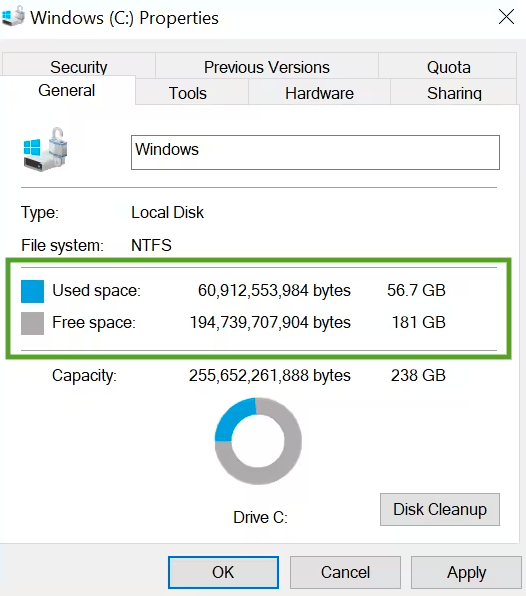
- Go to the Start menu.
- Type File Explorer into the search and click on the FE icon.
- Hover to MY PC. Then right-click on the icon.
- Click on Properties
- You’ll see how much free space you have.
How to Fix QuickBooks Insufficient disk space problem
If you have low disk space use steps to get rid of insufficient space error on QuickBooks. Below are step by step troubleshooting steps or tools:-
Regular Maintenance: To make sure that you do not come across this error subscribe to our QuickBooks maintenance & support services. Free maintenance and support every day.
Company File Condensing: Compress QuickBooks company files using the “QuickBooks Condense data utility.
Back up old company file data: Backup old data to another drive to ensure you don’t come across “Error – There is not enough space on QuickBooks Desktop”
Use Disk Clean-Up Tool
Use the inbuilt Disk Cleanup tool available in Windows 10 or above versions to remove unnecessary system files, temporary files, and other items that occupy disk space.
Steps to use the Disk Cleanup tool
- Open the run box
- Type “cleanmgr” & hit Enter.
- Click on the drive where QuickBooks Desktop is installed and choose OK.
- The utility will automatically calculate the portion of disk space you can free up.
- Choose the most recommended cleanup options & click on OK.
Use Disk Defragmentation Tool
- Open the run box
- Type “dfrgui” & hit Enter.
- Click on the drive where QuickBooks Desktop is installed and you want to defragment it.
- Choose the most recommended defragmentation options & click on proceed.
Use QuickBooks Verify and Rebuild Utility
Download & Install the QuickBooks rebuild data tool to optimize & update QuickBooks company file to get rid of this error.
How to use QuickBooks Verify Data Utility
The first step in the utility is the QuickBooks Verify data tool. You can check the integrity of your files by following the steps mentioned below.
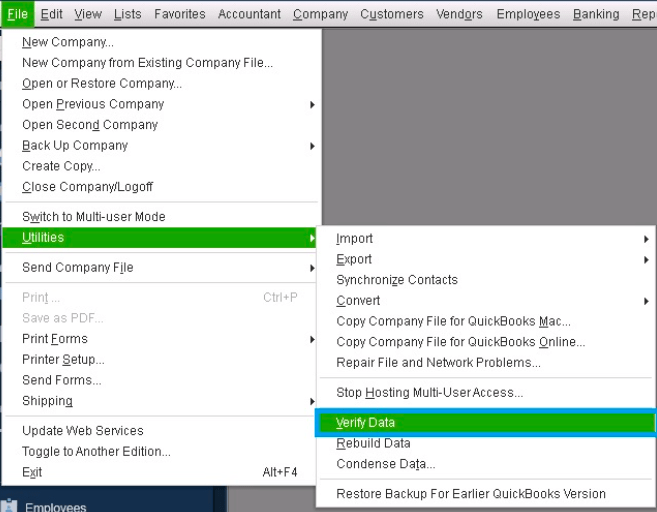
- Open QuickBooks Desktop and go to ‘Files’, then ‘Utilities’.
- Choose the ‘Verify Data’ option.
QuickBooks verify tool will check for errors. If it does not find any issues, you can resume your work and need not use the Rebuild data tool.
But if you get an error message saying that your data integrity is lost, then you need to fix your file as it is not in a good condition. You can do this using the QuickBooks rebuild data utility.
How to run QuickBooks Rebuild Data Utility?
Again, before using this tool, make sure you have backed up the file to avoid permanent data loss. Now follow these steps:
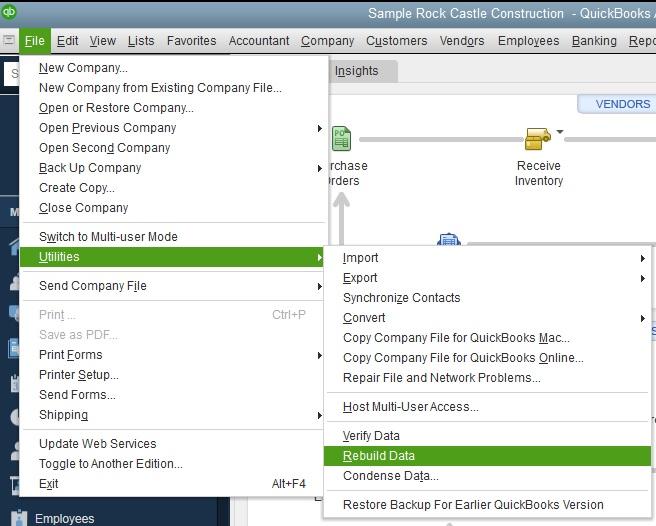
- Go to the ‘File’ menu in QuickBooks and choose ‘Utilities’.
- Click on ‘Rebuild Data’ and click ‘OK’ on the next info window.
- Now follow the prompts shown on the screen and make the right selections.
Clean Temporary files
- Open the run box
- Type “%temp%” & hit Enter.
- Select all the files
- Right-click and delete the file
- Empty the recycle bin
Remove unused programs
- Open the run box
- Type “appwiz.cpl” & hit Enter.
- Select all the programs that you don’t use
- On the top click on the uninstall option
- Proceed to uninstall the application or program by following the on-screen steps.
Contact QuickBooks Desktop Support
As a conclusion, All the steps provided in this troubleshooting article for there is not enough space in QuickBooks error would resolve or fix the error. If in any case, you need help to fix this error reach out to QuickBooks enterprise support number +1800-910-0980. Get immediate assistance for QuickBooks errors like insufficient space error on QuickBooks desktop.
Frequently Asked Questions
What does the “There is Not Enough Space in QuickBooks Desktop” error mean?
The error signifies that QuickBooks Desktop cannot find adequate free disk space to perform its operations. It needs freeing up disk space to resume functioning properly.
Can I delete temporary files easily?
Yes, deleting temporary files is very easy. However, confirm that you only delete files from your drive which are imprtant to you.
QuickBooks desktop has been changing the lives of small business owners for decades. QuickBooks Desktop 2023 has evolved into a marvelous application that meets all the accounting needs of a small business or an accounting professional. In this article, we will explore the latest release of QuickBooks desktop by Intuit in 2023. QuickBooks Desktop 2023 has enabled users with comprehensive tools and powerful features to boost the efficiency of their business in today’s digitally transformed world.
What is QuickBooks Desktop 2023
QuickBooks Desktop 2023 is a one-stop suite to manage and fulfill all accounting needs in one platform. The application empowers businesses to maintain a healthy ecosystem for their accounting by providing valuable insights, reports, and tools. QuickBooks Desktop 2023 has a user-friendly interface and experience.
Even new QuickBooks users can navigate its comprehensive set of tools and amazing features easily. With promising features in the past, the new revolutionized interface offers complete satisfaction. Advanced and fast processing commands in QB Desktop 2023 offer a more simplified and no-frills accounting system.
What’s New in QuickBooks Desktop 2023
New QuickBooks Desktop 2023 comes with new features to improve user experience and fix bugs reported by ongoing users. Intuit has seriously taken the debugging task to eliminate hindrances in the accounting process faced by users in QuickBooks Desktop 2022.
Latest Release Notes for QuickBooks Desktop 2023
QuickBooks gets updated from time to time to perform better and achieve goals vigorously. Below mentioned are the latest release notes for QuickBooks Desktop 2023.
R3 – October 2022 (Release notes for QuickBooks update in October 2022.)
| Inventory | Efficiently organize your inventory by utilizing the new category list view. Check the tutorial video by Intuit for the same. Facilitate seamless movement of multiple items and leverage categories in both the Find and Select items function as well as in reports. Kindly note that the Categories feature will exclusively be accessible starting from Release 3 (R3) or subsequent versions, and will no longer be supported in R1. Please access the Expiration Status report to gain insights on item lot or serial numbers, and apply filters to narrow down results based on expiration dates. |
| Intercompany transactions | Utilize date-range filters within the Intercompany dashboard and valuable Reports feature to refine your search results. Modify an Intercompany General Journal entry by editing all fields except for the “amount” and “account” fields. Adjust the default due-to-account when granting approval for Intercompany transactions. |
| Cash Flow Hub | Combined direct connect banks into the comprehensive “All accounts” section of the Cash Flow hub, facilitating unified and easy balance tracking across a diverse array of financial institutions. |
| 1099 changes | View-only mode is updated for QuickBooks desktop users when the QuickBooks subscription is lapsed. |
| View-only mode | View-only mode is updated for QuickBooks desktop users, when the QuickBooks subscription is lapsed. |
| Money Transmission License (MTL) | Payment receipts generated through Online Payment Processing have been enhanced to meet MTL (Merchant Transaction Language) compliance requirements. These receipts now feature MTL-specific fields and disclosures, including Payment Amount, Total Amount, Date of Transaction, Payment Method, and Authorization Code, providing users with comprehensive information regarding their transactions. |
| Error Fixes | The Inventory Valuation Summary Report is compatible with the Software Developer Kit API. Invoices incorporate the price rule for items with a sales price exceeding $10,000. To quickly access a company file, you can utilize the keyboard shortcut “Enter” on the No Company Open screen. |
Learn to manage your inventory with the new category list view. It allows users with advanced filters and reports. You can easily create, manage, edit, delete, and apply filters for reports using this new feature in QuickBooks desktop 2023. Check out the video for more detailed instructions on using this feature in 2023.
R4 (R4_92 April 2022) Release Notes for Updates in April 2022 for QuickBooks Desktop 2023
| Inventory changes | Easily manage and customize item categories in bulk using the Categories feature in Add/Edit multiple list entries, and take advantage of the convenient copy-paste functionality from Excel. Gain a clear understanding of the importance of categories through an enhanced Welcome screen. The Category Center has been renamed as Category List, aligning it with the terminology used for the Item List. |
| Web-connector changes | A new preference type, “umpnotneeded,” has been introduced to the consent screen. This feature allows developers to disable the unattended access option on the consent screen. By doing so, developers are given the choice to integrate the application and perform data synchronization exclusively when QuickBooks is active and operational. |
R4_101 April 23 – Release Notes for updates for QuickBooks Desktop 2023 in April 2023
| Desktop Payroll | You now have the ability to offer 401(k) retirement advantages to your employees through Guideline 401(k) directly within QuickBooks Desktop. This feature is available to every Enhanced & Assisted Payroll subscription user. To access and enroll in Guideline 401(k) retirement plan, start by signing in to QuickBooks Desktop as the Admin, then proceed to sign in to your Intuit Account. We have improved the employee center experience, simplifying the process of entering essential information for your employees. The employee information central and discovery items have been updated so that you can identify incomplete employee profiles & understand the advantages of having complete employee profiles. |
System Requirements for QuickBooks Desktop 2023
Discover the optimal system requirements to ensure an exceptional QuickBooks Desktop 2023 experience on your computer.
Gain valuable insights into the necessary operating system, hardware, software, and additional prerequisites essential for running QuickBooks Desktop 2023 efficiently.
System Requirement for QuickBooks Desktop For Windows
Here are the system requirements for the latest desktop versions like QuickBooks Pro 2023, QuickBooks Premier 2023, and QuickBooks Desktop Enterprise 2023. For more information, contact desktop professionals at the 24×7 available QuickBooks enterprise support phone number.
QuickBooks Pro, Premier & Enterprise 2023
Browser Requirements
QuickBooks Desktop 2023 will work in active internet connection only and support google chrome, internet explorer, and Mozilla updated versions.
Operating System
Are you currently using Windows 8.1?
Please note that Microsoft will discontinue providing security updates or support for PCs running Windows 8.1 after January 10, 2023. Consequently, QuickBooks 2023 does not support Windows 8.1 and cannot be installed on this operating system.
To obtain further information, kindly refer to the QuickBooks Desktop no longer supports Windows 8.1 resources.
QuickBooks Desktop is compatible with the following operating systems:
- Windows 11, 64-bit
- Windows 10, all 64-bit editions
- Windows Server 2022
- Windows Server 2019
- Windows Server 2016
- Windows Server 2012 R2
- Windows Server 2012
Please note that QuickBooks requires the use of Windows in a native installation and does not support emulation or virtual environments.
Database or Server
QuickBooks Desktop 2023 supports the following Windows versions:
- Windows Server 2022, both Standard and Essentials editions
- Windows Server 2019, both Standard and Essentials editions
- Windows Server 2016, both Standard and Essentials editions
- Windows Server 2012 R2, both Standard and Essentials editions
- Windows Server 2012, both Standard and Essentials editions
Please be aware that Linux and Windows 10 S Mode are not compatible with QuickBooks. It is necessary to have a natively installed version of Windows for QuickBooks to function properly.
Hardware Requirements
Minimum system requirements for QuickBooks are as follows:
Processor: A minimum of 2.4 GHz is recommended. RAM (workstation): At least 8 GB of RAM is required, but 16 GB is recommended. RAM (server):
- For 1-5 Users: 8 GB
- For 10 Users: 12 GB
- For 15 Users: 16 GB
- For 20+ Users: 20+ GB Disk Space: A minimum of 2.5 GB of disk space is needed (additional space is required for data files).
- The installation files also require an additional 60 MB for Microsoft .NET 4.8 Runtime. Extra needs for Intuit Data Protect.
- Services connected with QuickBooks desktop: A minimum of 4.0 GB of RAM is required.
- The storage space required for backups is twice the size of the largest file set to back up plus 100 MB, or twice the size to restore. This space is needed in the work folder LocalApplicationData+”Intuit\Intuit Data Protect”.
Note: It is recommended to store your QuickBooks data file on a solid-state drive (SSD) for optimal performance. - Windows: QuickBooks is compatible with the North American version of Windows. Regional settings are supported when set to English. Administrator rights are necessary for the server computer when hosting multi-user access. QuickBooks should be natively installed and does not require running in a virtual environment or emulation software. DVD or CD drive: A 4 into 4 DVD-ROM drive is needed for physical installations to a CD.
- Display resolution: Display optimized for a minimum resolution of 1280 x 1024 or higher with support for up to 2 extended monitors.
- The Default DPI setting on the computer provides the best optimization.
Please ensure your system meets these requirements to ensure optimal performance with QuickBooks.
QuickBooks For Mac 2023 System Requirements
To ensure compatibility and integration with QuickBooks Mac 2023, please review the following requirements:
Operating System
QuickBooks Mac 2023 is compatible with Mac OS X v12.0 (Monterey) or later.
iOS Compatibility: iPhone-related features require iOS 12.0 or later.
Hardware
QuickBooks Mac 2023 supports both Intel and Apple CPU hardware.
Internet Connection: An active internet connection is necessary for QuickBooks functionality.
Integration/Compatibility Requirements:
Exporting report data: Use Apple Numbers v11.0 or later, or Microsoft Excel 2016 or later (including Microsoft 365).
E-mailing reports as PDF
Utilize Apple Mail or Microsoft Outlook 2016 or later (including Microsoft 365).
File conversion
QuickBooks Mac 2023 allows one-way conversions to QuickBooks Online, one-way conversions from QuickBooks Desktop for Windows 2021 and 2022, as well as conversions to and from QuickBooks for Windows 2023.
Please ensure your system meets these requirements to enable smooth operations and optimal compatibility with QuickBooks Mac 2023.
How to Install QuickBooks Desktop 2023
Installing QuickBooks Desktop 2023 is a straightforward and simple task. Follow these steps:-
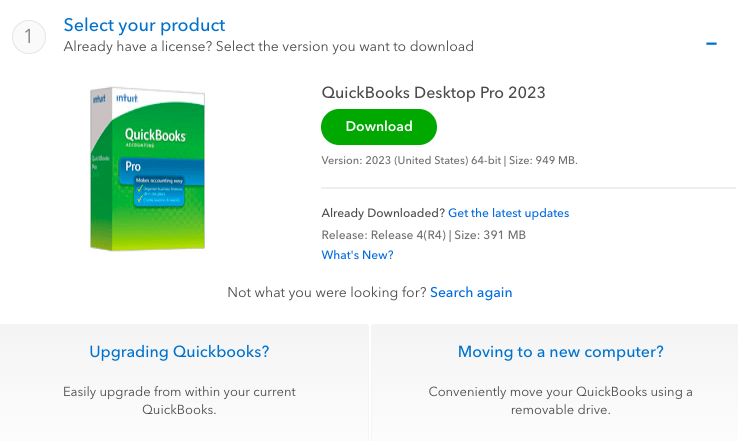
Go to the QuickBooks desktop products page and download the file.
Choose the version name in the drop-down menu.
Navigate to your Downloads and Run the downloaded file.
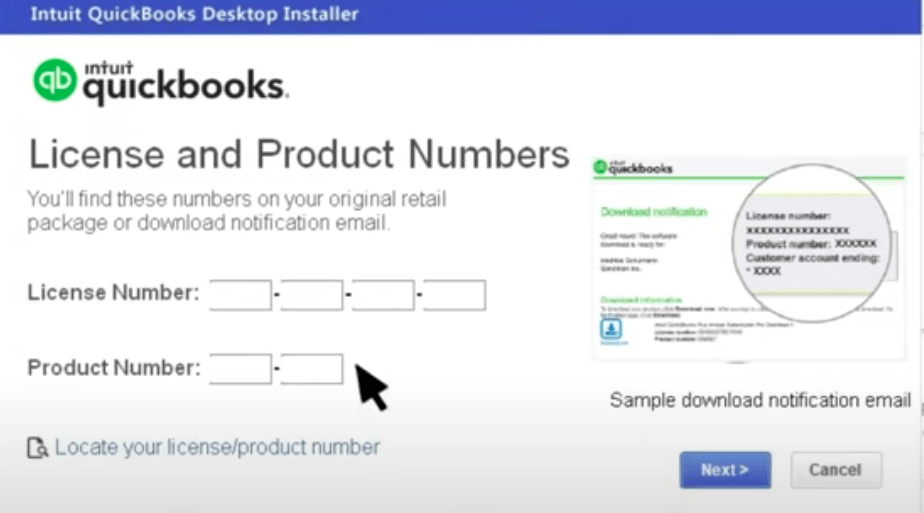
Keep your QuickBooks desktop license number handy or call us to help you locate your license info.
Activate QuickBooks after completing the installation.
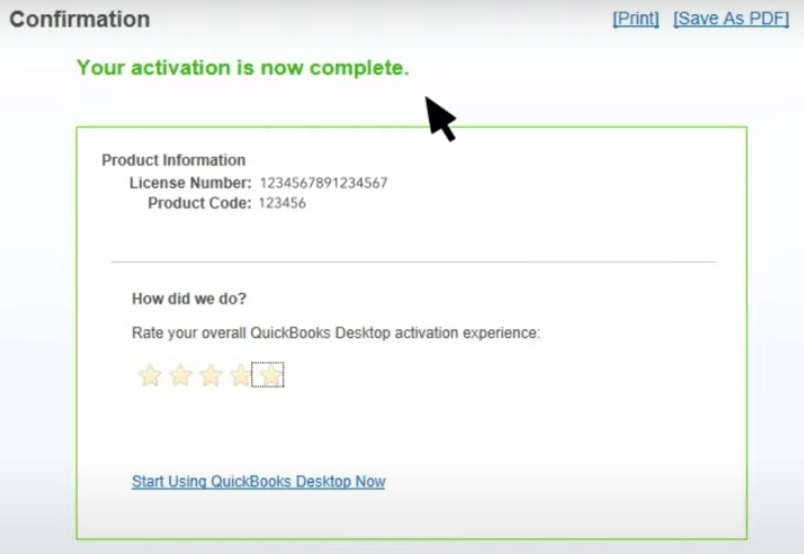
Go to the help menu and click on Activate QuickBooks Desktop 2023.
Upgrade to QuickBooks Desktop 2023 within QuickBooks
If you are an active subscriber of QuickBooks Desktop Pro (or Premier) 2017 or 2018, upgrading your QuickBooks Desktop version is easy and fast. With just a few clicks using Easily Upgrade to 2023.
Follow these steps to conveniently update your QuickBooks Desktop to the latest version.
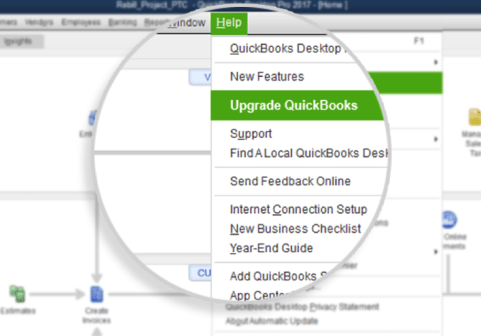
Go to the Help menu and choose “Upgrade QuickBooks.”
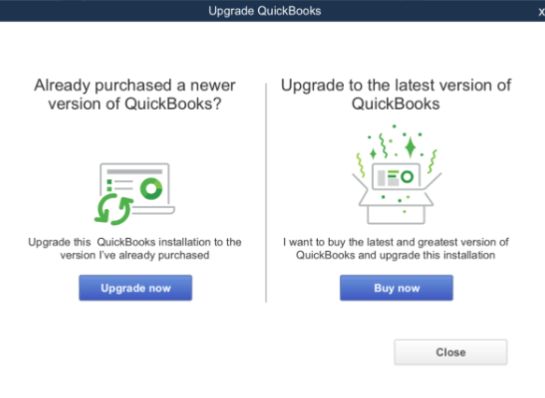
If you have already purchased QuickBooks and are ready to upgrade, select “Upgrade Now.”
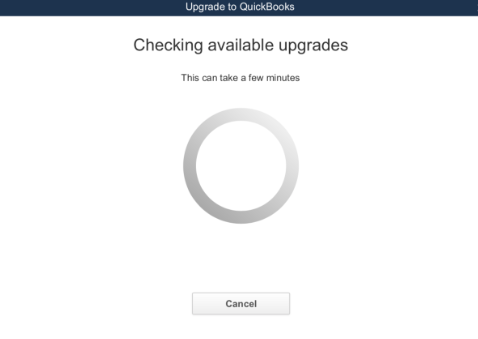
QuickBooks will automatically check for available upgrades on your customer account.
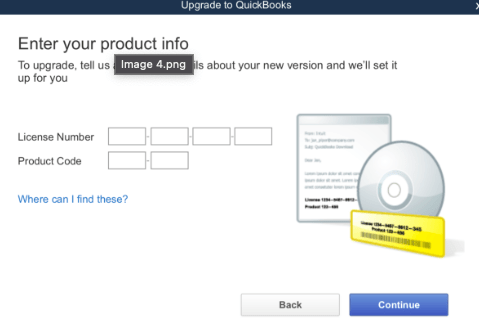
If no upgrades are available on your customer account or if you purchased QuickBooks from a retail store, QuickBooks will prompt you to provide the license and product numbers for the upgrade. Once you enter the information, select “Continue” to proceed.
If upgrades are found on your customer account, QuickBooks will display them. Select the appropriate version and click on “Upgrade Now.”
If you prefer to remove the older QuickBooks version, uncheck the option “Keep old versions on my computer” and then select “Let’s go.”
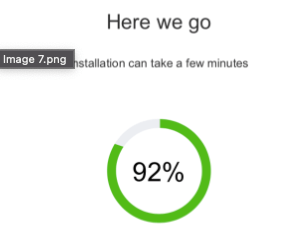
QuickBooks will close at this point, allowing the upgrade process to run. This process installs and registers the new version, creating an updated copy of your company file.
Note: The duration of the upgrade may vary depending on your internet speed and the size of your company file.
Once the upgrade is completed, a success message will appear. Select “Open QuickBooks,” and you can start using the new version of QuickBooks.
Tip: QuickBooks automatically detects new software editions on your customer account. When you launch QuickBooks, you will receive a prompt to upgrade. Simply click on “Upgrade Now” to initiate the upgrade process.
Contact QuickBooks Desktop 2023 Support
From Navigating in QuickBooks Desktop 2023, managing customers and sales in QuickBooks Desktop 2023, managing vendors and expenses in QuickBooks Desktop 2023, Tracking and Analyzing Finances, Payroll Setup & management in QB Desktop 2023, Customizing & Using Reports in QuickBooks Desktop 2023, Integrating third-Party applications with QB Desktop 2023 and Troubleshooting common issues in QuickBooks Desktop 2023. If you need any help contact our QuickBooks support team.
Our certified professionals are equipped with the latest technology and information. You can explore QuickBooks Desktop 2023 before making any decision. Contact our toll-free helpline support phone number and get a demo for QuickBooks Desktop 2023.
QuickBooks Desktop 2023 FAQs
Which QuickBooks desktop version be discontinued in 2023?
Intuit will discontinue QuickBooks desktop versions before 2021 after May 2023.
How much does QuickBooks Desktop 2023 cost?
QuickBooks Desktop price ranges from versions. QuickBooks Desktop Pro 2023 is $399.95/yr, QuickBooks Pro Plus 2023 for $549/y, QuickBooks Premier 2023 for $799/yr, and QuickBooks Mac Plus 2023 for $549/yr.
How to Install QuickBooks Desktop?
Open the .exe file for QuickBooks desktop 2023 for Windows. Double-click and follow the on-screen instructions to install QuickBooks Desktop 2023.
Everyone knows that one needs to get a subscription to use QuickBooks. But, many users may not know that they can now use QuickBooks desktop Pro 2021 No subscription. Yes, QuickBooks is one of the best accounting software out there that allows users to handle and track their businesses without any hassles. Users can use 2021 QuickBooks Pro without a subscription. Let’s know further details about this.
What Features Will One Get With No Subscription QuickBooks Desktop Pro Licence?
QuickBooks Desktop Pro 2021 No Subscription is a one-time purchase license that doesn’t need any subscription to use. It hasn’t compromised the quality and allows users to access all features of Quickbooks pro. One can install it on up to 2 computers. Users can be benefited from payroll services as add-ons. It also comes with several new and exciting features, such as
- Automated Payment
- Reminders
- Emails/ invoice consolidation
- Smart help etc.
So, we can say that this non-subscription license is beneficial enough for users. Now, you can track performance, and finances, or export financial data without any hazards by using this QuickBooks license number. One thing that should be mentioned here is that you can check customers, vendors, or suppliers up to 14,500 times by using QuickBooks Pro.
It only has one drawback, it does not work with Mac, and only users who have Windows 8 or Windows 10 can use this version.
Contact on our toll-free +1888-727-2587 to get QuickBooks desktop Pro 2021 without a subscription
Best Features Of QuickBooks Desktop Pro 2021 No Subscription
QuickBooks Desktop Pro 2021 No subscription has introduced several amazing and beneficial features to its users. Some of the features are mentioned below
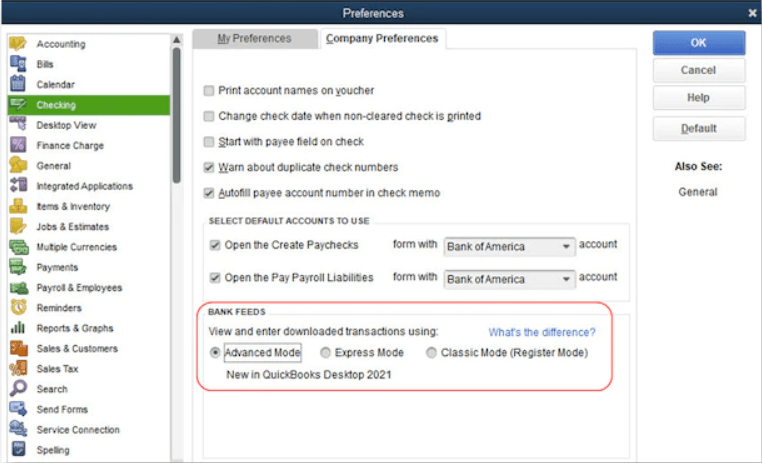
Streamline Bank Feeds
This feature will save you the time you invest every month to input your bank transaction details. This feature allows users to automatically categorize transaction details with more efficiency and detail.
Automated Receipt Management
With this feature, you will never lose a receipt. You can now automatically create and categorize receipt expenses transactions on the QuickBooks desktop pro 2021 no subscription. It stores digital copies of the receipts on users’ computer
Create Rule-Based Customer Groups
You now can improve your customer experience by creating rule-based customer groups depending on the age, preferences, locality, or other details of customers. It helps to manage your customers and provide them with personalized service.
Automated Statement/Payment Reminders
You would never want to miss a date of payment and that’s why QuickBooks Desktop Pro 2021 no subscription offers automatic statements or payment reminders. You can now send statements with payment links to the customer to encourage them to clear their due payment. It allows users to send customized reminders to improve the customer-seller bond.
Improved Inventory Features
With QuickBooks Desktop Pro 2021, it has become easier to track warehouse inventories. For this purpose, it has improved features such as data level permissions, barcode label prices, improved landed cost calculations, etc. Using QuickBooks inventory tracking one can manage and track all the inventories without hazards and in less time.
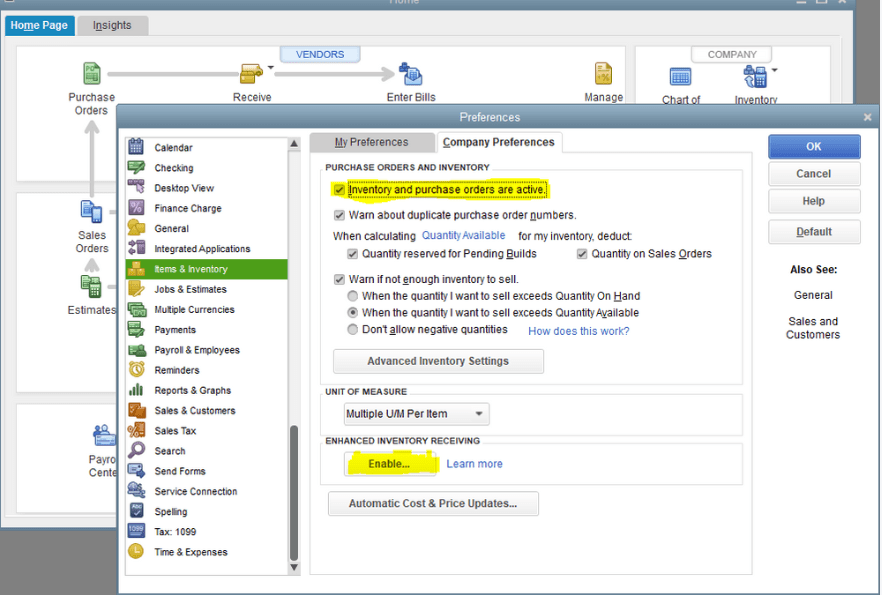
Payroll Liability Reminders
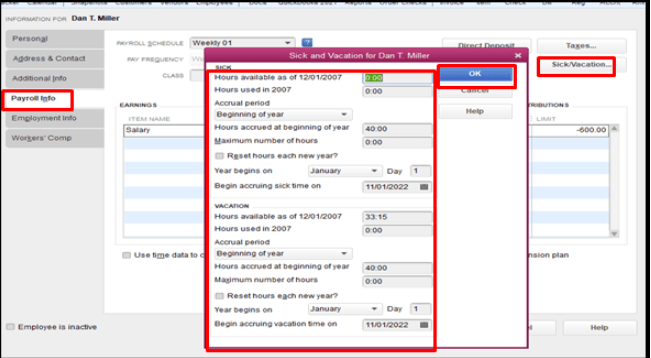
It is an amazing feature for small and medium business owners. They can now set calendar reminders for upcoming payroll taxes and liabilities.
Customized Payment Receipt
By choosing QuickBooks desktop 2021 with no subscription, users can customize the payment receipt to add a professional touch to their customer communication.
It Allows To Set Up And Reuse Email Templates
QuickBooks Desktop Pro 2021 without subscription allows users to create and reuse email templates to increase their confidence in their emails.
Merchant Services Payment Reconciliation
To improve the quality of merchant workflow, it allows desktop merchants to match all the payments to their accounts without any manual involvement.
Besides these amazing features, QuickBooks desktop Pro 2021 also comes with several other beneficial options to ease the hazards of managing a business.
Also, Check how to fix QuickBooks subscription has lapsed
Can QuickBooks Desktop Pro Still Be Used Without Subscription?
With the 2023 release, QuickBooks has made subscriptions essential for all of its products. So, you can use QuickBooks 2021 without a subscription, but you can not use QuickBooks 2023 without a subscription. Now, QuickBooks has made the subscription mandatory to use the software efficiently. If you already have updated your Quickbooks to the 2023 edition, you may not be able to use that without a subscription.
How To Update To QuickBooks Desktop Pro 2021?
To update your QuickBooks to the QuickBooks Desktop Pro 2021 no subscription version, follow the steps mentioned below.
- First, you have to open QuickBooks and, from there, go to the help option.
- Here, you will find the option to upgrade QuickBooks.
- Here, you have to select the version you want to upgrade to and as the next step, you have to click the button named upgrade now.
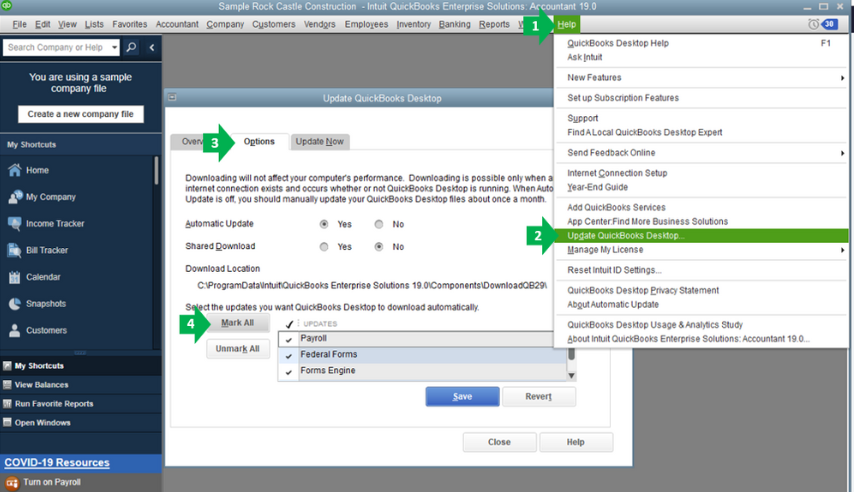
- You can also keep the current version on your computer by saving it when prompted.
- Once it is done, select let’s go.
Now, your QuickBooks should be updated to the 2021 Pro version.
Summary
Though it is always advised to update QuickBooks to the latest version, You can still install QuickBooks Desktop Pro 2021 No subscription from the official website of Intuit and use this without a subscription. In case you need help, contact our QuickBooks pro support phone number at +1800-994-0980.
Frequently Asked Questions
How Much Is The Annual Subscription Of QuickBooks Pro?
It is $349.99/ year for Quickbooks pro plus and if you are willing to purchase QuickBooks Pro plus + payroll, the annual subscription for that is $849.99/ year.
Can Someone Still Buy QuickBooks Desktop Pro 2021 No subscription?
Yes. QuickBooks 2021 can still be used seamlessly. There are few one-time purchase licenses left for Quickbooks 2021. So, if you are willing to buy one, you should hurry.
Should One Uninstall The Current Version To Download The New One?
According to many users, if you try to install another version while you already have a version on your system, it may lead you to installation issues. That’s why it is always advised to go for a clean installation to avoid the installation errors of QuickBooks.
While accessing the QuickBooks desktop payroll direct deposit feature, users might encounter a rising error after the maintenance release update for QuickBooks desktop 2023 i.e. QuickBooks error code 40001. This error code prevents the user to update the payroll information according to the new compliances. In some scenarios whether you have entered payroll account information and submitted you still see Error Code 40001 warning.
Fix QuickBooks Error Code 40001 in simple steps
QuickBooks desktop payroll functions like direct deposit, downloading QuickBooks payroll updates, accessing payroll information, downloading payroll reports, or using the QuickBooks payroll center require the payroll account information to be updated according to new federal compliance regulations.
If a user is unable to update the information or due to other technical obstacles, QuickBooks desktop may display Error Code: 4001. In this detailed troubleshooting guide, we will provide you with simple steps to fix QuickBooks error 40001.
Snapshot of Error Code 4001 warning in Payroll Center
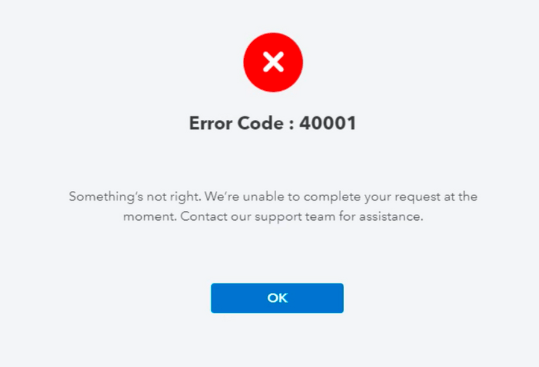
Error Code: 40001 Something’s not right. We are unable to complete or finish your request at this moment. Contact our QuickBooks support team for assistance.
In case you need assistance from a payroll expert you can get in touch with our toll-free helpline mentioned above. A payroll expert will help you with this entire process and fix QuickBooks error code 4001 for you.
Troubleshooting Steps for QuickBooks Payroll Error Code 40001
Step 1: Run QuickBooks as an administrator
- Close all QuickBooks windows using the task manager or application killer
- Right-click on the QuickBooks desktop icon and select the Run as Administrator option
Step 2: Remove Duplicate Installations
In many scenarios, QuickBooks users forget to remove the older versions installation after upgrading QuickBooks desktop and this can also be the reason why a user is getting QuickBooks Error Code 40001. Two versions at the same time coincide with each other and block online requests. Here is how to remove older installations.
- Click on the Windows icon.
- Type on the run command box – appwiz.cpl
- Check for QuickBooks older version installations like QuickBooks Pro 2021, If you see anything which seems like the older version of the desktop.
- Choose the older version and click on uninstall and remove all components aligned with it.
Step 3: Repair Company File Errors using rebuild & verify utility
Run QuickBooks Verify and Rebuild data utility to ensure that your company file has no errors or issues. Simply use these steps:-
- Run QuickBooks desktop as admin.
- Login to your company file.
- Go to the file menu and click on Utilities.
- Choose to Verify QuickBooks Data option.
Wait for the diagnosis and then click on the results, If you see a warning that QuickBooks has found some problems with your company file then proceed to the rebuilding process.
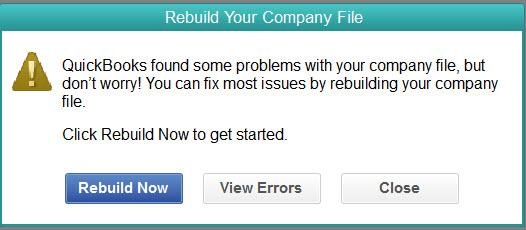
Click on view errors to know what errors are present in the company then click on the Rebuild data option to finish the rebuilding process.
Step 4: Use Tool Hub to Repair company file & installation error
Download and Install QuickBooks desktop tool hub utility. Use QuickBooks File doctor feature in tool hub to fix QuickBooks payroll update error 40001. Here is how to do it
- Download QuickBooks Tool Hub.
- Install the tool hub and run the utility.
- Click on company file issues.
- Click on QuickBooks file doctor or also try Quick fix my program and let the repair work finish.
- After that, click on the Installation Issues tab.
- Click on the option QuickBooks Install Diagnostic tool.
- Close all applications, and restart your system.
Step 5: Update QuickBooks Desktop Payroll
Open QuickBooks desktop. Go to the Employees menu and click on Get Payroll Updates
Choose to Download the Entire payroll update and click on update. In case this doesn’t help get in touch with our expert who will help you. Contact the toll-free mentioned above.
Contact Error Support
After trying several troubleshooting steps, you may still face QuickBooks error code 40001. Get in touch with our QuickBooks error support professionals with optimum payroll knowledge. The executive will guide you throughout your direct deposit setup and activation. You can also chat with our available agent in our chat support option on the left.