
Blog
QuickBooks desktop is an essential tool for businesses to streamline the accounting process. QuickBooks desktop is prone to errors that disrupt day-to-day operations. One of the most common errors among the 15XXX series is QuickBooks error 15103. With the right guidance and implementation of correct troubleshooting steps, QuickBooks users can repair QuickBooks error 15103.
What is QuickBooks Error 15103?
QuickBooks error 15103 typically occurs when users attempt to update payroll or QuickBooks desktop. When this error occurs, users see a message stating Error 15103: Unable to update payroll or QuickBooks Error 15103: the specified file path is invalid. In this support article, we will talk about the QuickBooks Error 15103 introduction, its causes, preventive methods, and troubleshooting steps.
Common Symptoms of QuickBooks Error 15103
- Inability to update QuickBooks desktop application.
- Error message prompts from 15XXX during the update process.
- The system freezes or crashes during the update installation.
- Unresponsive QuickBooks software after encountering the error.
- Performance Issues while working on QuickBooks Payroll.
Identifying Root Causes of Error 15103
It is important to understand the root cause of the error before performing any troubleshooting steps. QuickBooks Error 15103 commonly occurs due to damaged installation files or update files in QuickBooks desktop. Additionally, a corrupt company file can also lead to QuickBooks error code 15103 in QuickBooks.
How to Fix QuickBooks Error 15013
Run QuickBooks as an Administrator
Run QuickBooks desktop as an admin and then update your QuickBooks desktop & Payroll:-
- Terminate all QuickBooks windows running in the background.
- Right-click on the QuickBooks desktop icon.
- Find and click on the option Run as Administrator.
- Confirm positive options on prompts for starting the application.
- On the top bar go to Help and choose Update QuickBooks desktop.
- In the update window, click on Update Now, then click on Get updates.
Verify QuickBooks Desktop Payroll Subscription
Ensure that your payroll subscription is active and up-to-date. Sometimes, expired or inactive subscriptions can trigger error 15103 in QuickBooks.
- Launch QuickBooks Desktop
- Login to your QuickBooks company file
- Navigate to employees and choose My Payroll Service from the drop-down menu.
- Click on Account or Billing Information.
- Login to your Account using your email address and password for your Intuit account.
- Your QuickBooks Products page will be displayed under your company details.
- Under the Status option, If you see the subscription is active, then leave it and move on to the next troubleshooting method.
- If your subscription status shows inactive or unsubscribed, click on Resubscribe and proceed.
- Follow the on-screen instructions to reactivate the QuickBooks desktop payroll service.
Run QuickBooks Install Diagnostic Tool
If manual update installation fails to resolve the error, use the QuickBooks Install Diagnostic Tool to fix QuickBooks error 15103 or payroll error 15103:
- Close all running QuickBooks windows.
- Download and Install QuickBooks Tool Hub.
- Double-click on the file QuickBookstoolhub.exe
- Choose on-screen instructions to complete the installation.
- Locate the QuickBooks tool hub from the search bar or double-click on the icon on the desktop.
- Launch QB Tool Hub.
- Navigate and click on Installation Issues.
- Select QuickBooks Install Diagnostic Tool.
- Click on Proceed to run the scan.
- Allow the tool to run & restart your system after the scan is finished.
Use QuickBooks Tool Hub
Download and Install the QuickBooks tool hub and use the Quick Fix My Program feature to fix QuickBooks error 15103.
- Click on the link below to download the QuickBooks desktop tool hub or go to the QuickBooks downloads site and download the QB tool hub from there.
- Save the QB tool hub download from your computer.
- Open the downloaded file(Quickbookstoolhub.exe)
- If the installation is done double click on the icon of the QuickBooks tool hub to launch the troubleshooting application.
Launch Quick Fix My Program to check
After you have downloaded and installed the QuickBooks tool hub, open the application and in the launchpad follow the steps below:-
- In the launchpad window of the tool hub.
- Navigate to Program Issues/Problems.
- Click on the Quick Fix My Program button.
- QuickBooks tool hub will run scan your QuickBooks program to fix the payroll update error 15103.
Now, Go to the QuickBooks desktop update window to start updating QuickBooks desktop and payroll again. If the issue persists, try the below steps for troubleshooting QuickBooks error 15103.
Delete Component File
- Open QuickBooks Desktop and find the installation folder where your QuickBooks desktop files are.
- Type Component on the search box and look for a components file or directly put this on the search bar on the right top – C:\ProgramData\Intuit\QuickBooks 24\Components
- 24 after QuickBooks denotes the version date. If you are using QuickBooks 2021, 2022, or 2023. Change the two digits as per the version year release.
- Right-click on the components file and delete the file.
- After deleting the file, Launch QuickBooks Desktop.
- On the top bar, Click Help > QuickBooks Desktop Update.
- Click on Update Now, then choose Reset Updates.
- Close and restart QuickBooks as an administrator.
- Navigate to the updates window, and Go to the updates window again.
- Click on Get Updates.
Check if you are still getting QuickBooks Error 15103 in the update window for payroll. If the error persists, move on to the next solution.
Install Digital Signature Certificate
- Locate QBW32.exe in C:\Program Files\Intuit\QuickBooks2024.
- Right-click and select Properties.
- Verify Intuit in the signature list under Digital Signature.
- Install the certificate and restart your computer.
- Retry to get updates for QuickBooks payroll and desktop.
Repair QuickBooks Desktop
Download and Run the QuickBooks Install Diagnostic tool within the QuickBooks tool hub. Follow the instructions on how to do it:-
- Close all QuickBooks windows
- Download QuickBooks Tool Hub
- Run file QuickBookstoolhub.exe
- Choose on-screen instructions to complete the installation
- Locate the QuickBooks tool hub from the search bar
- Launch Tool Hub
- Click on Installation Issues
- Select QuickBooks Install Diagnostic Tool
- Click on Proceed to run the scan
- Allow the tool to run & restart your system after the scan is finished
Uninstall and Install QuickBooks
Re-install your QuickBooks desktop to fix QuickBooks error 15103. Perform the steps below:-
- Close all running QuickBooks windows.
- Go to Control Panel.
- Navigate to QuickBooks desktop.
- Select and choose the uninstall option on the control panel/programs window.
- Download or launch QuickBooks setup.
- Follow the on-screen instructions to start a fresh installation.
- After the installation, activate your QuickBooks desktop.
Disable Third-Party Antivirus
In some cases, third-party antivirus software may interfere with QuickBooks update processes. Temporarily disable any such software and attempt to update QuickBooks to see if the error 15103 persists.
Seek Professional Assistance From QuickBooks Payroll Support
QuickBooks Error 15103 can be a hindrance to smooth QuickBooks payroll workflow and productivity, but with the right troubleshooting methods and fixes, you can overcome this obstacle effectively. By following the steps outlined in this guide, you can resolve QuickBooks Error Code 15103 and ensure uninterrupted usage of your payroll. Should you encounter any difficulties during the troubleshooting process, don’t hesitate to seek assistance from QuickBooks payroll support for expert guidance and assistance.
FAQ
Can QuickBooks Error 15103 lead to data loss?
While it typically doesn’t cause data loss, resolving it promptly is essential to avoid further complications.
Is it safe to manually edit the Windows registry to resolve Error 15103?
Editing the registry carries risks and is recommended for advanced users after backing up to prevent potential issues.
How often should I update my QuickBooks software to prevent Error 15103?
Regular updates upon new releases or patches are advisable to minimize the risk of encountering Error 15103.
What if QuickBooks File Doctor fails to resolve Error 15103?
If unsuccessful, consider seeking assistance from QuickBooks support for further guidance.
Can malware or virus infections cause QuickBooks Error 15103?
Yes, infections can corrupt QuickBooks files, leading to Error 15103. Maintaining robust antivirus protection and regular system scans can help prevent such issues.
QuickBooks error 15XXX series can be annoying for users while working on a QuickBooks desktop. Different error codes imply different root causes and shall be fixed using the troubleshooting steps as required. In this support article, we will talk about rising QuickBooks error 15240 while working on Payroll or updating QuickBooks desktop payroll service.
QuickBooks Error 15420 during Payroll Updates
Encountering errors while updating payroll on QuickBooks desktop can be frustrating for users. QuickBooks error 15420 is one of the error codes that is seen in the QuickBooks update window when getting payroll updates. In this comprehensive guide, we will delve into repairing QuickBooks error 15420 by performing intuitive troubleshooting steps.
Causes of QuickBooks Error 15420
Error code 15420 can be seen due to various reasons while updating QuickBooks payroll. Some of the major causes in our collection of events where users face QuickBooks error 15420 are:-
- Incorrectly mapped Shared Download drive
- Disabled QuickBooks File Copy Service (FCS)
- Digital signature verification failures
- Missing files or Damaged Windows components for payroll updates
- Damaged QuickBooks company file
- Firewall settings are blocking payroll updates
- Outdated QuickBooks desktop version
Setup Firewall Configuration Manually Before troubleshooting
Before performing troubleshooting steps you should configure your firewall manually to ensure that it is not the reason for QuickBooks error 15420.
Method 1 – Adding Firewall Port Exceptions for QuickBooks
If you have multiple versions of QuickBooks Desktop installed on the same computer, follow these steps for each version:
- Click on the Windows Start menu.
- Type “Windows Firewall” into the search box & open Windows Firewall.
- Choose Advanced Settings.
- Right-click on Inbound Rules (you’ll tackle Outbound Rules later) and select the New Rule option.
- Select Port and proceed to the next step.
Windows Firewall Advanced Settings: Rules and Specific Local Ports
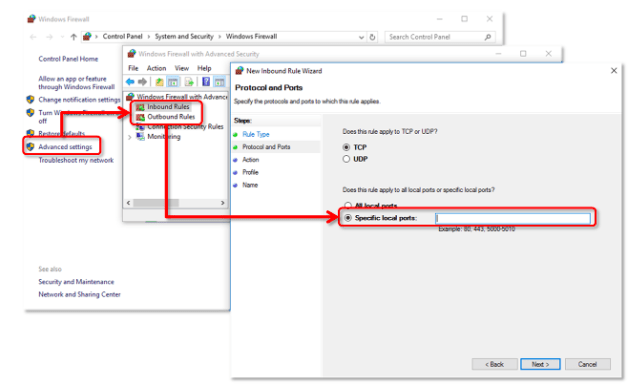
Ensure that TCP is selected. In the Specific local ports field, input the required ports for your QuickBooks year version:
- QuickBooks Desktop 2024: 8019, XXXXX.
- QuickBooks Desktop 2023: 8019, XXXXX.
- QuickBooks Desktop 2022, 2021, 2020, 2019: 8019, XXXXX.
- QuickBooks Desktop 2018: 8019, 56728, 55378-55382.
- QuickBooks Desktop 2017: 8019, 56727, 55373-55377.
Note: QuickBooks Desktop 2019, 2020, 2021, 2022, 2023, & 2024 utilize dynamic ports assigned during installation for exclusive use.
Method 2 – Locating the Dynamic Port Number
- Launch the Windows Start menu.
- Look for “QuickBooks Database Server Manager” and open it.
- Navigate to the Port Monitor tab.
- Identify your QuickBooks desktop version and note the Port Number provided.
Should you opt to change the assigned port number, select Renew. Then, head to the Scan Folders tab and choose Scan Now to reset firewall permissions. Remember, port renewal is applicable only for Desktop 2019 and subsequent versions (till 2024).
Once you’ve entered the correct port number, proceed to the next step. Click on Allow the Connection and proceed. If prompted, ensure all profiles are selected.
Then, click on continue. Name the rule appropriately, such as “QBPorts(year),” and click Finish. Repeat the above steps to create outbound rules, ensuring to select Outbound Rules.
Afterward, switch QuickBooks Desktop to QuickBooks multi-user mode. Alternatively, access QuickBooks over your network from a host computer.
Creating Windows Firewall Exceptions for QuickBooks Programs
QuickBooks relies on executable files (.exe) for various functions. Follow these steps to create exceptions for each executable listed:
- Open the Windows Start menu.
- Search for “Windows Firewall” and open it.
- Select Advanced Settings.
- Right-click on Inbound Rules (Outbound Rules will be addressed later) and select New Rule.
- Choose a Program and proceed.
Ensure you’ve selected This Program Path, then click Browse. Locate and select an executable file from the provided table. Continue. Select Allow the Connection and proceed. If prompted, ensure all profiles are selected. Then, continue.
Name the rule appropriately, such as “QBFirewallException(name.exe).” Repeat the above steps to create outbound rules, ensuring to select Outbound Rules.
Upon completion, restart your computer for the changes to take effect. Once restarted, reopen QuickBooks. If issues persist, proceed to the next section regarding antivirus settings.
Checking Antivirus or Firewall Settings
- If configuring your firewall hasn’t resolved the issue, inspect your antivirus settings.
- Ensure QuickBooks has general permissions to prevent blocking. Procedures may vary based on your antivirus program. Refer to your antivirus software documentation or follow the provided links for Norton or McAfee users.
Adding QuickBooks Port Exceptions to Your Antivirus or Firewall
- If errors persist when opening files over a network or in multi-user mode, add port exceptions for the listed executable files.
- Select TCP and input the necessary ports for your QuickBooks version (year), as obtained in “Method 1: Configure firewall manually.”
- Remember to add ports for each year if you have multiple versions of QuickBooks Desktop.
- Restart Your Computer
- Certain changes may require a computer restart to take effect. After configuring the firewall, restart your computer and relaunch QuickBooks.
How to Repair QuickBooks Error 15420
Perform these foolproof troubleshooting methods to fix QuickBooks error 15420. Do not forget to make a backup of your QuickBooks company file before trying the below-mentioned solutions.
Run QuickBooks as an Administrator
Run QuickBooks desktop as an admin and then update your QuickBooks desktop & Payroll:-
- Terminate all QuickBooks windows running in the background.
- Right-click on the QuickBooks desktop icon.
- Find and click on the option Run as Administrator.
- Confirm positive options on prompts for starting the application.
- On the top bar go to Help and choose Update QuickBooks desktop.
- In the update window, click on Update Now, then click on Get updates.
Use QuickBooks Tool Hub
Download and Install the QuickBooks tool hub and use the Quick Fix My Program feature to fix QuickBooks error 15420.
- Click on the link below to download the QuickBooks desktop tool hub or go to the QuickBooks downloads site and download the QB tool hub from there.
- Save the QB tool hub download from your computer.
- Open the downloaded file(Quickbookstoolhub.exe)
- If the installation is done double click on the icon of the QuickBooks tool hub to launch the troubleshooting application.
Launch Quick Fix My Program to check
After you have downloaded and installed the QuickBooks tool hub, open the application and in the launchpad follow the steps below:-
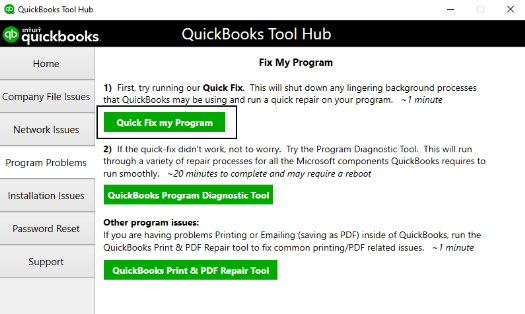
- In the launchpad window of the tool hub.
- Navigate to Program Issues/Problems.
- Click on the Quick Fix My Program button.
- QuickBooks tool hub will run scan your QuickBooks program to fix the payroll update error 15420.
Now, Go to the QuickBooks desktop update window to start updating QuickBooks desktop and payroll again. If the issue persists, try the below steps for troubleshooting QuickBooks error 15420.
Delete Component File
- Open QuickBooks Desktop and find the installation folder where your QuickBooks desktop files are.
- Type Component on the search box and look for a components file or directly put this on the search bar on the right top – C:\ProgramData\Intuit\QuickBooks 24\Components
- 24 after QuickBooks denotes the version date. If you are using QuickBooks 2021, 2022, or 2023. Change the two digits as per the version year release.
- Right-click on the components file and delete the file.
- After deleting the file, Launch QuickBooks Desktop.
- On the top bar, Click Help > QuickBooks Desktop Update.
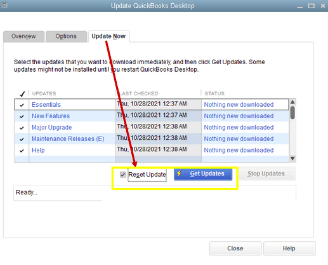
- Click on Update Now, then choose Reset Updates.
- Close and restart QuickBooks as an administrator.
- Navigate to the updates window, and Go to the updates window again.
- Click on Get Updates.
Check if you are still getting QuickBooks Error 15420 in the update window for payroll. If the error persists, move on to the next solution.
Install Digital Signature Certificate
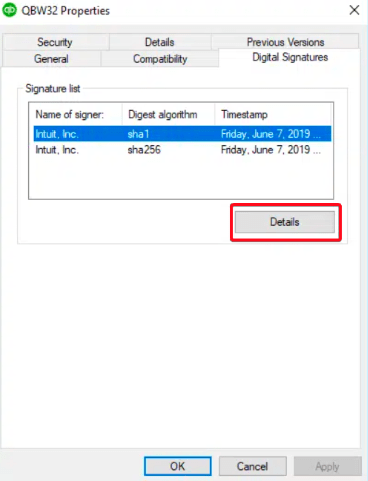
- Locate QBW32.exe in C:\Program Files\Intuit\QuickBooks2024.
- Right-click and select Properties.
- Verify Intuit in the signature list under Digital Signature.
- Install the certificate and restart your computer.
- Retry to get updates for QuickBooks payroll and desktop.
Repair QuickBooks Desktop
Download and Run the QuickBooks Install Diagnostic tool within the QuickBooks tool hub. Follow the instructions on how to do it:-
- Close all QuickBooks windows
- Download QuickBooks Tool Hub
- Run file QuickBookstoolhub.exe
- Choose on-screen instructions to complete the installation
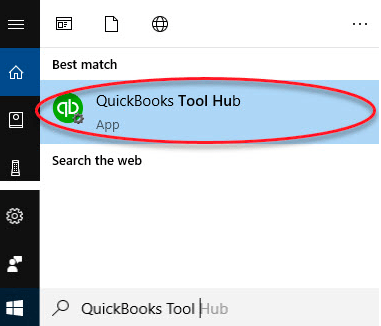
- Locate the QuickBooks tool hub from the search bar
- Launch Tool Hub
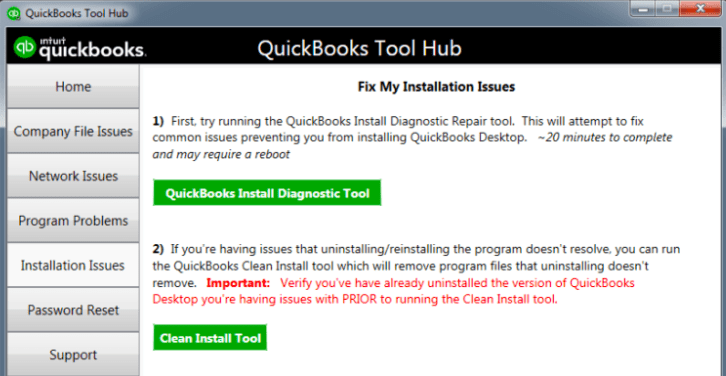
- Click on Installation Issues
- Select QuickBooks Install Diagnostic Tool
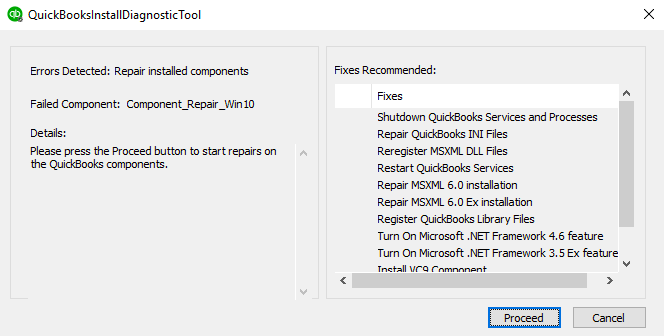
- Click on Proceed to run the scan
- Allow the tool to run & restart your system after the scan is finished
Uninstall and Install QuickBooks
Re-install your QuickBooks desktop to fix QuickBooks error 15420. Perform the steps below:-
- Close all running QuickBooks windows.
- Go to Control Panel.
- Navigate to QuickBooks desktop.
- Select and choose the uninstall option on the control panel/programs window.
- Download or launch QuickBooks setup.
- Follow the on-screen instructions to start a fresh installation.
- After the installation, activate your QuickBooks desktop.
Contact QuickBooks Error Support
If the above-provided troubleshooting steps for QuickBooks error 15420 do not resolve the error. Reach out to the QuickBooks error support team for prompt assistance. Our QuickBooks desktop support team is fully equipped with advanced tools and information to repair any QuickBooks error swiftly.
FAQ
When does QuickBooks Error 15420 occur?
QuickBooks error 15420 occurs while downloading payroll updates for the QuickBooks desktop.
How to fix Error 15420 in QuickBooks desktop?
Download and install the QuickBooks tool hub and run Quick Fix My Program to fix error 15420 easily.
Where to download and find Quick Fix My Program to repair error 15420?
Navigate to Program problems in the QuickBooks tool hub launchpad and you will see the feature Quick Fix My Program there.
QuickBooks for Mac 2019 is a powerful accounting software tailored for Mac users. To ensure smooth operation, understanding its system requirements and compatibility is crucial. Learn about the key specifications to optimize your QuickBooks experience on Mac.
QuickBooks for Mac 2019 is an indispensable tool for businesses operating on Apple’s macOS platform. However, before diving into its features, it’s essential to grasp QuickBooks for Mac 2019 system requirements and compatibility to ensure seamless performance. Let’s delve into the specifics to maximize your QuickBooks experience on your Mac.
Understanding System Requirements
Operating System Compatibility
QuickBooks for Mac 2019 is compatible with macOS X v10.14 (Mojave) and macOS X v10.15 (Catalina). It’s vital to ensure your Mac operates on one of these versions for optimal performance.
Processor and RAM
A robust processor and sufficient RAM are fundamental for running QuickBooks smoothly. A minimum of Intel Core 2 Duo or higher processor and 4GB of RAM is recommended. However, for enhanced performance, consider upgrading to higher specifications.
Disk Space
Ensure your Mac has adequate disk space to accommodate QuickBooks and its associated files. A minimum of 250MB of available disk space is required. However, considering the volume of data businesses deal with, allocating more space is advisable.
Internet Connection
A stable internet connection is essential for accessing online features and receiving software updates. Ensure your Mac is connected to a reliable network to leverage QuickBooks’ full potential.
Minimum System Requirements
To run QuickBooks Desktop for Mac 2019, your system should meet the following minimum requirements:
Operating System: macOS X v10.14 (Mojave) or later
Processor: Intel Core 2 Duo or higher
RAM: At least 2GB, 4GB recommended
Disk Space: Minimum of 250MB available disk space
Optical Drive: 4x DVD drive needed for installation from a disk
Navigate to QuickBooks downloads for downloading (.dmg) setup file of QuickBooks for Mac 2019
Recommended System Requirements
For optimal performance and enhanced user experience, we recommend the following system specifications:
Operating System: macOS X v10.15 (Catalina) or later
Processor: Intel Core i3 or higher
RAM: 8GB or more
Disk Space: 2.5GB of disk space (additional space required for data files)
Internet Connection: High-speed internet connection for certain features and services
Compatibility Issues
It’s essential to note that QuickBooks for Mac 2019 may not be compatible with certain older versions of macOS or hardware configurations. Users should ensure that their systems meet or exceed the specified requirements to avoid compatibility issues and ensure smooth operation.
Verifying System Compatibility
Before installing QuickBooks for Mac 2019, it’s crucial to verify that your system meets the necessary specifications. You can check your Mac’s system information by following these steps:
Click on the Apple menu in the top-left corner of your screen.
Select “About This Mac” from the dropdown menu.
A window will appear displaying information about your Mac’s operating system, processor, and memory.
Optimizing QuickBooks Performance
Regular Updates
Stay up-to-date with the latest QuickBooks updates to benefit from new features, bug fixes, and security enhancements. Automatic updates can be enabled for convenience.
Hardware Upgrades
If you encounter sluggish performance, consider upgrading your Mac’s hardware components such as RAM and storage. Investing in solid-state drives (SSD) can significantly improve QuickBooks’ responsiveness.
Maintenance Routine
Regularly perform system maintenance tasks such as disk cleanup, software updates, and malware scans to ensure optimal performance. Clean, well-maintained systems run QuickBooks more efficiently.
Backup Solutions
Implement robust QuickBooks desktop backup solutions to safeguard your QuickBooks data against unexpected loss or corruption. Cloud-based backup services offer convenience and peace of mind by automatically storing your data offsite.
Conclusion
Understanding QuickBooks for Mac 2019 system requirements and optimizing performance is crucial for maximizing the potential of QuickBooks for Mac 2019. By adhering to the recommended specifications and implementing performance-enhancing measures, you can ensure seamless operation and efficiency in your accounting tasks. Stay informed, stay updated, and unleash the full power of QuickBooks on your Mac.

In the dynamic realm of financial management, organizations strive to optimize their operations through the utilization of dependable and effective tools. QuickBooks Desktop has become a fundamental component in this endeavor, providing a resilient framework that accommodates the varied requirements of enterprises. Before setting up the application the users look into the QuickBooks Downloads center to find a suitable product for their industry. Irrespective of the size of an organization (tiny startup or established enterprise), the QuickBooks downloads center has tailored versions that are of the utmost importance.
Intuit, the software’s originator, has been updated to include comprehensive instructions on how to download and install QuickBooks desktop from the QuickBooks downloads center. However, a considerable number of users face difficulties while attempting to retrieve software, confronting obstacles that completely impede their progress.
QuickBooks Downloads – Pro, Premier, Accountant, Non-Profit, Enterprise, Mac, & Point of Sale
As one navigates through various download platforms and knowledge forums, they are inundated with inquiries concerning QuickBooks downloads and implementation complications. This phenomenon transcends simple digital exchanges, as a considerable volume of QuickBooks support originates directly from our readers and followers on social media platforms about how to download and install QuickBooks.
As a result of noticing the prevalence of shared obstacles in the QuickBooks downloads environment, the concept of publishing an exhaustive post took shape. An article that has been carefully selected to provide readers with a clear and simple process for downloading all versions of QuickBooks desktop like Pro, Premier, Accountant, Non-Profit, Enterprise & Point of Sale.
The undertaking also aimed to optimize the QuickBooks download and installation instructions so that even novice users could easily comprehend and utilize the system without experiencing excessive cognitive load.
QuickBooks Downloads Process
Although downloading QuickBooks is a simple process, it is critical to adhere to the proper procedures. Visit the official website for QuickBooks Desktop, select the desired version, and proceed with the on-screen prompts. In contrast, utilizing QuickBooks Online necessitates the establishment of an online account and the choice of a subscription plan. The comprehensive, sequential instructions in this QuickBooks download guide guarantee a seamless download process.
The process of downloading QuickBooks can be summarized as follows. It is important to note that the precise sequence of actions may differ depending on the operating system and version (Windows or Mac).
Download QuickBooks Desktop
Pay a visit to the QuickBooks Downloads Center:
Access the QuickBooks downloads center by clicking on the highlighted link
https://downloads.quickbooks.com/app/qbdt/products
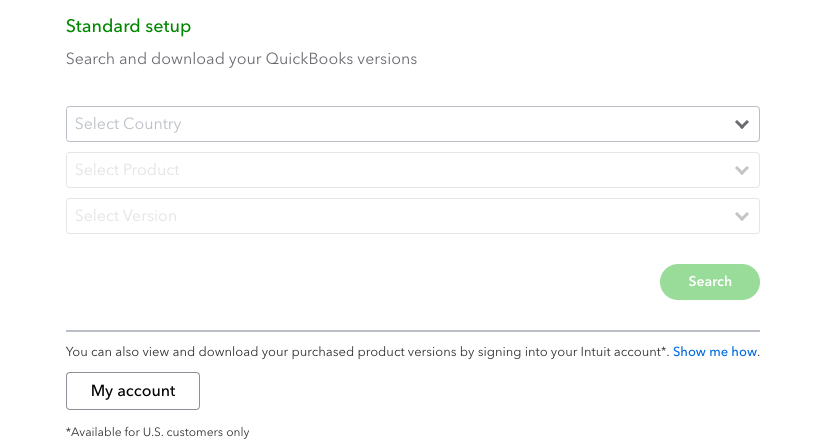
Select One Version: Choose the version of QuickBooks Desktop that you wish to download from the QuickBooks website. This could be QuickBooks Enterprise, Premier, or Pro.
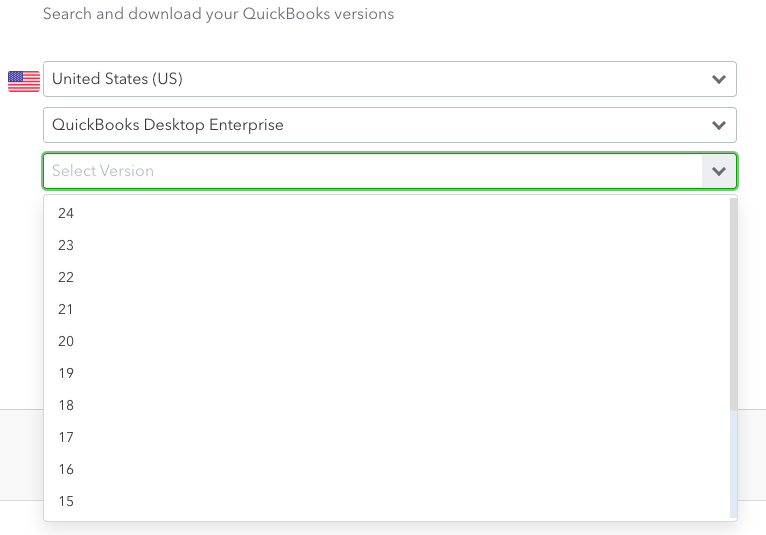
Choose the Product: Select the desired year and variant of the specific product (e.g., QuickBooks Desktop Pro, QuickBooks Desktop Premier).
Customize Options: You may be prompted to select the quantity of users and any additional services you desire to personalize your order.
Add to Cart and Checkout: Proceed to the checkout page after adding the desired item to your shopping cart.
To access the QuickBooks downloads platform and get the download setup file for the QuickBooks desktop, it is necessary to either establish a new account or log in to an existing one.
Deliver Payment Particulars: Input your payment details to finalize the transaction.
Download QuickBooks: A download link should be provided to you following a successful purchase. By following the link, the QuickBooks installer can be downloaded.
QuickBooks Installation: To install QuickBooks desktop on your computer after the download, run the downloaded installer and follow the detailed instructions below in this support article.
For Online QuickBooks:
Pay a visit to the QuickBooks Website Online: Navigate to https://quickbooks.intuit.com/online/ to access the QuickBooks Online website.
Select Your Subscription Plan: Choose the appropriate QuickBooks Online plan for your organization.
Register or Sign in: Either sign in with your existing Intuit account or create a new one.
Enter Business Information: You are obligated to furnish fundamental details about your enterprise.
Enter Payment Information: Input your payment information to enroll in the selected plan.
Upon successful completion of the payment process, access to QuickBooks Online should be granted. A distinct download and installation procedure are superfluous, given that QuickBooks Online operates on the web.
Locate and Install the QuickBooks Desktop Download for Windows.
To commence the download and installation procedure for QuickBooks Desktop for Windows, it is essential to comply with the following instructions:
Note: Before commencing the QuickBooks download and installation process, it is crucial to understand that to host QuickBooks for the first time on a network, it is necessary to configure a multi-user network and install QuickBooks Database Server Manager.
Step 1: Accessing QuickBooks Downloads Sections
- QuickBooks desktop Installation preparation
- Confirm that the specifications of the minimum system requirements are met by the computer.
Immediately acquire the QuickBooks Desktop version that suits your needs if it has not been downloaded previously, this applies to all versions, including QuickBooks Desktop Accountant, QuickBooks Desktop Premier, QuickBooks Desktop Pro 2020, QuickBooks Desktop Pro 2021, QuickBooks Enterprise 2021, QuickBooks Pro 2022, QuickBooks Premier 2022, QuickBooks Enterprise 2022, QuickBooks Desktop Pro 2023, QuickBooks Premier Plus 2023 and all the versions dating back from 2013-2024. It is crucial to ensure that the file is saved in a visible location on the computer, such as the Windows desktop.
- Ensure that your QuickBooks license and product code are easily accessible.
- Consider the following for assistance in locating the product and license numbers:
- The necessary information regarding purchases made directly from Intuit’s website can be located in the initial purchase correspondence.
- When making purchases from a retail establishment, carefully examine the label that is included in the original packaging.
- Retrieve the product and license numbers from the Customer Account Management Portal (CAMP) when performing a reinstallation.
- If the license or product number is misplaced, QuickBooks enterprise support assists in the form of recovery support.
Step 2: QuickBooks Installation after download
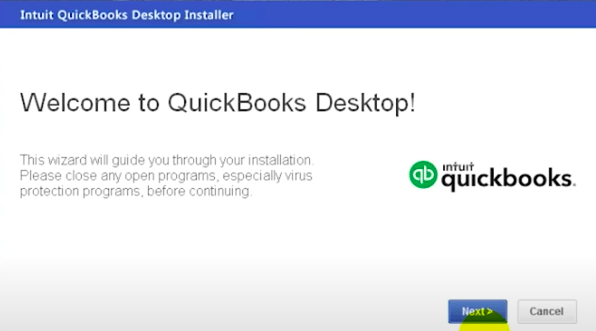
- Proceed with the QuickBooks Desktop Installation
- Launch the QuickBooks.exe file that was saved and downloaded earlier.
- Comply with on-screen instructions, which include acknowledging and signing the software license agreement by clicking “Next.”
- After entering the Product and License numbers, click “Next.”
- Please be advised that during the QuickBooks installation process, two options will appear, which require careful examination to determine the most suitable option.
- Depending on your needs, select either express installation or custom and network installation.
Express Setup
- Suggested for single-user scenarios, reinstallations, and first-time users.
- Once “Express” has been selected, click “Next.”
- Select “Install.”
- After the task is finished, click “Open QuickBooks.”
Network and Custom Installation
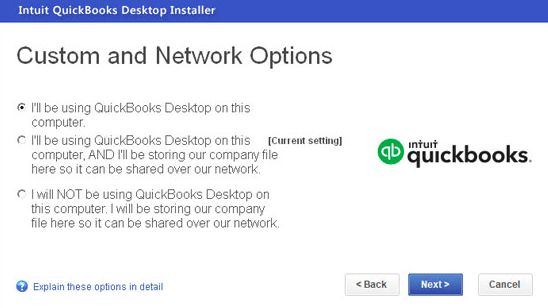
- Highly recommended for server hosting, multi-user networks, or non-default installation locations.
- Slide the “Custom and Network Options” checkbox before clicking “Next.”
- Choose the appropriate option by your utilization of QuickBooks.
- Select to modify the installation directory and determine the location of the folder.
- Select “Next” to commence the installation process.
- After the task is finished, click “Open QuickBooks.”
- QB Desktop support is available to assist in resolving any issues that may arise. How to Resolve QuickBooks Desktop Installation Errors troubleshooting is explained below.
Activate QuickBooks Desktop After Download & Installation
QuickBooks desktop prompts for activation and updates following installation. Proceed with the subsequent procedures to complete the activation process.
Once QuickBooks has been launched, a window requesting activation should appear. You can manually activate QuickBooks by selecting “Activate QuickBooks” from the “Help” menu if this window is not visible.
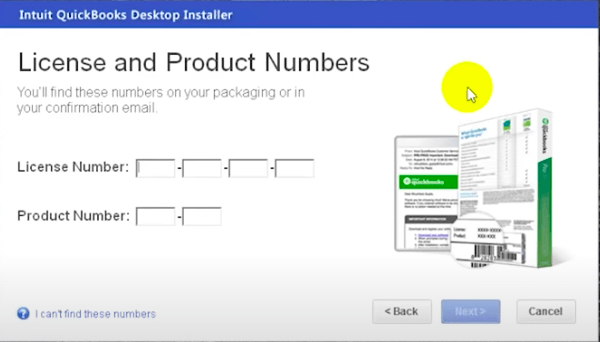
Enter License/Product Key: Proceed by entering the QuickBooks license or product key that was included in the purchase of QuickBooks. Typically consisting of a sequence of letters and numbers, this key is specific to your installation of QuickBooks.
Observe On-Screen Instructions: To complete the activation procedure, adhere to the on-screen instructions. This may entail furnishing supplementary details or consenting to the stipulations and regulations.
Establish an Internet connection (if necessary): QuickBooks activation may at times necessitate an active Internet connection. It is imperative to maintain an internet connection for your computer throughout the activation procedure.
Activation Confirmation: You should receive a confirmation message indicating that QuickBooks has been successfully activated once the activation procedure is complete.
QuickBooks must be closed and restarted for the activation to take effect.
How Does One Install QuickBooks Desktop on a Mac?
Installing QuickBooks For Mac Download
This section describes how to obtain, install, and configure QuickBooks Desktop for Mac in a streamlined manner. The subsequent procedures and prerequisites establish the foundation for a streamlined undertaking.
- Verify that QuickBooks Desktop for Mac is compatible with your computer by examining the minimum system requirements.
- For physical copies, product and license information can be found on the scratch-off label. Refer to the purchase confirmation email or the link supplied to locate the license number for digital copies.
Download and install QuickBooks Desktop for Mac
Acquire the QuickBooks Desktop for Mac edition via CD installation or the QuickBooks downloads section.
Please ensure that you follow the following steps:
- If using the installer, either launch the installer or insert the CD into the Mac CD drive.
- The QuickBooks icon can be dragged into the Applications subdirectory.
- By selecting the icon, the QuickBooks application will launch.
Upgrade or Convert Company File
When upgrading from a previous version of QuickBooks Desktop for Mac, the subsequent procedures should be carried out:
- Launch the business file in the most recent version of QuickBooks.
- Select “Upgrade” when advised to do so.
- Upon receipt of a prompt message, confirm.
- Confirm reports, accounts, and balances to ensure a successful conversion.
Configure Multi-User Mode
Enable QuickBooks desktop multi-user mode to accommodate situations in which multiple users concurrently utilize QuickBooks software across various workstations.
The process of moving QuickBooks Desktop to an additional computer.
When the necessity arises, comprehensive instructions clarify the steps involved in transferring or reinstalling QuickBooks Desktop onto an additional computer.
To utilize the QuickBooks Migration Tool, one must possess Company Admin privileges. Beginning in 2024, the tool enables users of the US version of QuickBooks Desktop to migrate up to three company files and the software to an alternative computer. By using this application, there is no need to format the USB flash drive or delete company files.
Requirements
- A new internet-capable device.
- A USB drive that has an adequate amount of available space, generally between 150 MB and 250 MB.
Implementing the Migrator Tool:
- First, on the outdated computer
- Access the Files option within QuickBooks.
- Proceed to Utilities, followed by QuickBooks Transfer to another computer.
- Confirm preparedness and generate a unique password.
- While awaiting the file copying process, select the USB flash drive per the on-screen instructions.
Regarding the New Computer
- Establish a connection with the USB portable drive.
- To perform file viewing and to launch the Move_QuickBooks.bat file, open the USB drive.
- After entering the password that was generated, click “Let’s go.”
- Permit the Migrator Tool some time to complete the operation.
- Please be aware that the duration of the transfer is dependent on factors such as computer performance, internet connectivity, and the size of the company file.
- Signing in to payroll and payment services, configuring Intuit Data Protect, transferring additional company files, creating a backup file, and resolving any remaining issues are further actions that must be taken after the transfer.
QuickBooks Reinstallation or Migration Manual Instructions
To reinstall or relocate QuickBooks Desktop manually:
- Maintain easy access to product and license numbers.
- Eliminate the current QuickBooks installation.
- Download and insert the installation files from the CD onto the target computer.
- Choose the Custom Install option for QuickBooks Desktop.
From Where Can I Download QuickBooks for Free?
No Cost Download for QuickBooks Desktop
Interested parties may choose to utilize QuickBooks Desktop for 30 days at no cost before making a purchase decision on the paid edition.
The links provided below enable the retrieval of trial install files:
- All QuickBooks Downloads for Desktop Trial.
- Install QuickBooks Enterprise as a trial.
- QuickBooks Desktop trial installation file for Mac.
Click here for the QuickBooks Desktop Trial Link
After selecting the URL, the download commences automatically. The trial installation file should be saved in a user-friendly location on the computer for subsequent installation. Trial access does not necessitate the entry of a code.
Regarding the QuickBooks Online Trial Version:
- Proceed to the link for the QuickBooks online trial.
- Selecting “Try it free for 30 days.”
- Select a plan and continue to the checkout page.
- Enter the required information and commence the download process.
QuickBooks Tool Hub Utility
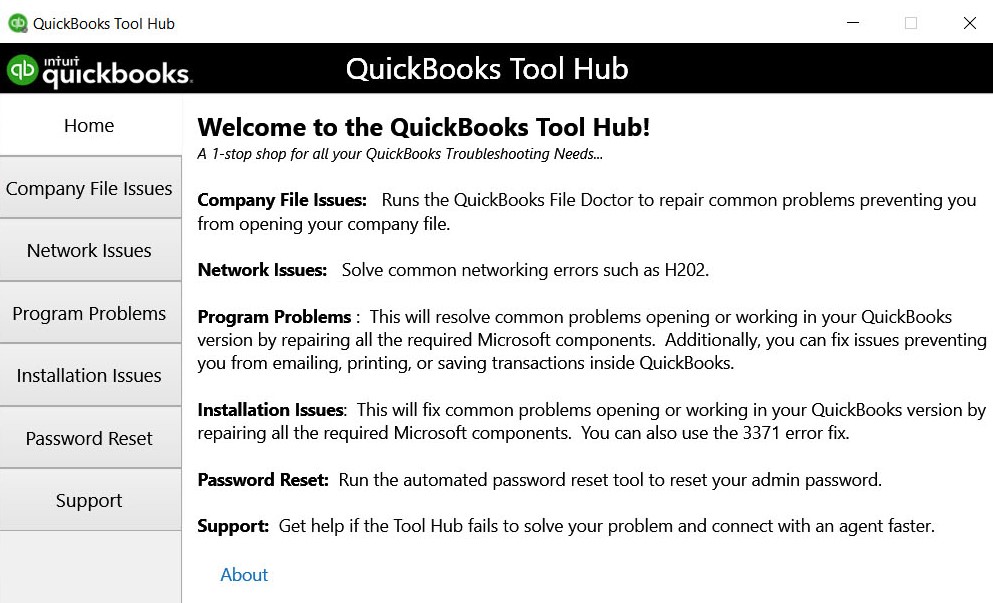
Users may encounter common challenges with QuickBooks, such as installation difficulties or compatibility issues. The QuickBooks error support page offers extensive troubleshooting guidance, assisting users in resolving issues promptly. In addition, Intuit has developed a QuickBooks tool hub to rectify and resolve common QuickBooks installation, download, database, etc problems.
QuickBooks Tool Hub is a product developed by Intuit that integrates a variety of tools designed to resolve issues with QuickBooks Desktop. Functional as a starting point, every tab contained within the tool hub contains specialized tools designed to tackle specific types of errors:
Password Reset: A function that resets passwords.
Resolution of Installation Challenges: Resolves complications that may arise during the installation or uninstallation of QuickBooks Desktop.
Resolves complications that may arise when accessing company files, such as lists that are absent or empty.
Addresses network-related concerns, such as error H202 (application strictly on the server computer).
Troubleshooting Program Issues: Resolves concerns related to program performance, program launch difficulties, Error 6123, and program failures.
Proficient Tools: Enables prevalent Windows shortcuts to assist in resolving QuickBooks error issues.
Assists users in accessing Intuit contact and account management, facilitating the provision of feedback.
Please be advised that after selecting a utility, the QuickBooks tool hub download will automatically start in the background for 2-3 minutes. While downloading the application, exercise patience to avoid inadvertently terminating the installation.
Tool Hub for QuickBooks Download
Please follow the steps below for downloading and installing the most recent version of QuickBooks Tool Hub (Version 1.5.0.0) for the most effective troubleshooting procedures. Preference is given to 64-bit Windows 10 for operation.
Download Procedure:
- Close QuickBooks if it is running in the background.
- Download the most recent version of QuickBooks Tool Hub (Version 1.5.0.0) in the second step. Save the file to a location that facilitates access, such as the Downloads folder or the Windows desktop.
- Users who already have a version of Tool Hub can determine the current version by accessing the Home tab or by consulting the About tab for information regarding the version.
- Open the downloaded file (QuickBooksToolHub.exe).
Install the software by the on-screen prompts and accept the terms and conditions.
Launch the tool center by double-clicking the “QuickBooks Tool Hub” icon on the Windows desktop following installation.
App selection is facilitated by conducting a straightforward Windows search for “QuickBooks Tool Hub” if the icon cannot be located.
Users who receive the error message “QuickBooksToolHub.exe has been blocked” may find that the issue can be resolved by using a different web browser. “
Run anyway” should a Microsoft Defender error occur, this will allow the process to continue.
In summary, this all-encompassing manual provides knowledge regarding the straightforward download processes for various versions and editions of QuickBooks software. Additionally, it notifies users of possible QuickBooks errors and complications and provides corrective actions via the QuickBooks Desktop Tool Hub. May this discussion fulfill your anticipations.
Contact QuickBooks Desktop Help for QuickBooks Downloads
If you are unable to locate or download your QuickBooks version in the QuickBooks downloads center. Reach out to our certified professionals available 24/7 via QuickBooks support phone number or live chat support. Remember to have relevant details ready, such as your QuickBooks product version and any error messages you may have encountered during the download process. Providing this information can help our support team assist you more effectively.
QuickBooks Downloads FAQs:
How can QuickBooks Desktop 2024 be downloaded?
For comprehensive guidelines on the process of downloading and installing QuickBooks Desktop software of any edition or version, please consult the section titled “How to download and install Quickbooks Desktop?”
How often should I update my QuickBooks software after download and installation?
It is recommended to update QuickBooks regularly. Ideally, users should check for updates at least once a month to ensure they are using the latest version with all the security patches and enhancements.
Where to find the QuickBooks Download link for a free trial?
Go through the content on this download page and check for the URL for free trial links.
Welcome to the exciting world of QuickBooks Desktop Inventory Management, where efficiency meets precision, and your business soars to new heights. Whether you’re a seasoned entrepreneur or just dipping your toes into business waters, mastering the art of handling inventory in QuickBooks Desktop 2024 is a game-changer.
QuickBooks Desktop Inventory Management – Pro, Premier & Enterprise
QuickBooks Desktop is a powerful tool for businesses, providing comprehensive solutions for various financial aspects. In this article, we will explore the intricacies of QuickBooks Desktop inventory management, focusing on tasks such as entering, adjusting, and deleting inventory items. You can significantly enhance your overall financial management process whether you are running a small business or managing a large enterprise by understanding these aspects.
Now let’s take things a step further with QuickBooks Desktop Inventory Management. There is more to inventory management than just managing it; there is inventory sorcery involved! Consider the following scenario: you have warehouses with products scattered about like puzzle pieces. QuickBooks Desktop Inventory Management – your magical wand QuickBooks inventory tracking in multiple locations at the same time.
Have you ever wondered how big companies manage their extensive product lines with ease? The answer is QuickBooks Desktop Inventory Management. You can categorize items, assign them to specific locations, and even track serial numbers and lots. Having an inventory assistant is similar to having a personal assistant.
Setting Up Inventory in QuickBooks Desktop
Setting up your inventory accurately in QuickBooks Desktop is crucial before diving into the complexities of inventory management. The first step is to access the setup menu and add essential details such as product names, descriptions, and quantities. Your inventory records will be accurate from the start as a result of this foundational step.
Adding inventory to QuickBooks Desktop should be on your business checklist. The reason is? A well-organized inventory is the foundation of any successful business. It would be chaotic if there were no catalogs in a library. A business without a streamlined inventory setup is also doomed to failure.
Upon selecting ‘Edit’, click ‘Preferences,’ then ‘Items & Inventory.’ The setup wizard will guide you through the process, asking for details such as unit of measure and reorder points. Assuring that your inventory reaches its destination smoothly requires the creation of a roadmap.
Advanced Inventory Features in QuickBooks Desktop
You can elevate your inventory management process by using QuickBooks Desktop’s advanced inventory features. Explore features such as tracking stock across multiple locations, creating pick lists, and managing serial or lot numbers. A business with complex stock management needs can benefit greatly from these advanced tools since they provide greater control and visibility.
Entering inventory in QuickBooks Desktop
Effective inventory management requires accurate inventory entry. To add inventory items to QuickBooks Desktop, navigate to the “Item List” and follow the step-by-step process. Be meticulous in providing details such as item type, quantity, and cost. As a result, your inventory records will reflect the true state of your inventory.
Adding inventory to QuickBooks is as easy as clicking ‘New’ under the ‘Items & Services’ menu and letting your fingers dance on the keyboard. Give the project a catchy name, enter the necessary details, and you are done! QuickBooks has officially welcomed your products into its VIP lounge.
How to Add Inventory to QuickBooks Desktop
Let’s discuss how to add inventory in QuickBooks Desktop during QuickBooks desktop inventory management. Adding items is easy, but adding them like a boss requires a certain level of skill. In terms of superhero powerhouses, the items on this list are sure to save the day if you are assembling one in your garage.
Simply select ‘Inventory’ from the home screen, and then select ‘New Item.’ Fill in the blanks with superhero-level details such as name, description, and cost, and The more you reveal about your inventory, the better QuickBooks can help you.
Adjusting inventory in QuickBooks Desktop
Inventory adjustments are inevitable in QuickBooks desktop inventory management. If you need to adjust inventory in QuickBooks Desktop due to unforeseen circumstances or regular audits, you need to know how to do so. Maintain stock accuracy by accessing the “Adjust Quantity/Value on Hand” window.
It is easy to keep track of QuickBooks Desktop Inventory Management on hand. Go to ‘Inventory,’ select ‘Adjust Quantity/Value on Hand,’ and begin tweaking. The process is similar to fine-tuning a musical instrument – making sure that all notes (or items) are in perfect harmony.
Deleting Inventory Items in QuickBooks Desktop
Managing inventory involves the inevitable risk of making mistakes. QuickBooks Desktop is forgiving, so do not be concerned. Delete an inventory adjustment is similar to erasing a doodle on a whiteboard. Click on ‘Inventory,’ choose ‘Adjust Quantity/Value on Hand,’ locate the adjustment, and hit ‘Delete.’
Deleting Multiple Inventory Items
To select all items, go to ‘Lists,’ click ‘Item List,’ then press ‘Ctrl + A’. The clean-up tornado has been unleashed just by right-clicking and selecting ‘Delete Item.’ As smooth as a sports car on the highway, QuickBooks Desktop helps you keep track of your inventory.
Handling Inventory Quantity on Hand
To ensure smooth QuickBooks desktop inventory management, it is essential to maintain the appropriate quantity on hand. The process of adjusting the inventory quantity is straightforward in QuickBooks Desktop. You may adjust the quantity or value of the item through the “Adjust Quantity/Value on Hand” window. Please specify the item, and enter the correct quantity. To ensure that your stock levels are aligned with your actual inventory, you should monitor and adjust them regularly.
Adjust QuickBooks Desktop Inventory Management
There may be times when you need to undo or delete an inventory adjustment. Find the adjustment in QuickBooks Desktop’s Transaction History window and select “Delete.” Be careful to maintain the integrity of your QuickBooks desktop inventory management records and delete adjustments only when necessary.
Entering the Beginning Inventory in QuickBooks Desktop
It is necessary to enter inventory accurately when converting to QuickBooks Desktop during QuickBooks desktop inventory management. Enter the quantities and values of the inventory opening balance using the “Inventory Opening Balance” feature. As a result of taking this step, you will be able to streamline the adoption of QuickBooks Desktop and ensure seamless integration with your existing inventory database.
Turn Off Inventory Tracking in QuickBooks Desktop
In certain scenarios, you might need to turn off inventory tracking temporarily or permanently. Navigate to “Edit Preferences,” select “Items & Inventory,” and uncheck the “Inventory and purchase orders are active” box. This is useful when your business model doesn’t require detailed inventory tracking, simplifying your overall workflow.
Writing Off Inventory in QuickBooks Desktop
Understanding how to write off inventory is crucial for managing losses or damaged goods while QuickBooks desktop inventory management. In QuickBooks Desktop, use the “Adjust Quantity/Value on Hand” window and input a negative quantity for the item you wish to write off. This process reflects inventory reduction and helps maintain accurate financial records.
Zeroing Out Inventory in QuickBooks Desktop
Zeroing out inventory might be necessary for discontinued items or other specific scenarios. In QuickBooks Desktop, locate the item in your Item List, select “Edit,” and input a zero quantity. This ensures that the item no longer affects your stock levels, providing a clean and accurate representation of your QuickBooks desktop inventory management.
Importing inventory into QuickBooks Desktop
If you are transitioning from another system, importing existing inventory data can save time and effort. Use the “Import Data” tool in QuickBooks Desktop, to ensure your data is formatted correctly. This feature streamlines the migration process, allowing you to seamlessly continue inventory management in QuickBooks Desktop.
QuickBooks Desktop Enterprise Advanced Inventory
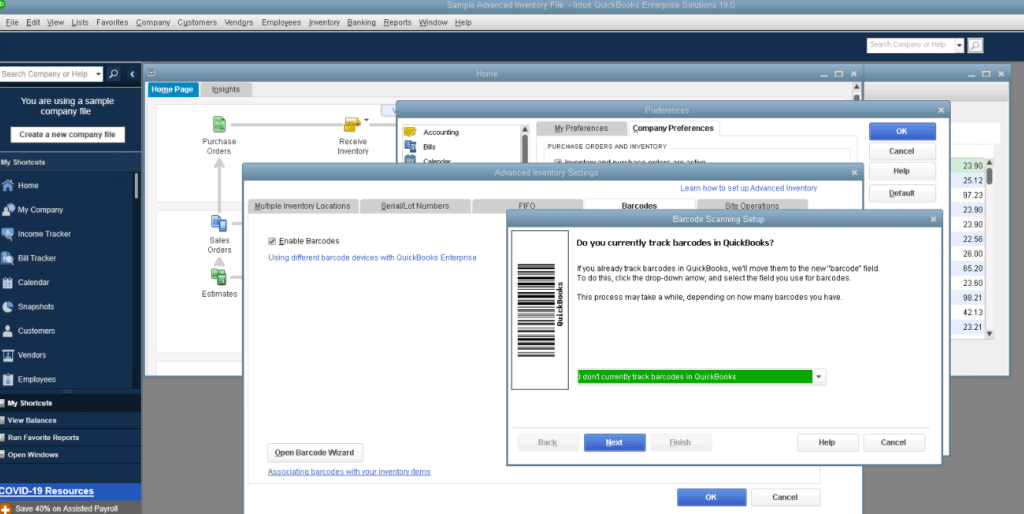
QuickBooks Desktop Enterprise provides advanced inventory features for large businesses that have complex inventory requirements. QuickBooks Desktop Inventory Management includes enhanced tracking, multi-location management, and improved reporting are all included in this enhancement. For a more robust inventory management solution, you may wish to consider upgrading to QuickBooks Desktop Enterprise.
By utilizing barcoding, serial numbers, and location tracking, Advanced Inventory takes control to the next level. QuickBooks Enterprise support acts as the conductor of your business symphony. Advanced Inventory provides real-time information regarding the location of each product at any given time.
Contact QuickBooks Desktop Help & Support
If you need help with QuickBooks Desktop Inventory Management queries, you can contact QuickBooks Desktop Help & Support. You can reach out for immediate help on QuickBooks support number +1800-994-0980 or chat support. We offer live QuickBooks chat support, allowing you to chat with a support representative in real time. Let’s make QuickBooks Desktop Inventory Management easier for you with help from a certified QuickBooks Professional.
QuickBooks Desktop Inventory Management FAQ’s
Can I delete multiple inventory items at once in QuickBooks Desktop?
Yes, you can delete multiple inventory items simultaneously in QuickBooks Desktop by selecting them in the Item List and choosing the “Delete” option.
Is it possible to turn off inventory tracking temporarily in QuickBooks Desktop?
Yes, you can temporarily turn off inventory tracking in QuickBooks Desktop by unchecking the “Inventory and purchase orders are active” box in the “Edit Preferences” menu.
What are the benefits of using advanced inventory features in QuickBooks Desktop Enterprise?
QuickBooks Desktop Enterprise offers advanced features such as multi-location tracking and improved reporting, providing larger businesses with enhanced control and visibility into their inventory.
How do I handle inventory adjustments in QuickBooks Desktop?
Navigate to the “Adjust Quantity/Value on Hand” window in QuickBooks Desktop to handle inventory adjustments. Input the necessary changes to maintain accurate stock levels.
Can I import existing inventory data into QuickBooks Desktop?
Yes, you can import existing inventory data into QuickBooks Desktop using the “Import Data” tool, ensuring proper formatting for a smooth migration process.
Getting the Most Out of QuickBooks Desktop Premier Plus 2023 Download
QuickBooks Desktop Premier Plus 2023, the latest release of QuickBooks Desktop Premier Plus, brings a plethora of features to streamline your business processes. Here are the details that make this version a must-have for businesses of all sizes.
What’s New in QuickBooks Desktop Premier Plus 2023
QuickBooks desktop support and development team have been hard at work, and the 2023 version introduces several exciting features. As part of QuickBooks Desktop Premier Plus 2023, users will be able to take advantage of enhanced reporting capabilities as well as improved user interfaces.
Benefits of Upgrading to QuickBooks Desktop Premier Plus 2023
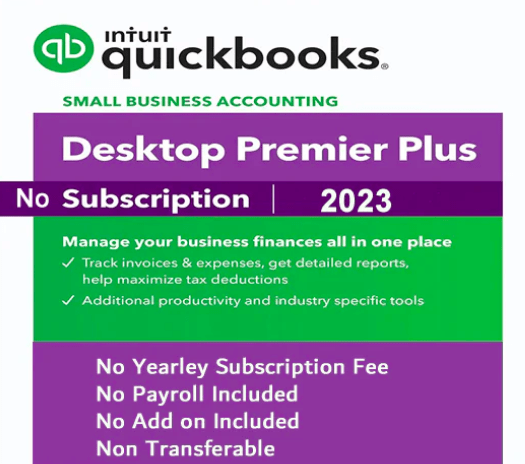
Upgrading to QuickBooks Desktop Premier Plus 2023 doesn’t just mean staying current; it also means unlocking a range of benefits for your business. With faster processing, advanced reporting options, and a more intuitive user interface, you will save time and effort.
System Requirements
Ensure that your system meets the requirements before beginning the download process. For QuickBooks Desktop Premier Plus 2023 to operate optimally, specific hardware and software configurations are required. Make sure that these details are correct to avoid any compatibility issues during and after installation.
Step-by-Step Guide to Downloading QuickBooks Desktop Premier Plus 2023
We would like to simplify the download process for you. You can ensure a hassle-free installation of QuickBooks Desktop Premier Plus 2023 download by following these step-by-step instructions.
- Call Support for QuickBooks Desktop Premier Plus 2023 Download
- To access the QuickBooks download section, please call our toll-free +1800-994-0980 and get started.
- Please select the version you prefer
- Choose QuickBooks Desktop Premier Plus 2023 download from the available options.
- Please enter your license key
- Your QuickBooks desktop license key must be entered to authenticate your purchase.
- Download the Installer
- The installer file can be downloaded by clicking on the download button.
- Run the Installer
- Run the installer after you have located the downloaded file.
- Follow On-Screen Instructions
- During installation, a wizard will guide you through the process. Follow the instructions provided on the screen.
Installation Process
After the QuickBooks Desktop Premier Plus 2023 download has been completed, the QuickBooks desktop installation process is straightforward. A user-friendly installation wizard simplifies the process of installing QuickBooks Desktop Premier Plus 2023.
Common Issues and Troubleshooting
Although the installation process is typically smooth, some users may encounter common problems. The following solutions can be found to potential problems:
- Compatibility Issues
- It is important to ensure that your system meets the specified requirements.
- Activation Problems
- Make sure that your license key and internet connection are working properly.
- Slow Performance
- During installation, you should close any unnecessary background applications.
QuickBooks Desktop Premier Plus 2023 vs. Previous Versions
Comparing QuickBooks Desktop Premier Plus 2023 with its predecessors will provide a better understanding of the advancements. There are many improvements to the 2023 version, from improved functionality to a more polished user interface.
Tips and Tricks for Optimizing QuickBooks Performance
Using these tips, you can make the most of QuickBooks Desktop Premier Plus 2023 once you have installed it:
- Update QuickBooks Desktop software regularly to gain access to new features.
- You can navigate more quickly by using keyboard shortcuts.
- Automate repetitive tasks by utilizing automation features.
Integrations with Third-Party Apps
QuickBooks Desktop Premier Plus 2023 is designed to seamlessly integrate with a wide range of third-party applications. You may be able to enhance your overall business efficiency by integrating your financial management system with other tools.
Security Features
It is imperative that security is a top priority, and QuickBooks Desktop Premier Plus 2023 does not disappoint. You can rest assured that your financial data is secure with advanced encryption and multi-factor authentication.
Cost Analysis
There is a cost associated with the latest version, but consider the potential cost savings in terms of time and efficiency. It is an investment in the smooth operation of your business to invest in QuickBooks Desktop Premier Plus 2023.
Future Updates and Support
You can be assured that QuickBooks is committed to providing ongoing support and releasing future updates to address user needs. QuickBooks Error support will help in maintaining regular software updates and error fixes will ensure that your software is up-to-date with the latest features and security patches.
Conclusion
Finally, QuickBooks Desktop Premier Plus 2023 offers more than just a software update – it offers a comprehensive financial management system that enhances your financial management experience. Several benefits are available, including improved features and user-friendly interfaces. You can revolutionize the way you manage your business finances by upgrading today.
Frequently Asked Questions (FAQs)
Is QuickBooks Desktop Premier Plus 2023 compatible with my existing data file?
Yes, the software is designed to seamlessly upgrade your existing data files without any issues.
Can I install QuickBooks Desktop Premier Plus 2023 on multiple computers?
Yes, your license allows you to install the software on multiple computers within your business.
What kind of support is available if I encounter issues during installation?
QuickBooks offers comprehensive customer support to assist you with any installation or operational problems.
Are there any training resources available for mastering the new features?
Yes, QuickBooks provides online tutorials and documentation to help users make the most of the new features.
Can I revert to the previous version if I encounter compatibility issues?
While it’s generally not recommended, QuickBooks support can guide you through the process if needed.
QuickBooks Error 5502 – “Quickbooks data has been uploaded, but failed to connect with the server”
To solve QuickBooks error 5502, you should identify the reason that might have caused this error. These type of errors usually occurs in QuickBooks accounting software. The meaning of QuickBooks error 5502 is that your system account is not completely synchronized.

To solve this error, you should identify the reason that might have caused this error. These type of errors usually occurs in QuickBooks accounting software. The meaning of QuickBooks error 5502 is that your system account is not completely synchronized.
A message box will pop up on your desktop with the message “Quickbooks data has been uploaded, but failed to connect with the server”. Here are some simple steps that will help you resolve this issue.
What are the reasons for QuickBooks Error 5502?
Here are the reasons that might cause QuickBooks error 5502. Knowing them will help you find the right solution to solve the error.
- This error occurs if you have connected any third-party applications with QuickBooks, or it might be the result of various matter grasp services that are available online.
- The common reason is when you have successfully uploaded your Quickbooks company file information.
- If you have connected your Quickbooks account with other third-party developer applications.
- This can also occur if any slip occurs when your computer downloads the changes created by these applications – grasp online service mistreatment.
You should also remember that if you do not use any online services that can alter the information in your QuickBooks company file, you can ignore this error.
How to Repair QuickBooks Error 5502
Once you have identified the reason that caused the QuickBooks error 5502, you can follow these simple step-by-step methods to solve Quickbooks error code 5502.
Method 1 to fix Error 5502: To rename the network data “.ND” & “.TLD” file
The configuration file in the Quickbooks application is called the network data (.ND) file. This QuickBooks file allows the program to access files over the internet. These steps will help you recover a damaged (.ND) file.
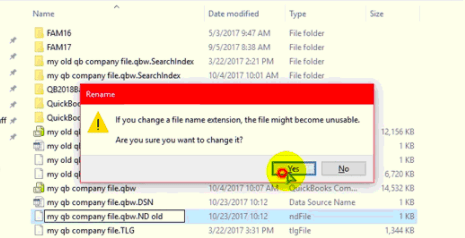
Search for the folder which contains the Quickbooks company file and open the folder. Then search and locate a similar network file that has an extension “.ND”.
Now right-click on this file and select Rename option from the drop-down menu.
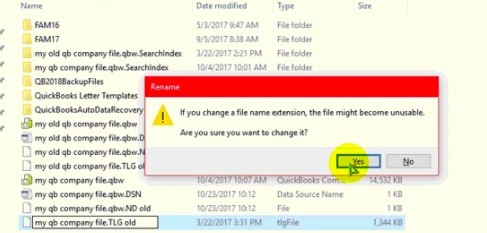
Then add “.old” to the file name save the file & Do the same for .TLG file.
Method 2 to fix Error 5502: To create a new folder and copy all the QuickBooks company files in it
- Right-click on the desktop and select the Create option from the drop-down menu.
- Then select “new folder” and a new folder will be created. Now copy all the QuickBooks company files to this newly created folder.
- After that, right-click on the file and select rename. Now change the extension of the file to “QBM”.
- Now open your QuickBooks application and then click to repair all the portable files.
- Then select the incorrect company file and rename the extension.
- Now click on the restore option to restore all your backup files.
- If the extension file “.QBM” is not working, try to rename it. Finally, try installing the latest version of Sync Manager.
Also, check how to fix Can’t Backup with Intuit Data Protect (Backup Failed Error)
Method 3 to fix Error 5502: To uninstall and reinstall the Quickbooks software application
If you are still facing this QuickBooks error 5502, then try to uninstall the QuickBooks software application. Then select the installation folder and rename it.
Now download the Quickbooks setup file from a reliable source and reinstall Quickbooks software on your computer. Finally, check for any QuickBooks Error code 5502.
Method 4 to fix Error 5502: Try running the Quickbooks database server manager
Initially, you should scan your company file using the Quickbooks database server manager. Then click on the Windows key and select the Run option to run the Quickbooks Database Server Manager.
Now select Add Folder click on the Browse folder and select the folder where you would like to store your Quickbooks company file. Then click on OK. Now run a scan and then again open the Quickbooks company file to check if QuickBooks error 5502 occurs.
Contact QuickBooks Desktop Experts to Fix QuickBooks Error 5502
If QuickBooks error code 5502 still occurs or if you are not able to run the QuickBooks database server manager, you can get help from the QuickBooks error support team. Call international toll-free i.e. +1800-994-0980. You will be connected with a QuickBooks expert advisor who will help you repair QuickBooks error 5502 remotely.
FREQUENTLY ASKED QUESTIONS ABOUT QUICKBOOKS ERROR 5502
What is QuickBooks Error 5502?
QuickBooks error 5502 means that your user account is not completely synchronized with the client server. Error 5502 is the output when this situation occurs.
How to Fix QuickBooks Error 5502?
1. Rename the network data files i.e. “.ND” & “.TLD” file
2. Reinstall Quickbooks desktop software
3. Scan with Quickbooks database server manager
QuickBooks is one of the fastest-growing SMB accounting applications in 2023. It is widely used by SMEs to manage their financial transactions. However, sometimes QuickBooks users may come across QuickBooks Compile Error in Hidden Module error when trying to export data to MS Excel or accessing pre-defined report features.
Ultimate Guide to Fix QuickBooks Compile Error

Compile Error in Hidden module QuickBooks can be frustrating as it won’t allow Excel options to work in QuickBooks. Generally, the root cause of this problem is when there are MS Excel add-ins that are not compatible with the version of your QuickBooks desktop. Let us show you how to repair QuickBooks Compile Error in hidden module step by step in this troubleshooting guide.
What does Compile Error in Hidden Module mean?
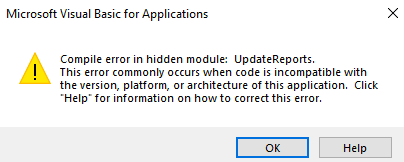
When QuickBooks desktop user generates the report for their clients or analytics. During the compilation of data into Excel, the software detects that some components are missing or incompatible with the current version of QuickBooks. This prevents the software from functioning and it displays the “Compile error in hidden module” error message.
Causes of Compile Error in QuickBooks
There can be various reasons that can cause the rising error – QuickBooks Compile Error in hidden module in QuickBooks Desktop Pro, Premier, or Enterprise versions. Some of the primary causes are mentioned below:-
- Corrupted QuickBooks Data file
- Incompatible Add-ins in Excel
- Microsoft Excel components are missing
- Older version of QuickBooks desktop
- Recently Upgraded Excel and still working on the old version file
- MS Office Installation is damaged or corrupted
Solutions to Repair QuickBooks Compile Error in Hidden Module
Solution 1 – Find, Replace, or Remove Hidden Modules in Excel
- Launch Microsoft Excel
- Press ALT + F11 to open VBA Editor
- Get into the Visual Basic File Editor File and then choose Tools
- Scroll down to References and then available references
- Find and remove any module that says Missing or incompatible
- Enable or Disable the module to fix the missing error
- Restart Excel
Solution 2 – Update QuickBooks Desktop
To repair the most common QuickBooks compile error in hidden module warning. QuickBooks users should Update QuickBooks desktop to the latest version. To update the QuickBooks desktop, follow these steps:
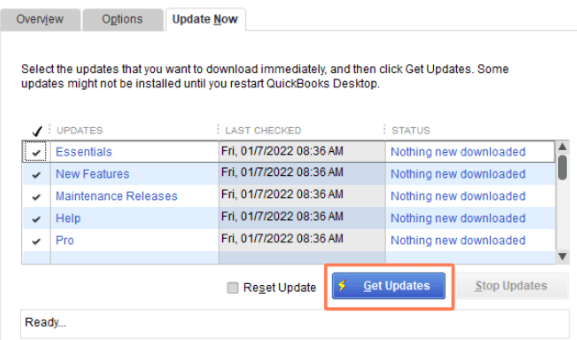
- Launch QuickBooks Desktop and click on the Help option from the top menu bar.
- Select Update QuickBooks Desktop from the drop-down menu.
- Click on the Update Now tab and Choose to Get Updates.
- Wait for the update to complete first and restart the QuickBooks desktop.
Solution 3 – Repair Microsoft Office Installation
Go to the Control Panel from the Start menu.
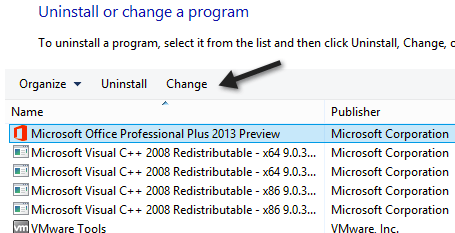
Click on Programs and Features and select Microsoft Office.
Click on Change and then select the Repair option.
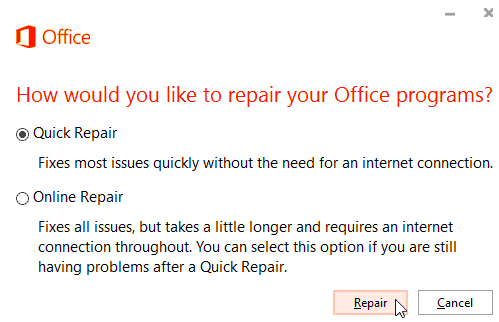
A new window will pop out as MS Office repair wizard.
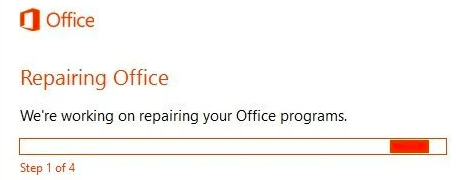
Wait for the repair process to complete and restart your system.
Solution 4 – Re-register the .DLL file in QuickBooks
The next step is to re-register the DLL file. To do this, follow these steps:
- Click on the Start menu and select Run.
- Type “regsvr32.exe /u C:\Windows\System32\MSCOMCTL.OCX” and press Enter.
- Type “regsvr32.exe C:\Windows\System32\MSCOMCTL.OCX” and press Enter.
- Restart your computer.
Also, Download QuickBooks Import CSV & Excel Kit
Solution 5 – Disable MS Office Add-ins
The last step is to disable add-ins in Microsoft Office. To do this, follow these steps:
Launch Microsoft Office and click on File.
Select Options and then click on the Add-Ins option.
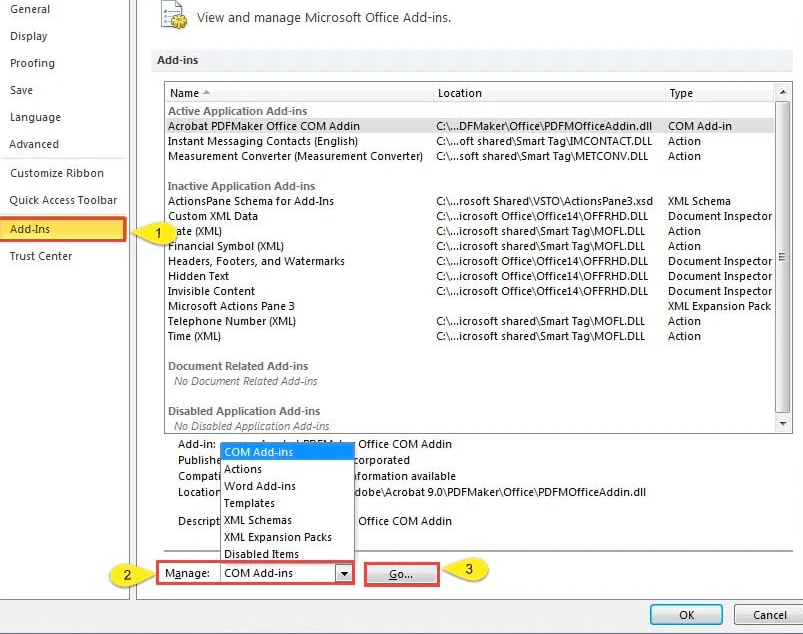
Select COM Add-ins from the Manage drop-down list and click on Go.
Uncheck all the boxes and click on OK.
If you want to disable any particular add-ins i.e. corrupted or required to be removed.
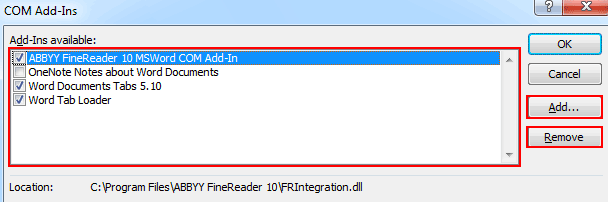
Select the MS Office Add-ins and click on Disable
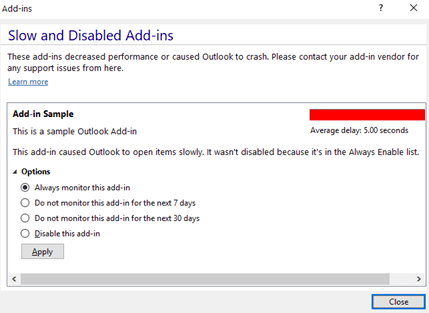
Restart Microsoft Office.
Contact QuickBooks Error Support
If the above-mentioned troubleshooting steps do not help you resolve the QuickBooks compile error in the hidden module. Get in touch with our QuickBooks error support team at +1800-994-0980 via Call or Live chat. Get compile error in QuickBooks desktop resolved immediately and hassle-free.
Frequently Asked Questions
Compile error in hidden module means that the code is invalid with the integrated software. It usually occurs when two applications conflict with each other due to missing components.
What is a QuickBooks compile error?
QuickBooks compile error is a very common error a user comes across while working on importing or exporting Excel reports with QuickBooks desktop.
How to fix compile errors in QuickBooks?
The most common way to fix compile errors in QuickBooks desktop is to update QuickBooks desktop and MS Excel or use QuickBooks tool hub to repair the error automatically.
In today’s world of advanced business techniques, coping with daily finances efficiently and assessment of business tool failures are crucial for small business success. This is where QuickBooks Tool Hub comes into play, offering a comprehensive solution for QuickBooks desktop errors.
Whether you’re experiencing a company file error, installation error, multi-user error, data synchronization, or damage error, QuickBooks Tool Hub provides an array of features to make your repair tasks easier and more simple.
Are you stuck with an ugly QuickBooks error in Pro, Premier, QuickBooks Enterprise, or any other version of QuickBooks?
QuickBooks Tool Hub: Fix Common QuickBooks Problems
QuickBooks Desktop Tool Hub is a congregation of tools that are implemented to resolve all the significant and insignificant errors in the QuickBooks desktop application. Earlier, QuickBooks users had to download a specific tool for an error or malfunction.
For example, if a user faces a QuickBooks installation error or QuickBooks company file error, they have to download either the QuickBooks Install Diagnostic tool also known as QuickBooks component repair tool, or QuickBooks file doctor.
A couple of tools are placed together simultaneously among other essential tools in a particular application. QuickBooks tool hub allows QuickBooks users to fix a series of common QuickBooks technical obstacles.
Welcome to our comprehensive guide on QB Tool Hub – your ultimate resource for repairing QuickBooks desktop-related issues efficiently and maximizing the potential with an automatic tech repair tool.
In this article, we delve into the myriad functions and features of QB Tool Hub, providing step-by-step instructions, expert insights, and valuable tips on how to download, install, and use QuickBooks Tool Hub in Windows version.
What is QuickBooks Tool Hub?
QuickBooks Tool Hub for Desktop is an additional repair tool developed by Intuit that aims to provide convenience in repairing QuickBooks error codes, technical problems, and QuickBooks company file data-related problems. It is designed to help users troubleshoot and resolve QuickBooks-related issues automatically by following on-screen instructions, ensuring the software runs smoothly and efficiently.
With a user-friendly interface and a dashboard with a range of tools, QB Tool Hub provides a holistic approach to managing QuickBooks desktop errors. QB tool hub is an indispensable QuickBooks repair tool utility designed by Intuit to address a range of QB desktop glitches and technical hiccups.
From installation errors to performance issues, this versatile Quic tool hub offers a centralized platform for diagnosing and resolving problems that may arise during your day-to-day QuickBooks accounting/bookkeeping journey.
EASY TO USE QB TOOL HUB DASHBOARD
QuickBooks Tool Hub has a seamless dashboard after installation & launch, enhancing its functionality and providing users with a collection of valuable tools for error fixing. Whether you’re dealing with accounting, invoicing, payroll, or other financial error codes or warnings, QB Tool Hub offers an easy-to-use platform to repair these problems efficiently.
Upon launching QB Tool Hub, the dashboard will have an intuitive user interface, offering a collection of tools, each dedicated to repairing specific QuickBooks desktop issues or error messages.
If you are encountering QuickBooks desktop network connectivity problems, QuickBooks desktop company file issues, or even QuickBooks desktop password reset problems, QB Tool Hub streamlines the troubleshooting process in just a few clicks for the user by following on-screen instructions.
Benefits of Using QuickBooks Tool Hub
Streamlining QuickBooks Desktop Error Management
One of the key benefits of QuickBooks Tool Hub is its ability to streamline the QuickBooks Error Support process. It consolidates various repair tools and features into one single dashboard, reducing the need to switch between different tools. This great invention saves time and minimizes QuickBooks errors, allowing QB desktop users to focus on strategic core financial decisions.
Simplified Layout
QB tool hub dashboard’s layout ensures that essential repair tools are prominently displayed and easily accessible to the user. Whether you need to troubleshoot error codes, optimize QuickBooks desktop performance, or explore resources, the dashboard provides clear navigation paths to help you accomplish your repair goals efficiently.
Speed Optimization
In addition to QuickBooks desktop issue resolution, QB Tool Hub can also be used to optimize the performance of QuickBooks desktop. By conducting regular tool hub checks and maintenance tasks, you can ensure that your QuickBooks accounting runs smoothly and efficiently.
Technical Info & System Requirements
| Software Name | Quickbooks Tool Hub |
| Developed by | Intuit Inc. |
| Category | Accounting/Finance Software |
| File Name | quickbookstoolhub.exe |
| File Size | 96.62 MB |
| Supported OS | Windows |
| Version | 2.1.5.0.0 |
Fix QuickBooks Desktop Errors Using QuickBooks Tool Hub
QuickBooks Tool Hub excels in diagnosing and resolving common QuickBooks errors that users may encounter. From installation glitches to data file errors, qb tool hub offers step-by-step guidance to troubleshoot and resolve these problems.
- Quickbooks error code H202
- QuickBooks error 6123
- QuickBooks desktop company file issues
- QuickBooks desktop install issues
- Networking errors
- Quickbooks printing and PDF errors
- Quickbooks desktop crashing error
- QuickBooks is not responding
- QuickBooks won’t open
Download & Install QuickBooks Tool Hub
Click on the link below to download the QuickBooks desktop tool hub or go to the QuickBooks downloads site and download the QB tool hub from there.
QuickBooks Tool Hub Direct Download Link –https://dlm2.download.intuit.com/akdlm/SBD/QuickBooks/QBFDT/QuickBooksToolHub.exe
Save the QB tool hub download from your computer.
Open the downloaded file(Quickbookstoolhub.exe)
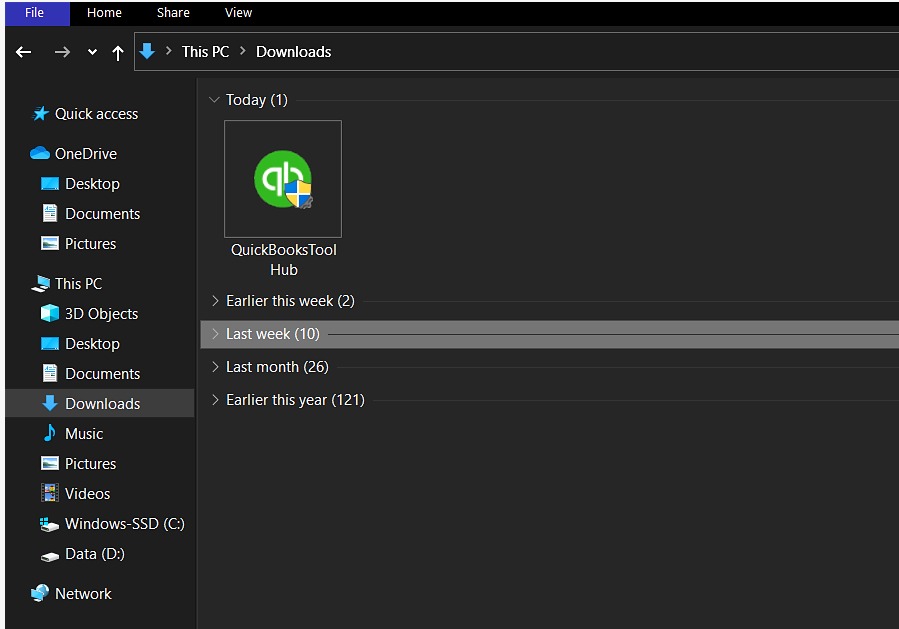
If the installation is done double click on the icon of the QB tool hub to open it.
NOTE: Requirements for Quickbooks tool hub installation:
- Microsoft .NET framework
- Microsoft Visual C++ Redistributable Package
Quickbooks Tool Hub Tools: All QuickBooks Repair Tools in one Place
Quick Fix My Program
If your QuickBooks desktop crashes suddenly and starts behaving erratically, use the Quick Fix My Program tool within QuickBooks Tool Hub. QuickBooks desktop updates are crucial for maintaining optimal performance, health, and security.
However, update errors can be frustrating. This Quick fix repair tool swiftly resolves issues related to program crashes, update errors, and startup problems, allowing you to resume your QuickBooks accounting tasks without unnecessary delays. Use the Quick Fix My Program Problems tab for QuickBooks Error 6123 or if you encounter problems starting the program.
QuickBooks File Doctor
QuickBooks company file and database errors can cripple your QB workflow, Download and Install the QB tool hub to use QuickBooks file doctor. This inbuilt utility is your go-to solution for rectifying corrupted company files and other database-related troubles.
It efficiently diagnoses and repairs issues, ensuring the health of your QuickBooks company file data. If there is an issue with opening your company file, select the company file issue tab which will open the QuickBooks file doctor tool and if further assistance is needed you can click the help button.
QuickBooks Install Diagnostic Tool
QuickBooks Install Diagnostic Tool is a lifesaver when QuickBooks desktop installation problems rear their ugly heads. QuickBooks install diagnostic tool efficiently diagnoses and resolves installation errors, whenever a user is trying to install QuickBooks desktop. Select the installation issue tab if you encounter any error during installation, reinstallation, or uninstalling. You can resolve QuickBooks Error 3371.
QuickBooks Database Server Manager
Network-related in QuickBooks or outside can hinder multi-user usage. QuickBooks Database Server Manager comes to the rescue by effortlessly resolving network issues and optimizing multi-user mode. This tool ensures smooth data communication, enhancing efficiency within your QuickBooks accounting team. In case you are facing any network issues such as QuickBooks Error H2O2, select the network issues tab.
QuickBooks Connection Diagnostic Tool
In a modern world of connectivity, network glitches are a significant and common concern. The QuickBooks Connection Diagnostic Tool acts as your network health checker, identifying and rectifying QuickBooks desktop network-related problems. Say goodbye to QuickBooks connection errors and enjoy uninterrupted access to your QuickBooks desktop data.
QuickBooks Component Repair Tool
As a prominent Windows software, QuickBooks requires Microsoft Windows components to function. If a user gets stuck with QuickBooks missing components error or component damaged error! The QuickBooks Component Repair Tool is your remedy for such problems. By repairing damaged or missing components, this tool ensures seamless functionality across all aspects of your QuickBooks desktop application.
Password Reset Tool
Select the QuickBooks Password reset tool tab for changing the password or in case you don’t remember it.
QuickBooks Print PDF Repair Tool
One of the standout features within QB Tool Hub is the QuickBooks print pdf repair tool. This tool repairs the printing problems in QuickBooks. Whenever a user is unable to save or print a PDF on a QuickBooks desktop, the Print PDF repair tool is a vital tool in the QB tool hub to fix this issue.
Support
Get in touch with our different experts for any additional help.
Contact QuickBooks Desktop Support
QuickBooks support experts are available to deliver help for QuickBooks. Although, the QuickBooks tool hub is an easy-to-use application. Connect with an expert at +1800-994-0980 if you have any questions about your QuickBooks product or get the latest version of the QB tool hub downloaded on your workstation.
Frequently Asked Questions
Is QuickBooks Tool Hub compatible with both Windows and macOS?
Yes, QuickBooks Tool Hub is available for both Windows and macOS.
Can I undo changes done using QB Tool Hub?
Yes, QuickBooks Tool Hub often creates backups before making changes, allowing you to revert if necessary.
What is the tool hub in QuickBooks desktop?
QuickBooks tool hub is a collection of repair tools to fix QuickBooks desktop problems without using any manual troubleshooting.
Where is the tool hub located in QuickBooks Desktop?
QB tool hub is located at the help option in the top menu. By clicking on help you will see a dashboard with QuickBooks help options for the tool hub.
Does the tool hub work in QuickBooks Mac?
No QuickBooks tool hub is available only for the Windows version. If you are using QuickBooks Mac contact our support team to resolve the error for you
Will Tool Hub fix my company file error?
Yes, the QuickBooks tool hub can repair all company file errors like 6000, 6123, H202, H505, etc.
QuickBooks Tool Hub Windows (Free Download 2024)
Download and Install QuickBooks tool hub to repair common QuickBooks desktop errors. Quick and easy resolution for qb errors by using latest qb tool hub 2024.
Price: Free
Price Currency: $
Operating System: Windows
Application Category: QuickBooks
5
Whenever a QuickBooks desktop user tries to execute a web-based command which involves running scripts to exchange data or information. A hindmost ugly head-like script error occurs in the QuickBooks desktop application preventing it to complete the request. In this support article, learn how to fix or repair QuickBooks Script Error when accessing a QuickBooks payments account, Internet Explorer 11, or any web-based feature in a Windows operating system.
QuickBooks Script Error Overview
When a user executes a feature in QuickBooks that requires the involvement of the web to proceed like QuickBooks Web Connector. These features connect with QuickBooks servers to provide an output or perform a function. They require the use of third-party applications in order to communicate. When QuickBooks is unable to perform the function Quickbooks script error appears on the screen.
If you are experiencing QuickBooks Script Error in QuickBooks Pro, Premier or Enterprise, or any other desktop version. Follow the instructions provided in this self-help guide to repair the script error.
What is the script error in QuickBooks desktop?
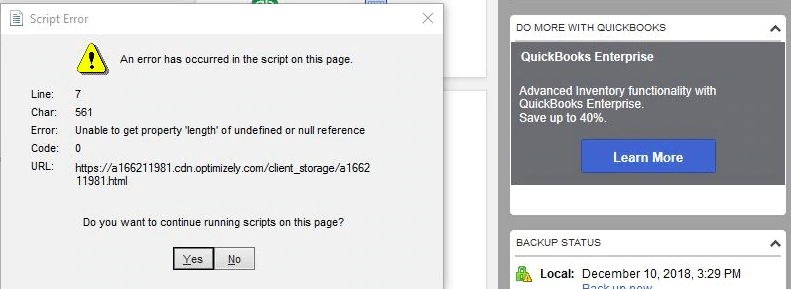
The script error in QuickBooks is a common Internet Explorer error. It occurs when applications like QuickBooks exchange information with a webpage. The script error is displayed when the Javascript or VBScript codes of a webpage have a problem.
Although QuickBooks tries to download information from QuickBooks online servers in order to display information to the user. The script error pops up and there is an error in downloading the information.
This error can occur while running any version of QuickBooks. QuickBooks Online or QuickBooks desktop-like Pro, Premier, or Enterprise.
Multiple Appearance of QuickBooks Script Error
- Script Error
- Error in Script
- Script error line #### character ## object ####
Screenshots of Script Error in QuickBooks
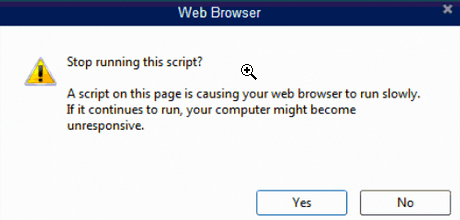
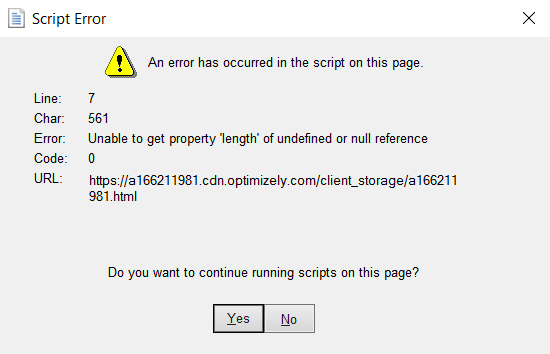
Causes of QuickBooks Internet Explorer Script Error
QuickBooks script error at startup of establishing a connection with web-based sources to download information can occur due to various reasons.
They are as follow:
- Script processing functions are disabled/blocked
- Malware/Spyware or infection in your system
- Any changes made to the system prior to the occurrence of script error
- Getting intermittent script errors with one website
- Script plugin or software is damaged i.e. JAVA, ADOBE FLASH, etc
- The download data from the web source is incompatible with the script software format
- Default browsers cache folder is full or corrupted
- Active X components damaged or missing
- Script debugging feature is enabled
- A firewall or third-party application is blocking the script function
- QuickBooks data file is damaged
- Windows user is corrupted or damaged
How to Fix QuickBooks Script Error
There are various causes of script error in QuickBooks. Perform different troubleshooting steps provided until you figure out the root cause and reach the resolution. The following troubleshooting steps for script error in QuickBooks are as follow:-
Solution 1: Clear the Cache data folder of Microsoft Internet Explorer or the default browser
- Open Internet Explorer
- Select tools
- Click on Internet options & then the general tab
- Click on the Delete option under browsing history
- Checkmark all the options like cookies, history & temporary internet files
- Click on apply and then ok
Solution 2: Disable add-ons on Microsoft Internet Explorer or your default browser
- Open IE
- Go to tools
- Select Internet options
- Choose programs tab
- Click on manage add-ons
- Select the disable add-ons function & click ok
Solution 3: Reset your default browser or Internet Explorer
- Open Internet Explorer
- Click on tools
- Select Internet Options
- Click on the Advanced tab
- Click on Reset to default and click on apply & Ok
Solution 4: In case you want to add the web source to a trusted site add the web source to the exception list in your browser.
- Open IExplorer
- Select Tools
- Go to Internet Options.
- Click on the Security tab.
- Add *.intuit.com to trusted sites.
Mention performing these necessary steps to your IT department or technical support executive.
Operating System Files Check in Windows
- Open Command prompt
- Type SFC/SCANNOW to scan system files
Warning: This is a very long process and this function will take several minutes to run.
Disk error checking in Windows
- Go to Computer
- Right-click on the C:/ drive
- Click on the Tools tab.
- Under the Error-checking section, click the Check Now button.
Get in touch with software experts on the QuickBooks helpline at +1800-994-0980 to repair QuickBooks script error hassle-free.
Script Error When Accessing Payment Account Infographic
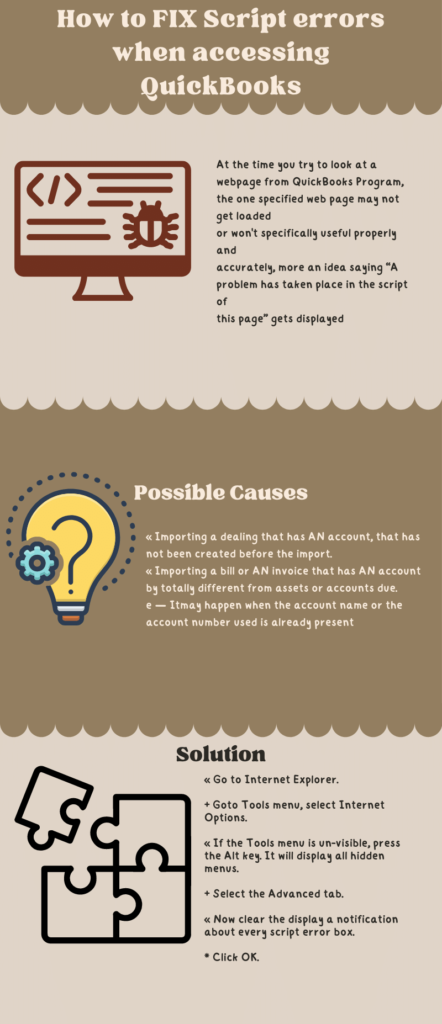
Solution 5: Disable Script Debugging in your browser
- Go to Internet options in IE
- Click on the Advanced tab
- Scroll down below to two options (Disable Script debugging Internet Explorer & Disable script debugging other)
- Check them and click on apply & ok
Solution 6: Configure the security settings of a default security application or third-party application
Any script-blocking feature enabled in the default Windows security application should be disabled. Configure the security application or get help from QuickBooks experts remotely.
Solution 7: Damaged Windows User
If your user in Windows is corrupted or damaged create a fresh new user with equal admin rights to stop getting script errors. This is only applicable if you are getting a QuickBooks script error with every web source.
Solution 8: Re-install the plugin software
Maybe your script processing application is damaged. And you need to re-install or repair the software
- Locate the plugins installed in your control panel
- Reinstall all the plugins like JAVA, ADOBE FLASH, and .Net framework
Solution 9: Verify Active Scripting & Uninstall Active X
Active X controls are disabled at a high-security level in Internet Explorer
- Open IE and go to Internet options
- Select tools and click on the Security tab
- Click on Default Level and click on Ok
Sometimes Active X is damaged which prevents the browser to display QuickBooks data. Uninstall the file to unblock access to your QuickBooks file.
Uninstall or remove the ActiveX file in Internet Explorer
- Go to options in IE
- Click on Settings
- Click on View Objects
- Check all ActiveX files currently installed in your system
- Locate file name starting with qboax like qboax11 or qboax11.dll
- Ensure you close all Internet Explorer running windows and delete the located files from the system
Solution 10: Repair your QuickBooks Data File
Repair your QuickBooks company file using QuickBooks file doctor. Download and install QuickBooks file doctor from the Official QuickBooks download page.
Get in touch with a QuickBooks support expert to help you fix the QuickBooks script error
If the above-provided troubleshooting steps fail to resolve the QuickBooks script error. Get immediate remote support assistance from QuickBooks error support experts on the toll-free helpline at +1800-994-0980.
FAQ
Why do I keep getting script errors in QuickBooks?
QuickBooks faces a problem executing a command that prevents you from attempting to access web-based features. It involves other features like Java, Flash, ActiveX, etc.
How do I fix script errors when accessing QuickBooks desktop?
Repair QuickBooks script error by downloading and installing the QuickBooks tool hub and running the fix script error command in Windows 11.